





















On this page
- How emailing users about new posts works
- What you need
- How to email WordPress users when a post is published: step by step
- Merge tags for new post emails
- Which posts send an email?
- Deliverability and sending limits
- Consent: who should get these emails?
- Troubleshooting
- Other ways to email users about new posts
- FAQ
Your WordPress site already has an audience: the people who registered as subscribers, customers, members or students. When you publish a new post, they are the readers most likely to care, yet WordPress itself has no setting that emails them. Most site owners end up copying each post into a newsletter tool by hand, or installing a notification plugin that sends everyone the same plain message.
This guide shows how to email WordPress users when a post is published, automatically. You set it up once; then every time you publish, each WordPress user gets a designed email with their own first name and the new post’s title, excerpt, featured image and link. Only people who are subscribed receive it, every email carries an unsubscribe link, and you can see who opened and clicked. Watch the 8-minute video, or follow the written steps below.
Video chapters
- 00:00 Introduction
- 00:38 How it works: one post, every reader
- 01:05 Your WordPress users as contacts
- 02:39 Create the automated campaign
- 03:46 What merge tags are
- 04:47 Design the email with merge tags
- 05:53 Choose the recipients
- 06:31 Publish a post
- 06:54 The email your readers get
- 07:12 The campaign report
- 07:32 Recap
Install DoubleScale, import your WordPress users as contacts, then create an Automated email campaign with the Post Published trigger. Design the email once using Last Post merge tags (title, excerpt, featured image, link) and a first-name merge tag, choose your WordPress users as recipients, and activate it. From then on, every post you publish is emailed automatically.
How emailing users about new posts works
You build one email template and one campaign. Publishing a post is the trigger; the email’s merge tags are filled in with that post and with each reader’s details at the moment it is sent.
What you need
- A WordPress site with the users you want to email.
- DoubleScale, a CRM that runs inside WordPress. The free plugin (on WordPress.org) covers contacts, the WordPress user import, workflows and the email builder. Automated campaigns are part of every paid plan, from $99 a year with unlimited contacts.
- A reliable way to send email. Connect an email provider under DoubleScale → SMTP, such as Amazon SES, Brevo, Mailgun, SendGrid or your own SMTP server. Most web hosts limit how many emails PHP can send per hour, which is not enough for a list of users.
Full disclosure: we make DoubleScale. The other ways to do this, and when they make more sense, are compared further down.
How to email WordPress users when a post is published: step by step
Step 1: Bring your WordPress users into DoubleScale
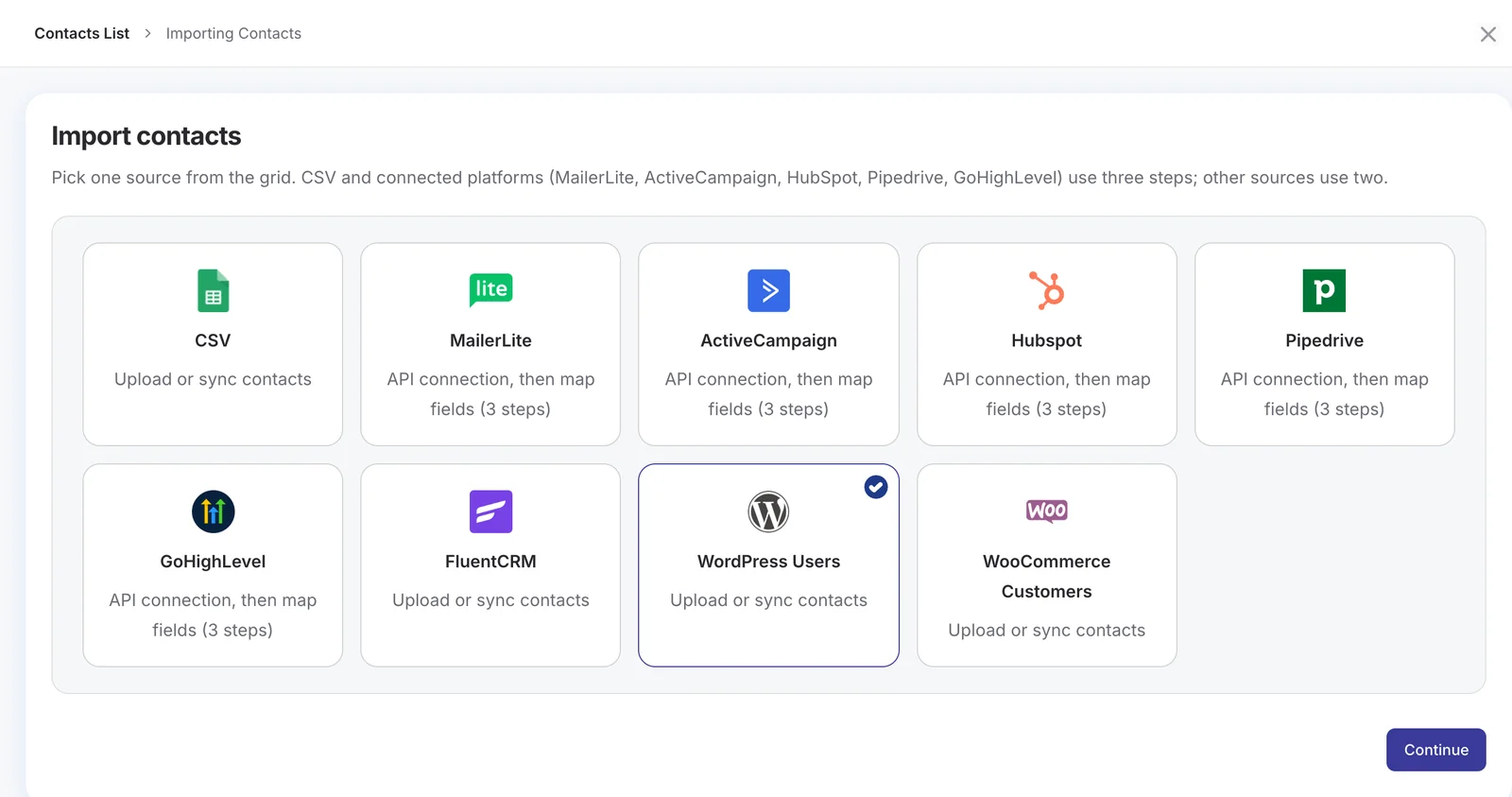
Campaigns send to contacts, so first turn your WordPress users into contacts. Go to DoubleScale → Contacts → Import Contact, pick WordPress Users and click Continue.
The next screen decides how the imported users are organised:
| Option | What it does |
|---|---|
| Assign to Lists / Tags | Adds every imported user to a list or tag, for example “Blog readers”, so you can target them later. |
| Status | The marketing status the contacts get. Subscribed means they can receive campaigns; choose it only for users who agreed to hear from you. |
| Assign imported contacts to | Who owns the contacts on your team, or your lead routing rules. |
| Update Existing Contacts | Off: people already in DoubleScale are skipped. On: their details are updated from WordPress. |
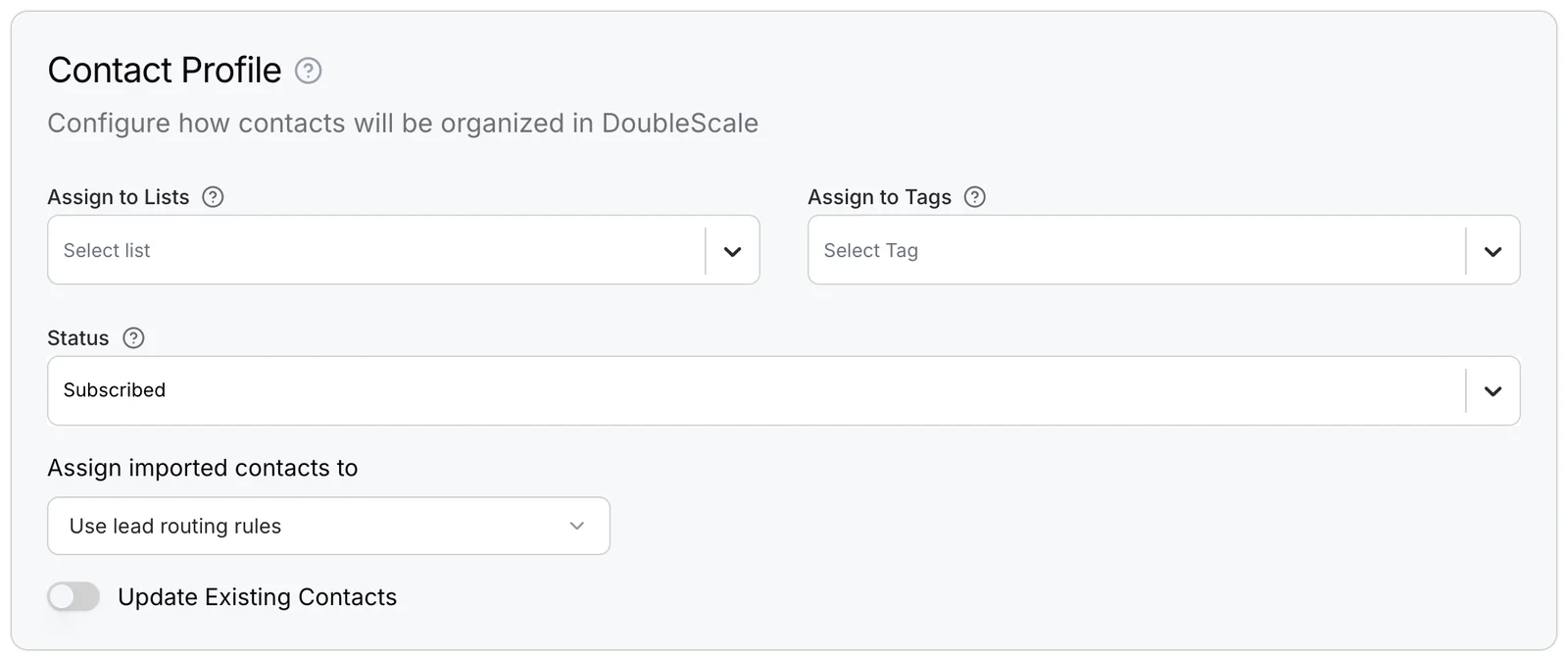
Click Import contacts. Each user arrives with their name and email address from WordPress, and the import summary tells you how many were imported, skipped or failed.
Step 2: Add new users automatically
The import covers the users you have today. To include people who register tomorrow, create a small workflow: Automations → Workflow → Create Automation, choose the User Register trigger (under WordPress), then add the Add Tags action with a tag such as “Registered user”. Switch it to Active and click Save & Publish.
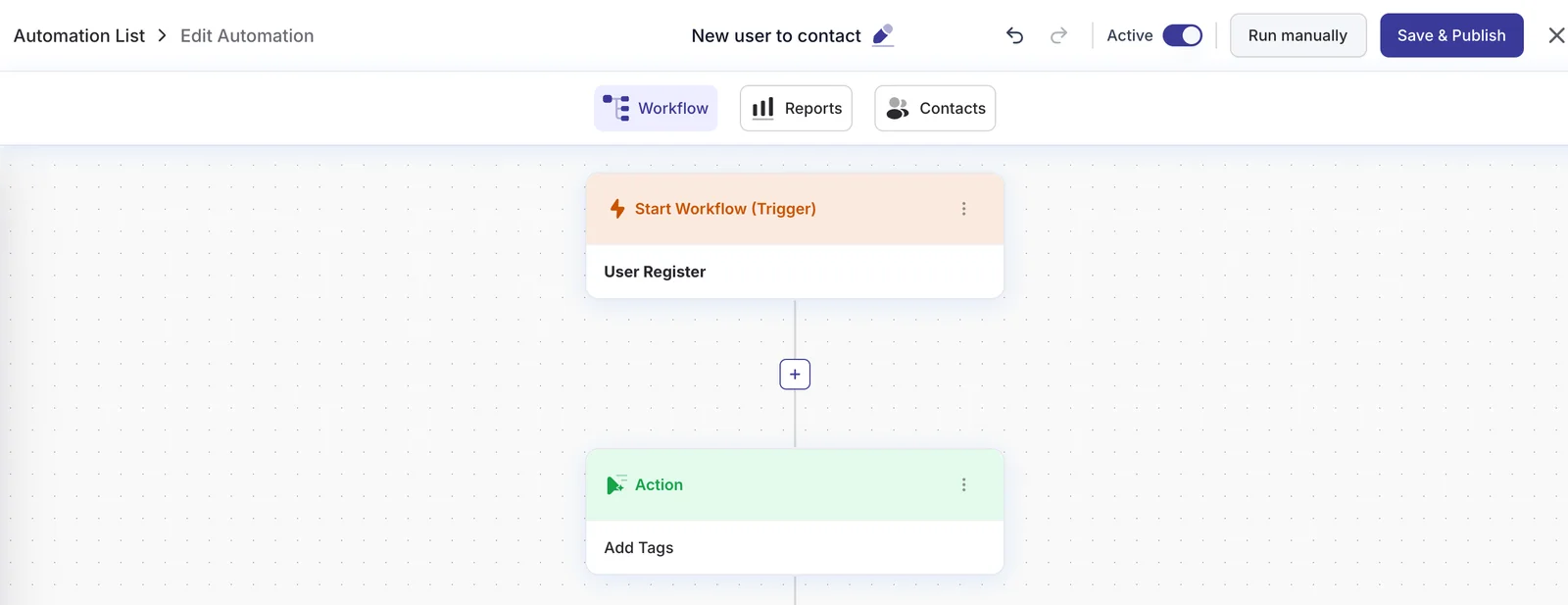
Workflows are included in the free plugin, so this part costs nothing.
Step 3: Create an automated campaign
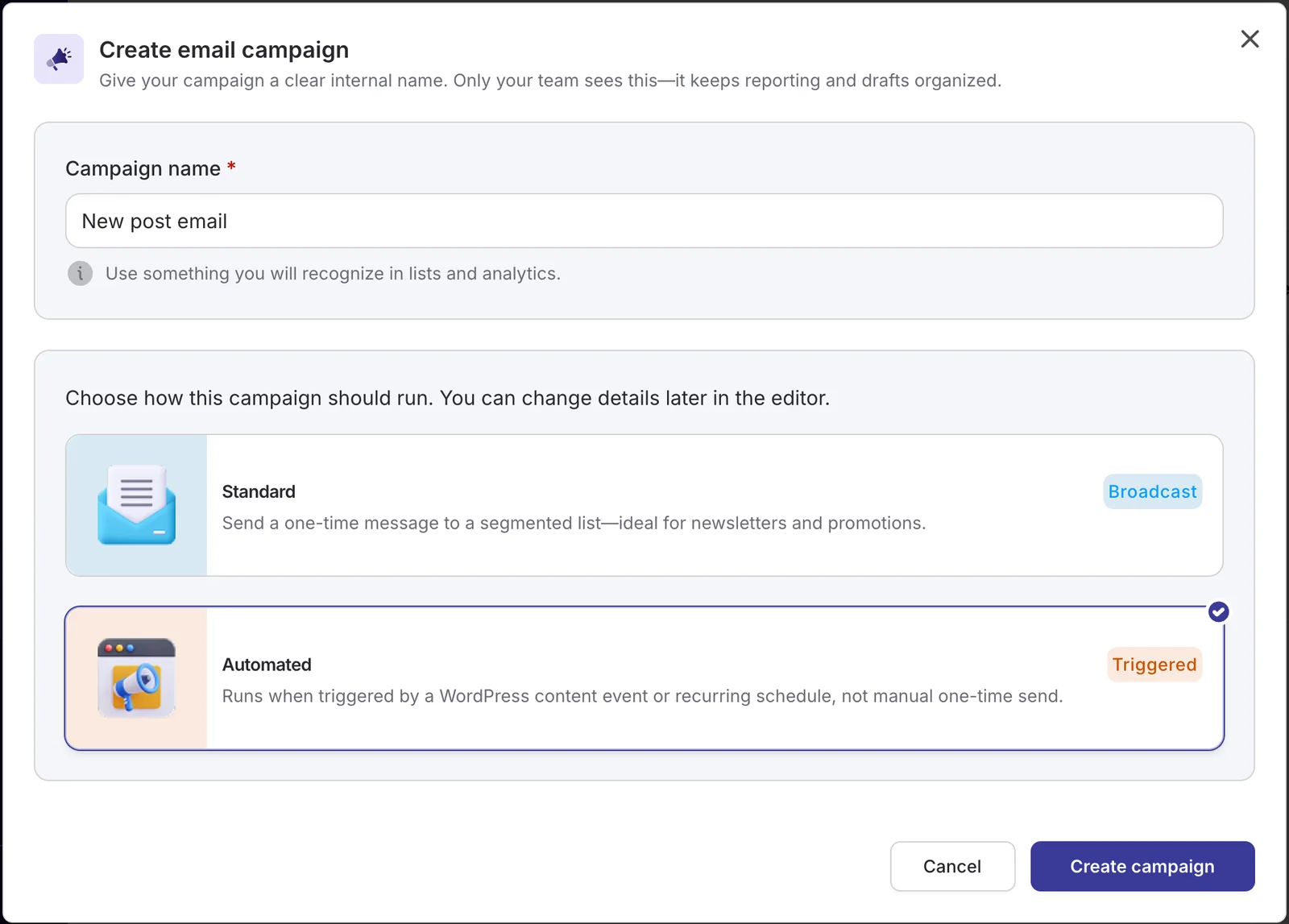
Go to Campaigns → Email Campaigns → Create Campaign, name it (for example “New post email”) and choose Automated. A Standard campaign is a one-time send to a list; an Automated campaign runs by itself whenever its trigger happens.
Step 4: Run it when a post is published
On the trigger step, keep Event-Based, set Trigger Event to Post Published and Post Type to Post. Leave Categories empty to email about every post, or pick categories to email only about those, for example only “Tutorials”.
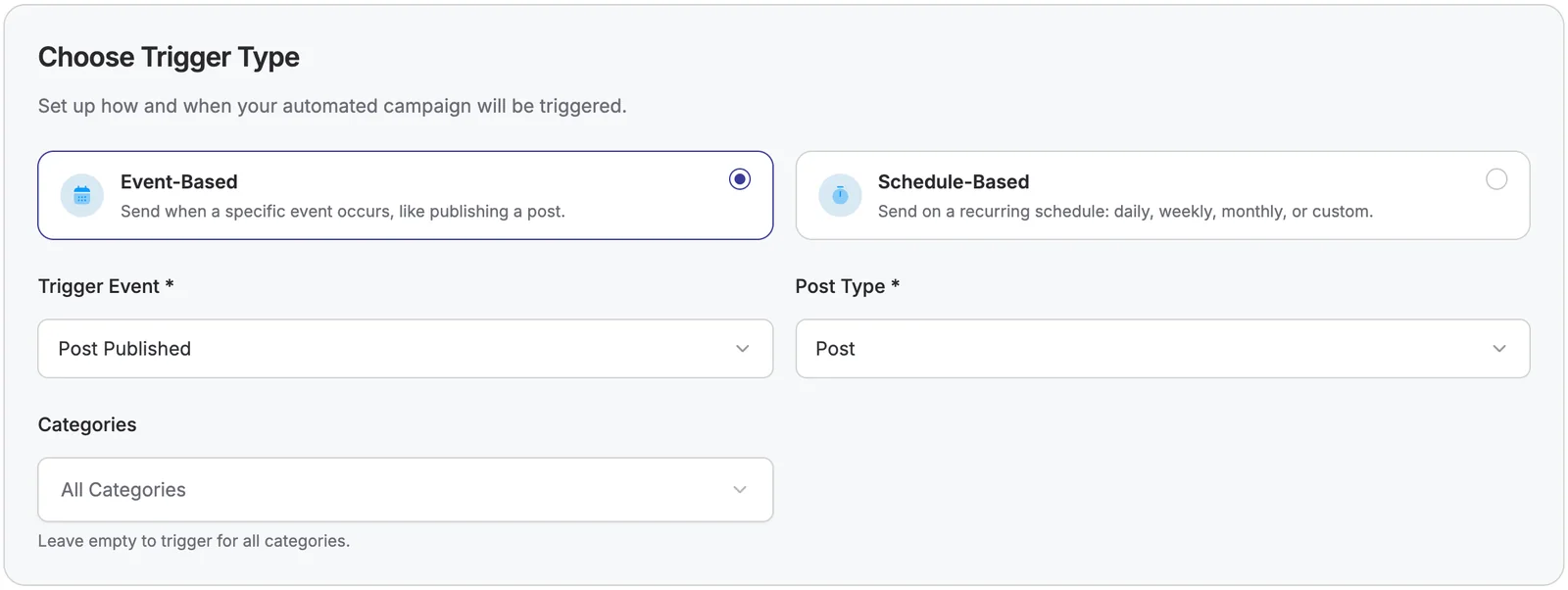
Schedule-Based sends the same campaign daily, weekly or monthly, which suits a regular newsletter. For an email about each new post, Event-Based is the right choice. The Post Type list also includes Pages and, with WooCommerce, Products, so the same setup can announce new products.
Step 5: Sender, subject and preview text
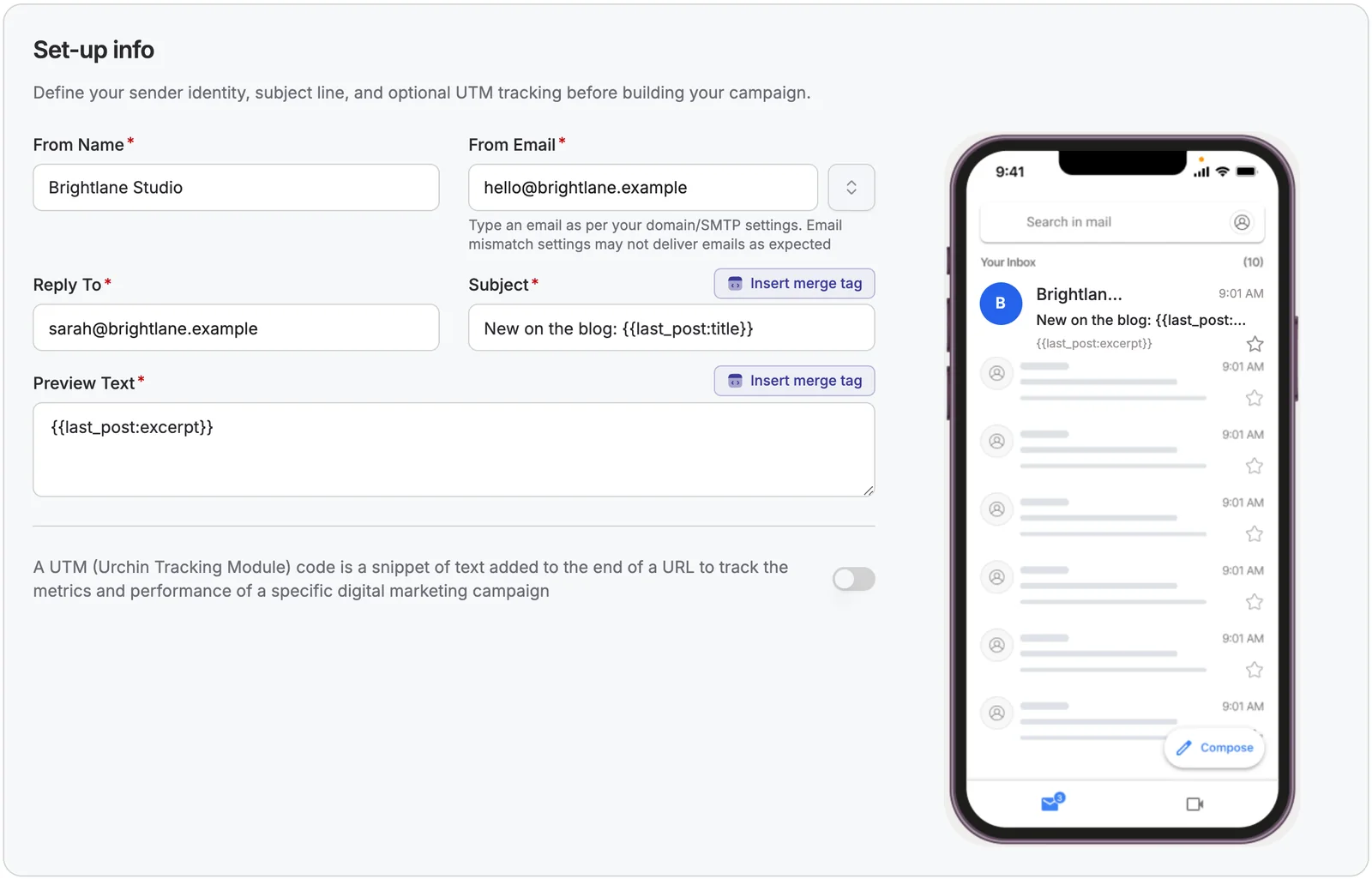
On Set-up info, enter the From Name and From Email (use an address on your own domain that your email provider is set up to send from) and a Reply To address where replies should go.
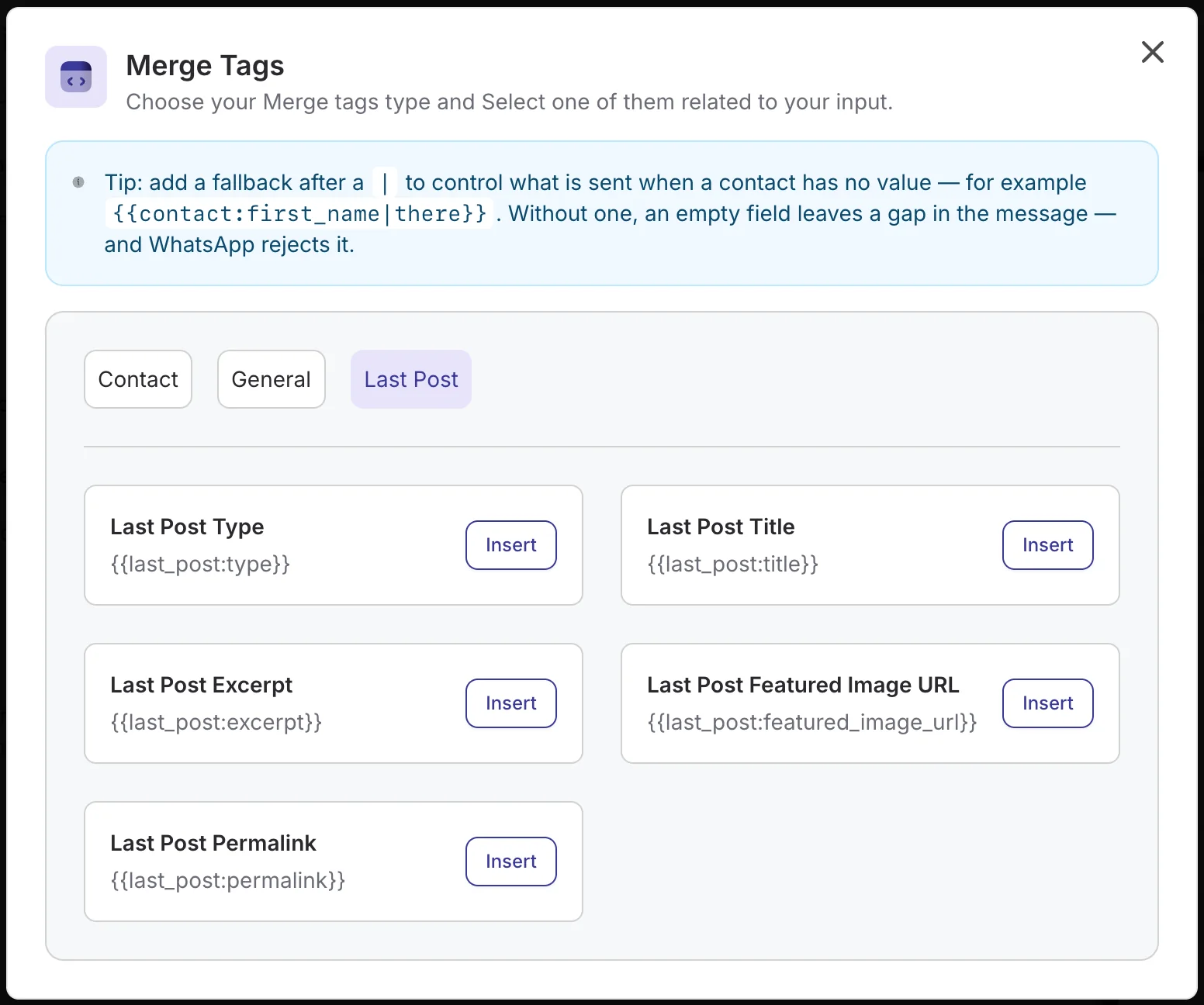
The subject should change with every post, so use a merge tag. Type New on the blog: and a space, click Insert merge tag, open Last Post and insert Last Post Title. Do the same for Preview Text with Last Post Excerpt; the phone preview shows how it will look in the inbox.
Step 6: Design the email with merge tags
Click Next Step to choose a template (ready-made, generated with AI, from scratch, or one you saved) and open the drag-and-drop builder. A good new-post email needs only five blocks, and each one uses a merge tag:
- Image: set it to
{{last_post:featured_image_url}}with the Insert merge tag button under the image, and link it to{{last_post:permalink}}. The builder shows the tag instead of a picture, because the image is chosen when each email is sent. - Greeting:
Hi {{contact:first_name|there}},. The word after the bar is the fallback, so a reader without a first name reads “Hi there,”. - Title:
{{last_post:title}}as a heading. - Excerpt:
{{last_post:excerpt}}as the teaser paragraph. - Button: “Read the article”, linking to
{{last_post:permalink}}.
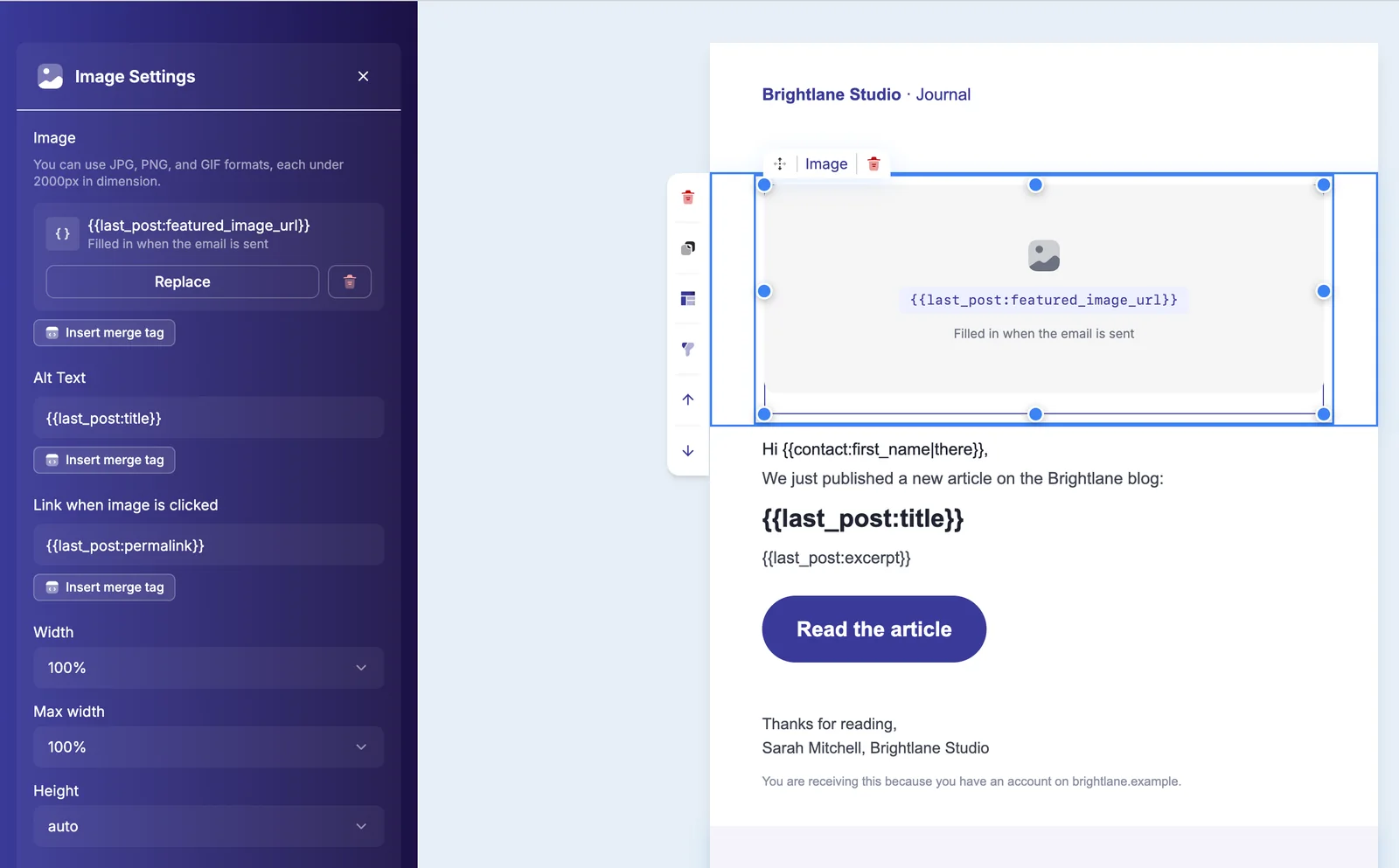
Every field that accepts merge tags has an Insert merge tag button, including text, image, alt text, links and buttons, so you never have to remember the syntax.
Send yourself a test. Click Send test email and enter your address. The test fills the Last Post tags with your latest published post, so you see a realistic email before going live. Then click Save & choose recipients.
Step 7: Choose who receives it
On Recipients, choose Advanced Filter and add two rules joined by AND: User → Is User → Yes (the contact is a WordPress user) and User → Role → Matches → Subscriber. Click Apply Filters to see the total. Use another role, such as Customer or Member, or remove the second rule to include every user.
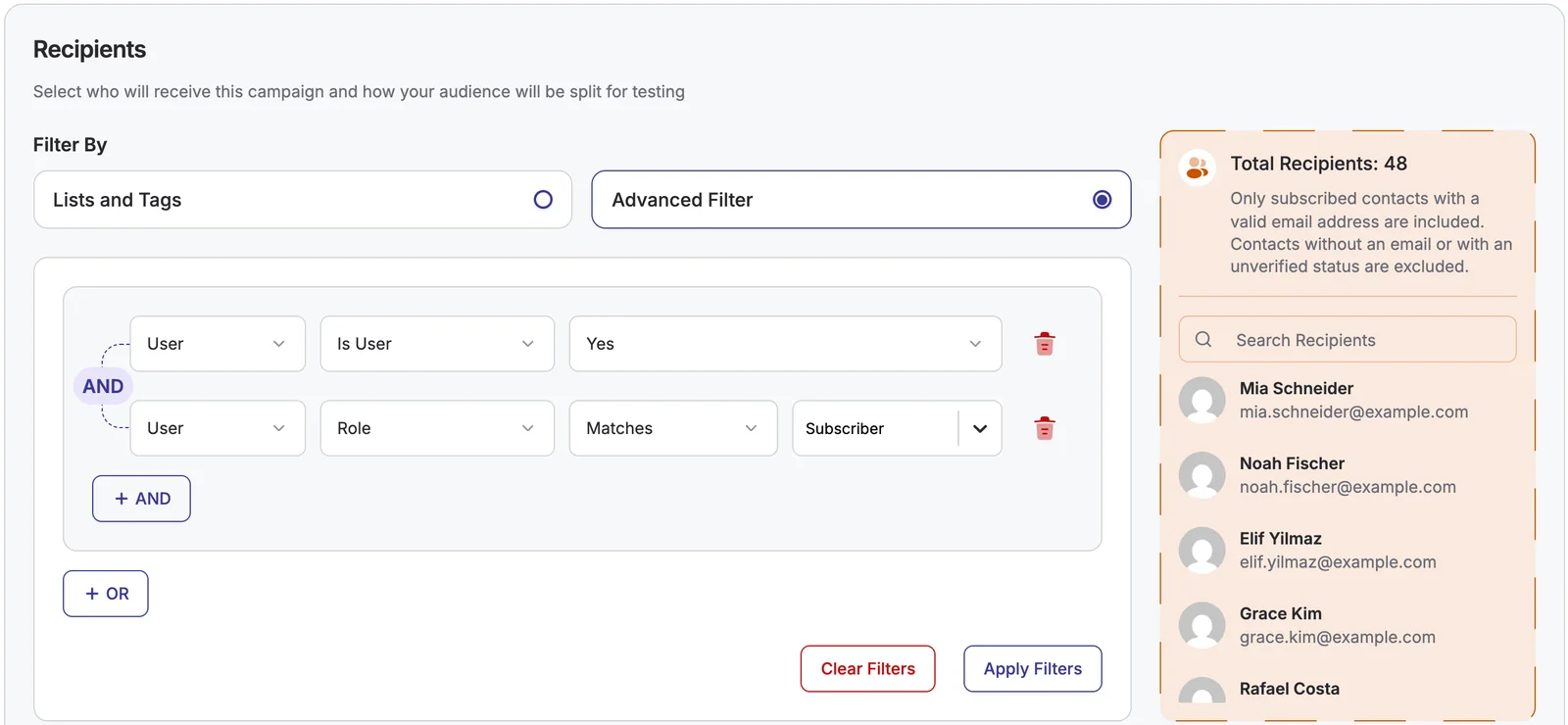
If you tagged users in steps 1 and 2, Lists and Tags works too. Because the audience is a filter, new users who match it are included automatically next time.
Step 8: Review and activate
Check the summary on Review and click Activate Campaign. The campaign page shows “No execution runs yet”: it is active and waiting for your next post.
Step 9: Publish a post and see the result
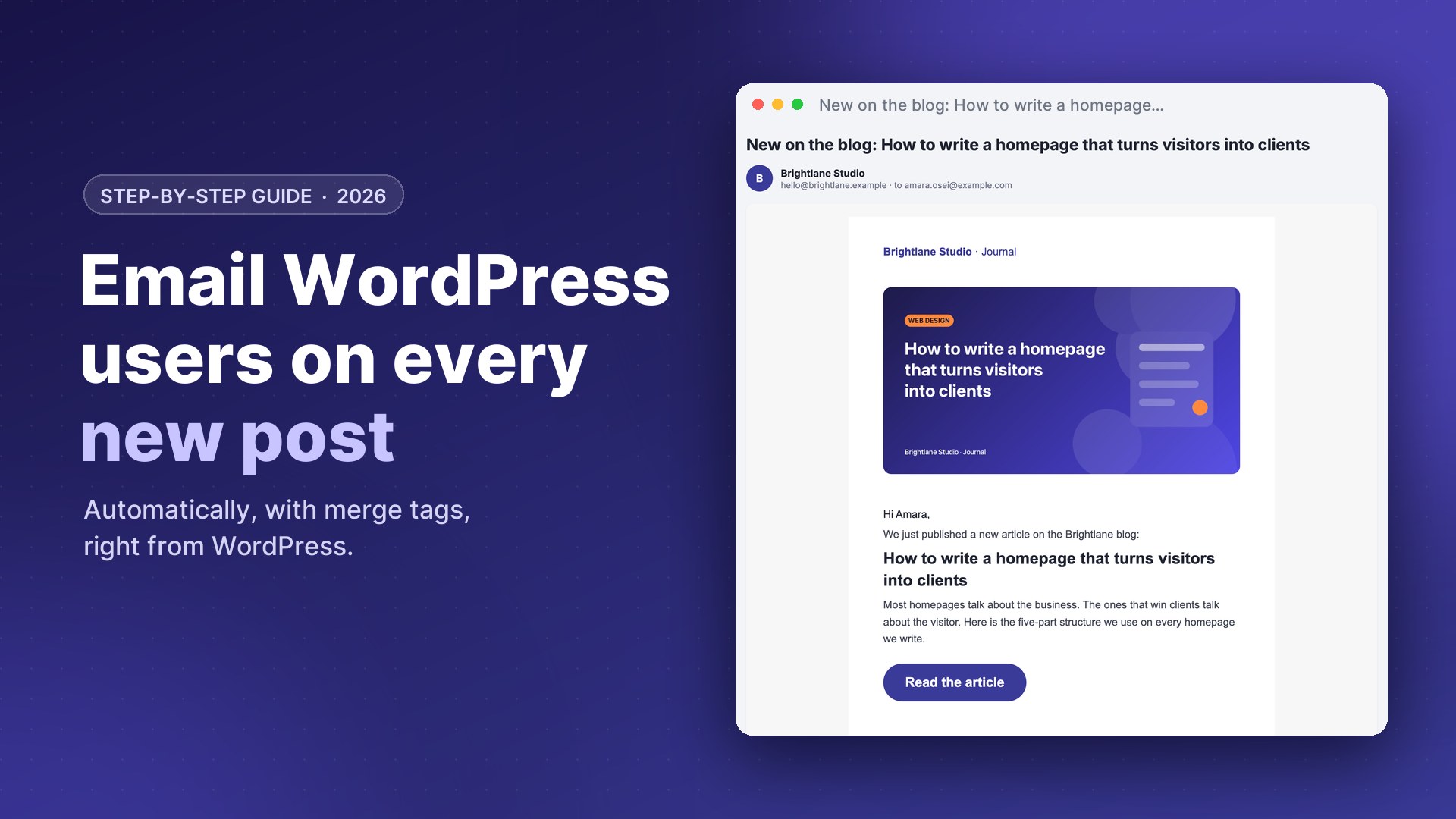
Publish a post the way you always do, with a featured image, category and excerpt. Within a minute or two, DoubleScale sends the campaign in the background. Here is the real email one reader received:
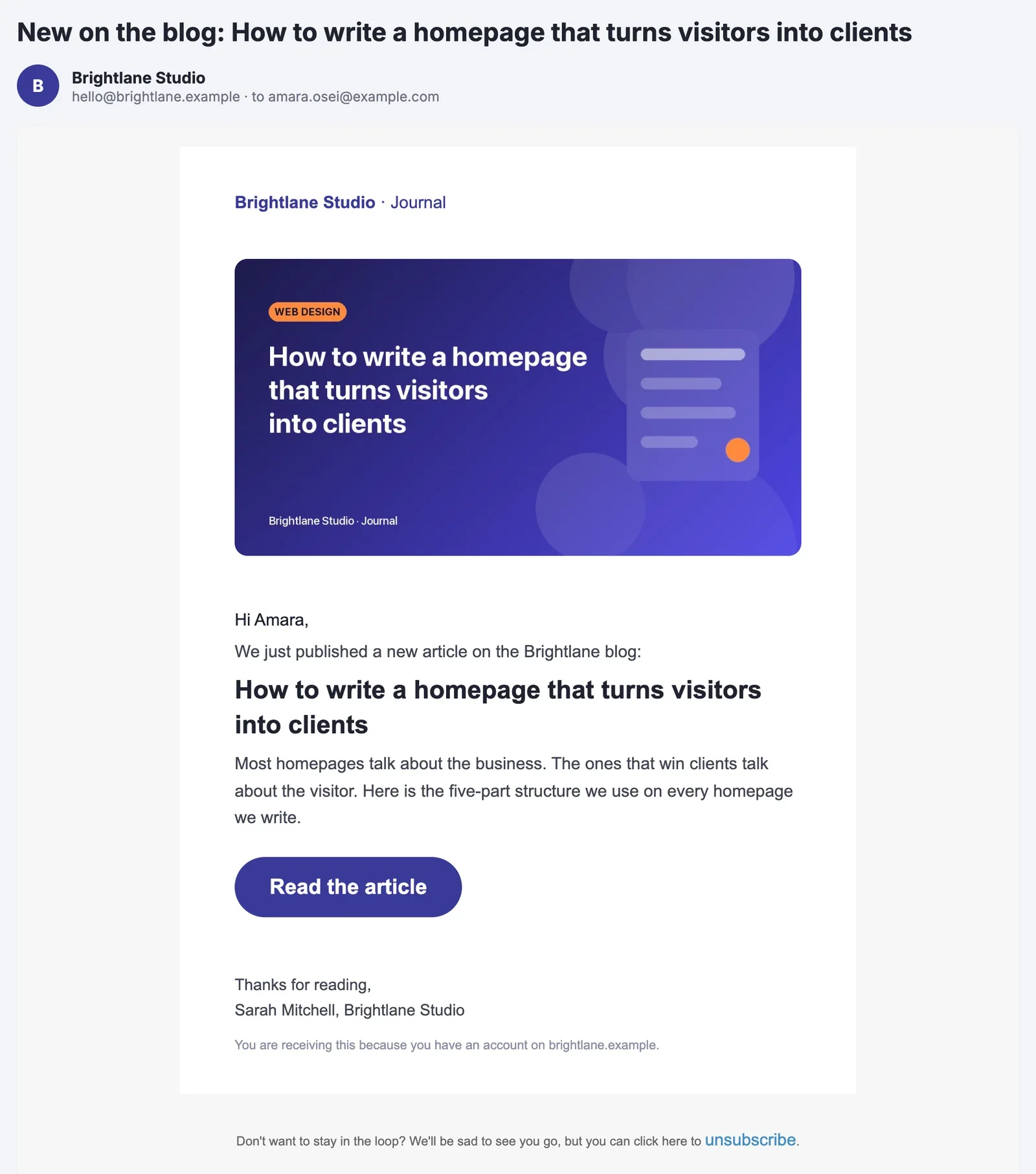
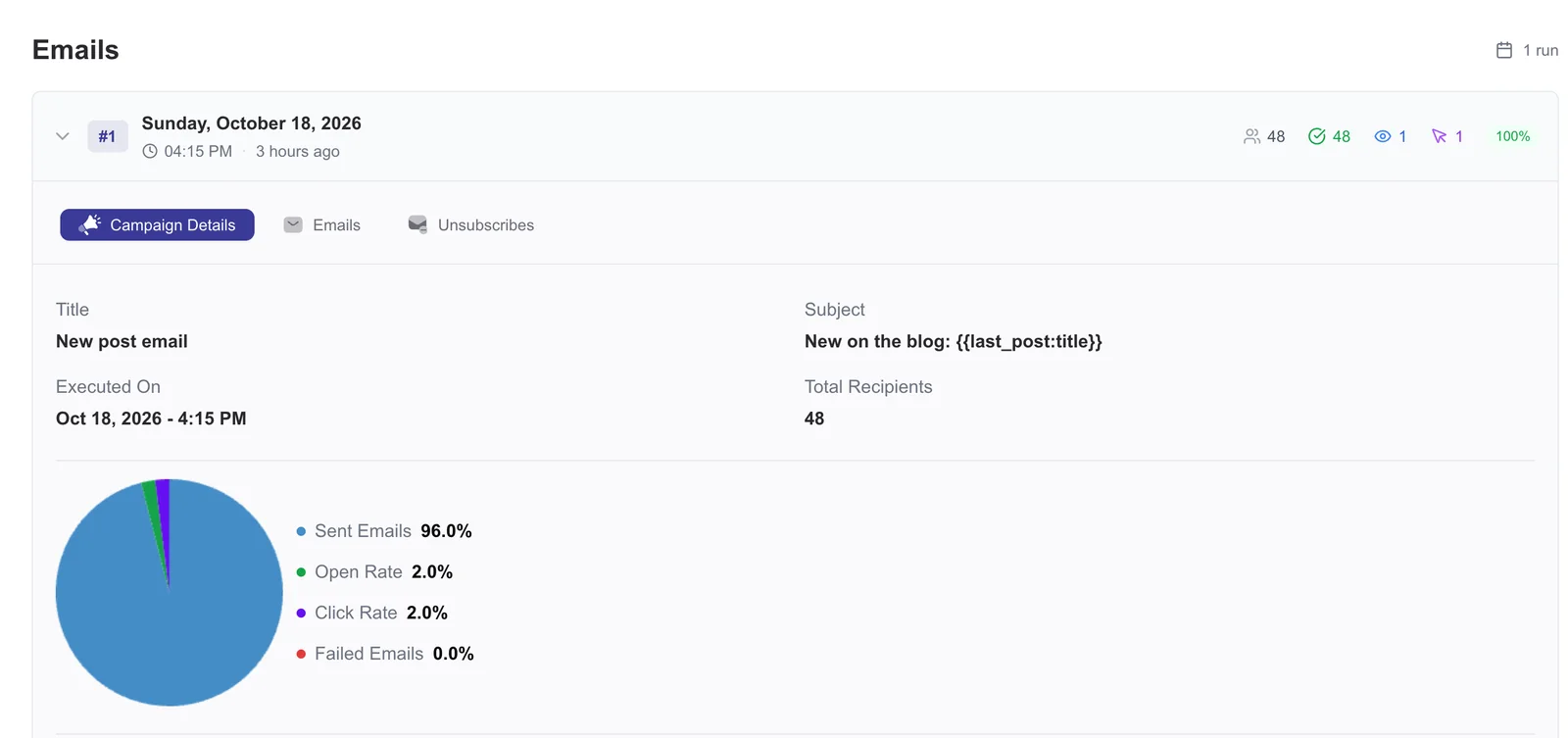
Back in DoubleScale, open the campaign. Each published post is one run, with how many readers it reached, delivery, opens and clicks; expand a run for the details and the individual emails.
Merge tags for new post emails
| Merge tag | Becomes | Use it in |
|---|---|---|
{{last_post:title}} |
The post’s title | Subject, heading, alt text |
{{last_post:excerpt}} |
The post’s excerpt (or the start of the content) | Preview text, teaser paragraph |
{{last_post:featured_image_url}} |
The featured image’s URL | Image block |
{{last_post:permalink}} |
The link to the post | Button, image link, text links |
{{last_post:type}} |
The post type, such as post or product | Text, when one email covers several types |
{{contact:first_name|there}} |
The reader’s first name, or “there” | Greeting, subject |
Add a fallback after a bar to any contact tag: an empty field otherwise leaves a gap in the sentence. Write a short, specific excerpt for each post; it becomes your preview text and teaser.
Which posts send an email?
| When you… | Email sent? |
|---|---|
| Publish a new post | Yes, once |
| Schedule a post | Yes, when it goes live |
| Update a post that is already published | No, readers are not emailed twice |
| Save a draft, or publish privately | No |
| Publish in a category the campaign does not include | No |
| Publish a page or product | Only if a campaign uses that post type |
Because only the first publish counts, fixing a typo after publishing never sends a second email. If you want to check how a post will look first, schedule it a few minutes ahead and send yourself a test in the meantime.
Deliverability and sending limits
- Send through a real email provider and set up SPF, DKIM and DMARC for your sending domain; Gmail’s sender guidelines require them for bulk mail.
- Respect your provider’s limits with Settings → Email → Max Emails in Second and Max Emails in Day. If a day’s limit is reached, sending pauses and continues the next day instead of failing.
- Unsubscribes are handled for you. Every campaign email gets an unsubscribe link and a one-click List-Unsubscribe header, and unsubscribed contacts are skipped automatically.
- Send background jobs on time. Campaigns run in the background with WordPress cron. On a low-traffic site, set up a real server cron so emails do not wait for the next visitor.
More on keeping lists clean: bounce handling in WordPress.
Consent: who should get these emails?
A WordPress account is not the same as permission to receive marketing email. Only mark users as subscribed if they agreed to it, for example with a checkbox on your registration form, and let new subscribers confirm with double opt-in. Your contacts and their history stay in your own WordPress database; data is only sent to the email provider you connect.
Troubleshooting
- No email after publishing. Check that the campaign is Active, that the post’s type and category match the trigger, and that it was a first publish, not an update.
- Some users did not receive it. Only subscribed contacts with a valid email are sent to. Check the contact’s status and whether the user matches your recipient filter.
- The image is missing. The post has no featured image. Set one, or replace the image block with a fixed image.
- Emails arrive late. WordPress cron only runs on page visits; add a real cron job, and check the daily limit in Settings → Email.
- Emails land in spam. Send from your own domain through a proper provider, with SPF, DKIM and DMARC in place.
Other ways to email users about new posts
| Method | Good for | Watch out for |
|---|---|---|
Custom code (a transition_post_status hook and wp_mail) |
Developers who want a tiny, plain-text alert | No design, unsubscribe handling, sending limits or reports unless you build them |
| Notification plugins | Internal alerts to editors and admins | Usually one generic message to everyone, without per-reader merge tags or unsubscribe management |
| Newsletter services with RSS-to-email | Sites that already run their newsletter on an external service | They email their own list, so WordPress users must be exported and kept in sync |
| A WordPress CRM such as DoubleScale | Emailing WordPress users directly, with merge tags, segments and reports | Automated campaigns need a paid plan; you connect your own email provider |
If you also want to welcome new subscribers or nurture them over several emails, see how to build a welcome email series and email drip campaigns in WordPress. For the bigger picture, read our WordPress marketing automation guide and the comparison of the best WordPress email marketing plugins.
FAQ
Does WordPress email users when a new post is published?
No. WordPress can email site admins about some events, but it has no built-in option to notify users or subscribers about new posts. You need a plugin or custom code.
How do I send new post notifications only for certain categories?
In the automated campaign’s trigger, choose the categories under Post Published. Posts in other categories do not send the email.
Will users get another email when I update a published post?
No. The campaign runs on a post’s first publish only, so edits and updates never send it again.
Can I include the featured image and excerpt in the email?
Yes. Use {{last_post:featured_image_url}} in an image block and {{last_post:excerpt}} in a text block; both are filled in with the post that was just published.
Can I email only some user roles?
Yes. In the recipients step, use the Advanced Filter with User → Role, for example Subscriber or Customer, or target a list or tag instead.
Do unsubscribed users still get new post emails?
No. Only subscribed contacts receive campaigns, every email includes an unsubscribe link, and anyone who unsubscribes is excluded from then on.
Can I send a weekly digest instead of one email per post?
Choose Schedule-Based instead of Event-Based to send a campaign daily, weekly or monthly, for example a weekly newsletter.
Is this free?
Importing WordPress users, workflows and the email builder are free. Automated campaigns, which send the email when a post is published, are part of DoubleScale’s paid plans, from $99 a year with unlimited contacts.
DoubleScale brings your whole business into WordPress: contacts, email campaigns and automations, with unlimited contacts and your data on your own site.
Get our guides first on GoogleAdd DoubleScale as a preferred source and our articles show up more often in your Top Stories.

Mohamed Magdy, Founder & CEO, DoubleScale
Mohamed Magdy is the founder and CEO of DoubleScale, the all-in-one CRM for WordPress. He writes about CRM, email marketing and automation for WordPress businesses.
Practical CRM tips, once a month
Guides on growing with WordPress: lead capture, email marketing, automations and sales. No spam, unsubscribe anytime.