



















On this page
Calendly charges $10-20 per user per month for features that are table stakes for any appointment-based business. For agencies, coaches, consultants, and service businesses already running WordPress, paying for a separate scheduling SaaS makes very little sense when the same functionality can live self-hosted inside your existing site.
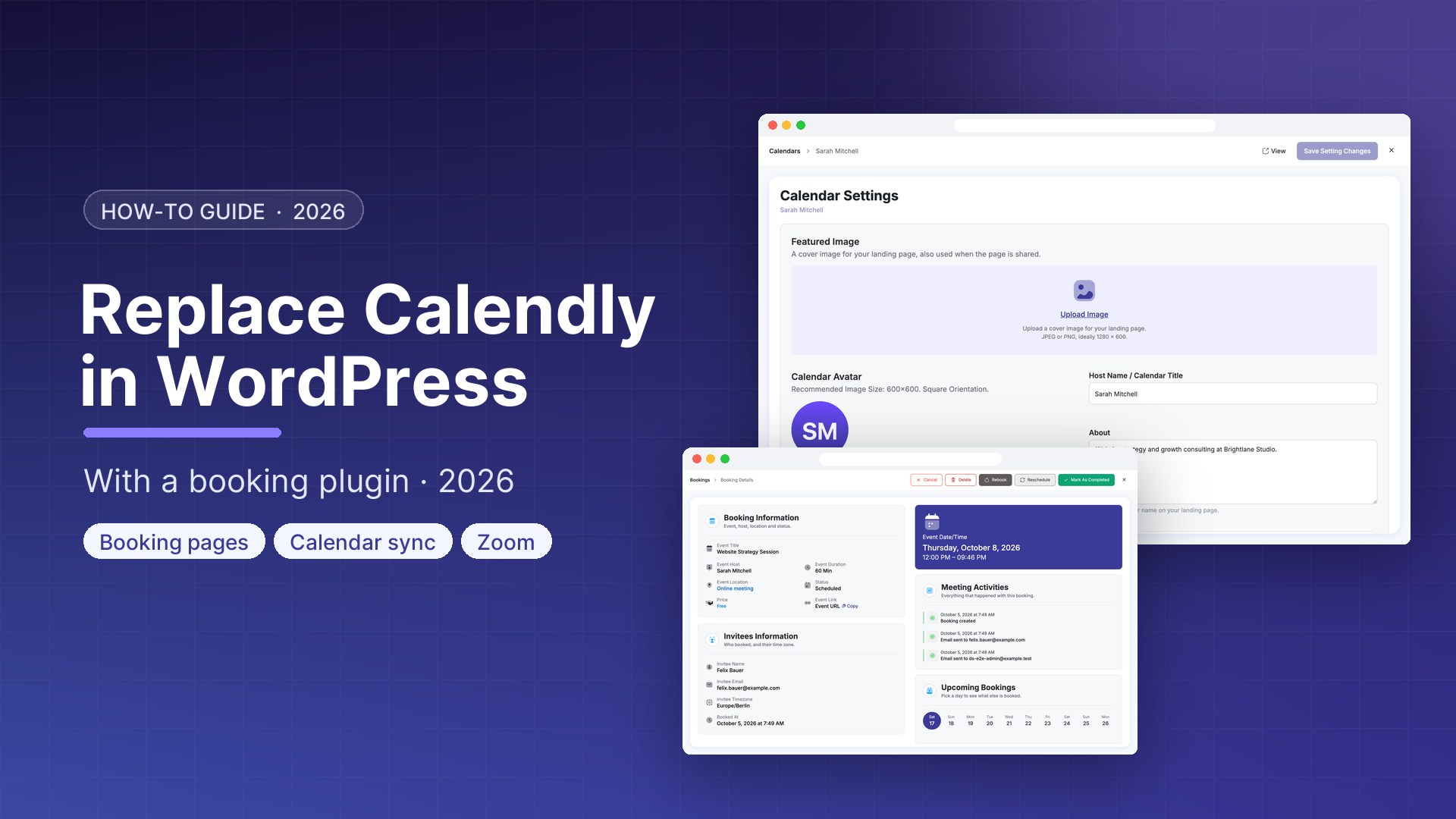
DoubleScale Pro includes a full booking system integrated directly with its CRM, automations, and email engine. When a client books an appointment, they become a CRM contact automatically, their booking triggers your onboarding sequence, and the meeting appears in your calendar — all without leaving WordPress.
Calendly vs DoubleScale Booking
| Feature | Calendly Standard | DoubleScale Pro |
|---|---|---|
| Unlimited event types | Teams plan | Yes |
| Group events | Yes | Yes |
| Round-robin scheduling | Teams plan | Yes |
| Automated reminders | Email only | Email + SMS + WhatsApp |
| Calendar sync | Google, Outlook, Apple | Google, Outlook, Apple |
| CRM integration | Requires Zapier | Native built-in CRM |
| Post-booking automation | Limited | Full multi-channel automation |
| Data ownership | Calendly servers | Your server |
| Monthly cost | $10-20 per user | DoubleScale Pro flat rate |
Setting Up the DoubleScale Booking Module
Step 1: Enable Booking
- Go to DoubleScale → Modules
- Toggle Booking to Active
Step 2: Set Your Availability
- Go to DoubleScale → Booking → Availability
- Set working hours for each day
- Block out recurring unavailable times
- Set your timezone (DoubleScale converts to the client’s local timezone)
- Set minimum booking notice (e.g., 24 hours in advance)
- Set buffer time between appointments
Step 3: Create Service Types
- Go to DoubleScale → Booking → Services → Add Service
- Configure: Name, Duration, Price (free or paid), Location (Zoom / Google Meet / phone / in-person), Description, Booking form fields, Maximum bookings per slot
Step 4: Connect Your Calendar
- Go to DoubleScale → Settings → Calendar Integrations
- Connect Google Calendar via OAuth — DoubleScale reads existing events and writes new bookings automatically
- Or connect Outlook Calendar via Microsoft OAuth
- Or connect Apple Calendar via CalDAV
Step 5: Create Your Booking Page
- Create a WordPress page (e.g., /book-a-call/)
- Add the booking shortcode: Invalid event ID.
- The widget shows real-time availability for client self-scheduling
Automating the Client Journey After Booking
Booking Confirmation and Reminder Sequence
Trigger: Booking Created → Email: confirmation with Zoom link and preparation checklist → Add to “Booked Clients” list → Wait until 24 hours before booking → Email: tomorrow reminder + SMS: “Reminder: call tomorrow” → Wait until 1 hour before → WhatsApp: “Your call starts in 1 hour. Join: [link]”
Post-Meeting Follow-Up
Trigger: Booking Completed → Wait 2 hours → Email: “Thanks for our call” with next steps → Create Deal in sales pipeline → Wait 3 days → If deal still in Qualified stage: Send follow-up with proposal.
No-Show Re-Engagement
Trigger: Booking Missed → Email: “Sorry we missed each other — here is a link to reschedule” → Wait 2 days → SMS: “Still interested? Reply YES and I will send you a new link.”
Get our guides first on GoogleAdd DoubleScale as a preferred source and our articles show up more often in your Top Stories.

Mohamed Magdy, Founder & CEO, DoubleScale
Mohamed Magdy is the founder and CEO of DoubleScale, the all-in-one CRM for WordPress. He writes about CRM, email marketing and automation for WordPress businesses.
Practical CRM tips, once a month
Guides on growing with WordPress: lead capture, email marketing, automations and sales. No spam, unsubscribe anytime.