






















On this page
A shared Gmail inbox does not scale. Two agents reply to the same customer, last month’s refund thread is unsearchable, and nobody can see whether the person who just wrote in already has a deal or a WooCommerce order.
DoubleScale includes a Helpdesk module inside WordPress. Tickets sit on the same CRM contact as emails, tags, and deals. The core (tickets, web mailboxes, portal, assignment, notes, attachments, reports) ships in the free plugin. Pro adds IMAP email-to-ticket, inbound webhooks, ticket custom fields, idle auto-close, and automation actions.
This is the setup path. For plugin comparisons (SupportCandy, Awesome Support, Freshdesk), see WordPress support ticket plugins compared.
What you get (and what you do not)
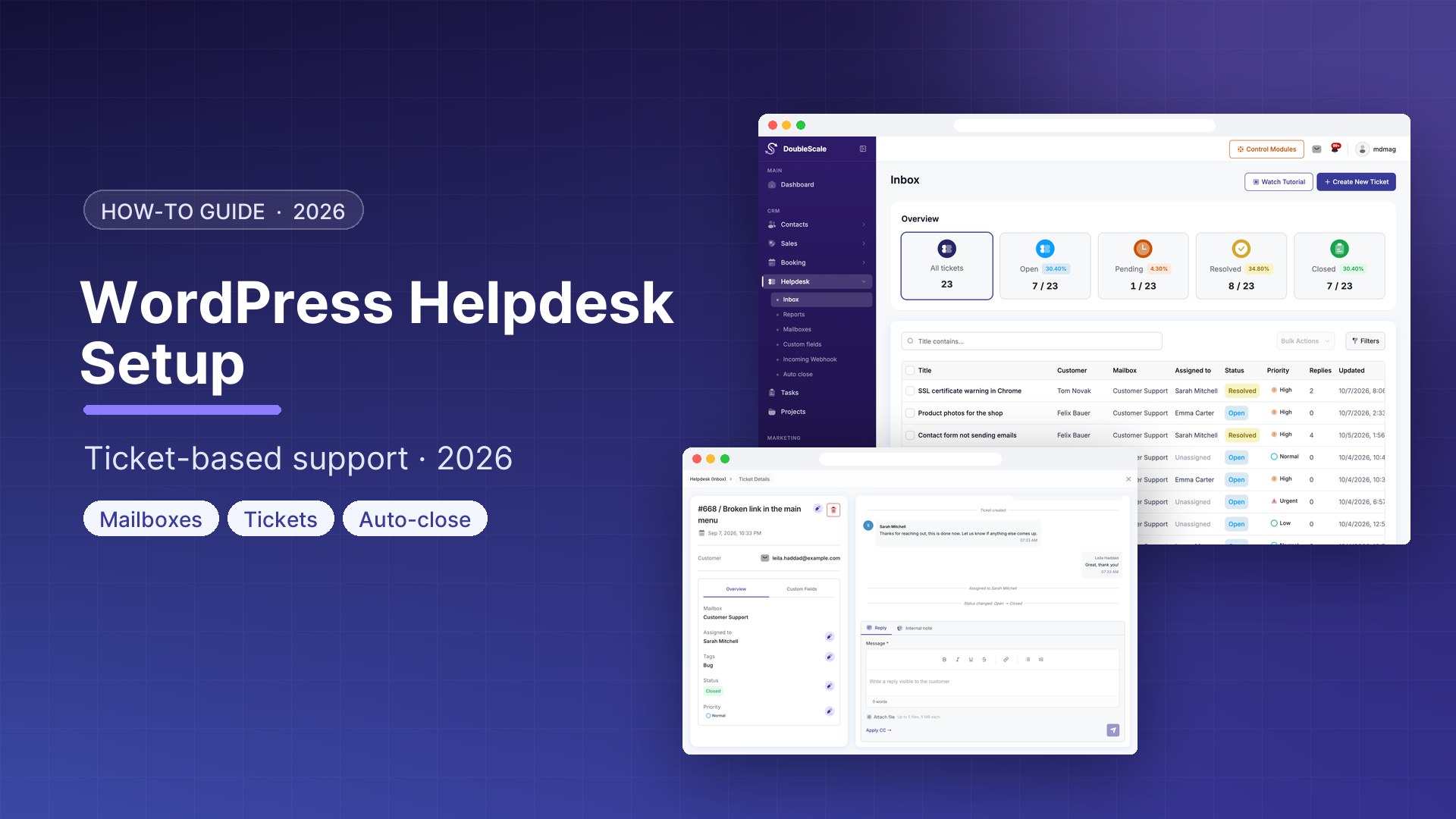
Each ticket has a status (open, pending, resolved, closed), a priority (low, normal, high, urgent), an assigned agent, a mailbox/channel, CRM tags, a customer-visible thread, and internal notes. Customers use the portal or a guest hash link. Agents work from the Helpdesk inbox in the DoubleScale app.
DoubleScale does not include SLA countdown clocks, CSAT surveys, round-robin assignment, or a saved-reply library. If those are mandatory on day one, use a dedicated SaaS helpdesk. If you need tickets next to the CRM contact, continue here.
Enable the Helpdesk module
- Go to DoubleScale → Settings → Modules
- Toggle Helpdesk on
- A Helpdesk item appears in the DoubleScale sidebar (inbox, mailboxes, reports)
Support Manager and Support Agent roles can be scoped to Helpdesk so agents do not need the full CRM menu.
Step 1: Create a mailbox
Mailboxes are channels (departments), not a separate “categories” screen.
- Go to DoubleScale → Helpdesk → Mailboxes → Add
- Name it (General Support, Billing, Technical)
- Start with a web mailbox if tickets will come from the portal or a form. That works on the free plugin.
- Switch the mailbox to email when
support@yourdomain.comshould mint tickets. IMAP polling (about every minute) or forwarding into the CRM inbox requires Pro.
Step 2: Put a portal on your site
- Create or use a page such as
/support/ - Add the support portal shortcode:
DoubleScale Support
Please login or create an account to access the Customer Support Portal
Forgot your password? Reset password
- Logged-in customers can also see tickets inside the client portal
Every ticket also has a public hash URL so a guest can reopen the same thread without wp-admin.
Step 3: Work the inbox
When an agent opens a ticket they see the contact (tags, history, related activity), the conversation, priority, mailbox, and attachments. Replies go to the customer. Internal notes do not. You can CC extra recipients on a reply, move the ticket to another mailbox, assign an agent, and close it. Bulk actions cover reply, assign, mailbox, tags, close, and delete.
That CRM context is the point: the agent can see this is the same person as the open deal or the WooCommerce customer, without switching tools.
Step 4: Automations (Pro)
Ticket triggers include created, reply or note added, status/priority changed, agent assigned, and closed. Pro actions can create, assign, close, or add a note. Example: form submitted → create a ticket on that contact’s mailbox. Idle tickets can auto-close on a daily job if you enable it.
There is no native ticket↔deal foreign key. If a support issue should spawn a sales follow-up, create a CRM task via automation on the contact.
Reporting
Helpdesk reports cover volume, agents, mailboxes, and tickets over time. Use them to see where work piles up. They are not SLA-breach dashboards.
Checklist
- Helpdesk module on
- At least one mailbox (web now; email when Pro IMAP is ready)
- Portal page with
DoubleScale Support
Please login or create an account to access the Customer Support Portal
Forgot your password? Reset password
- Agents assigned; priorities used on real tickets
- Optional Pro: IMAP, webhook intake, auto-close, automation actions
Download DoubleScale free · Launch a demo · See Pro pricing
Frequently asked questions
Is the DoubleScale helpdesk free?
Tickets, web mailboxes, portal, guest links, assignment, notes, attachments, and reports are in the free plugin. Email-to-ticket (IMAP), webhooks, ticket custom fields, auto-close, and support automation actions require Pro.
How do customers submit tickets?
From the support portal shortcode, the client portal Tickets section, or (on Pro) by emailing a mailbox with IMAP/forwarding enabled. Guests keep a hash link to the same ticket.
Does it replace Zendesk?
For WordPress teams that want CRM-native tickets, yes as a helpdesk. It does not replace Zendesk on SLA, CSAT, or ITSM. See Zendesk alternatives for WordPress for the SaaS shortlist.
Get our guides first on GoogleAdd DoubleScale as a preferred source and our articles show up more often in your Top Stories.

Mohamed Magdy, Founder & CEO, DoubleScale
Mohamed Magdy is the founder and CEO of DoubleScale, the all-in-one CRM for WordPress. He writes about CRM, email marketing and automation for WordPress businesses.
Practical CRM tips, once a month
Guides on growing with WordPress: lead capture, email marketing, automations and sales. No spam, unsubscribe anytime.