




















Managers see it all
CRM managers and project managers see everyone's time; everyone else sees their own.
Timers and time sheets on your projects, tasks, deals and tickets, inside the CRM you already use. Turn un-billed hours into a draft invoice in two clicks, and let clients see the time worked in their portal.
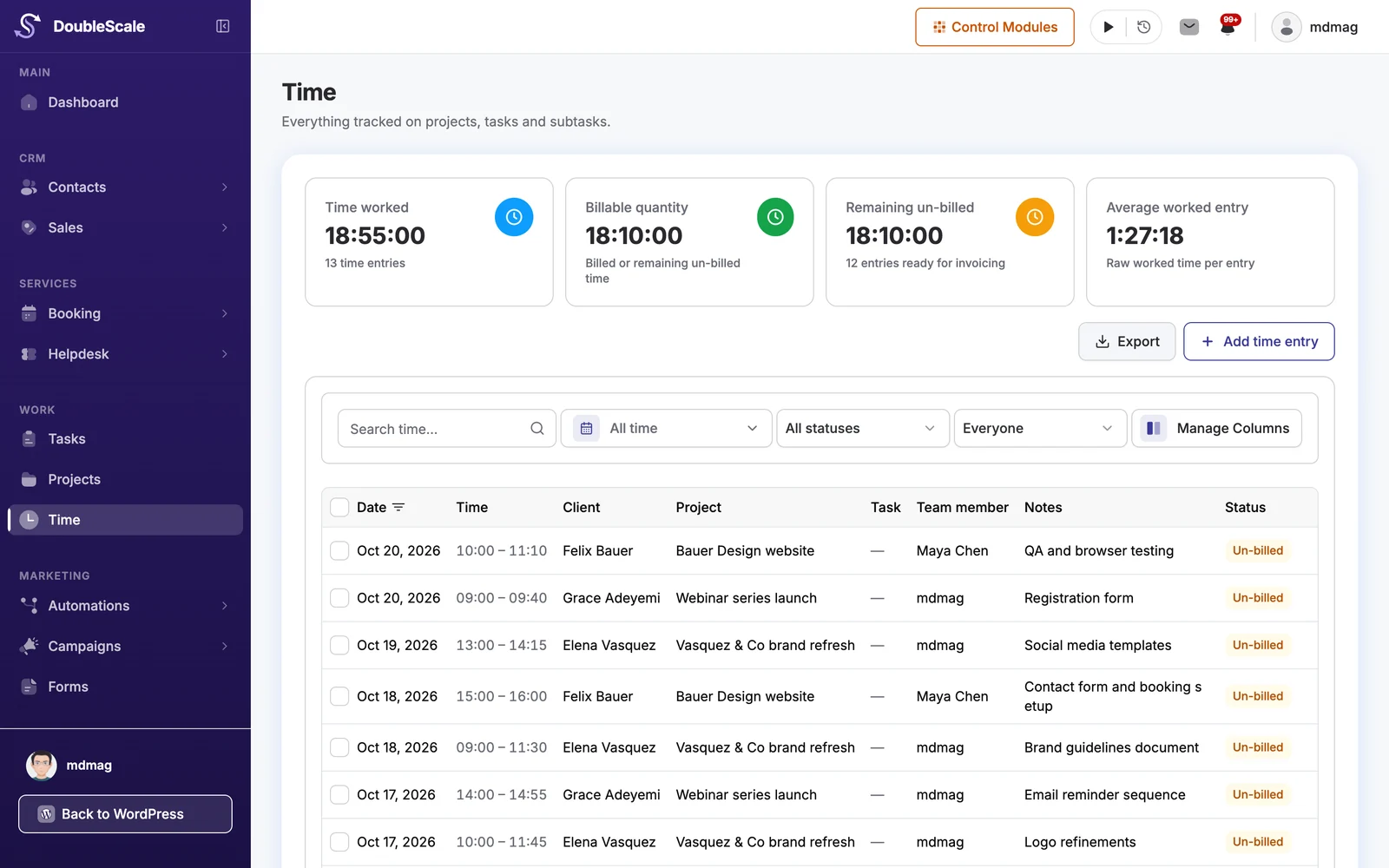
Time lives on the same records as the work, so nothing has to be copied from another app.
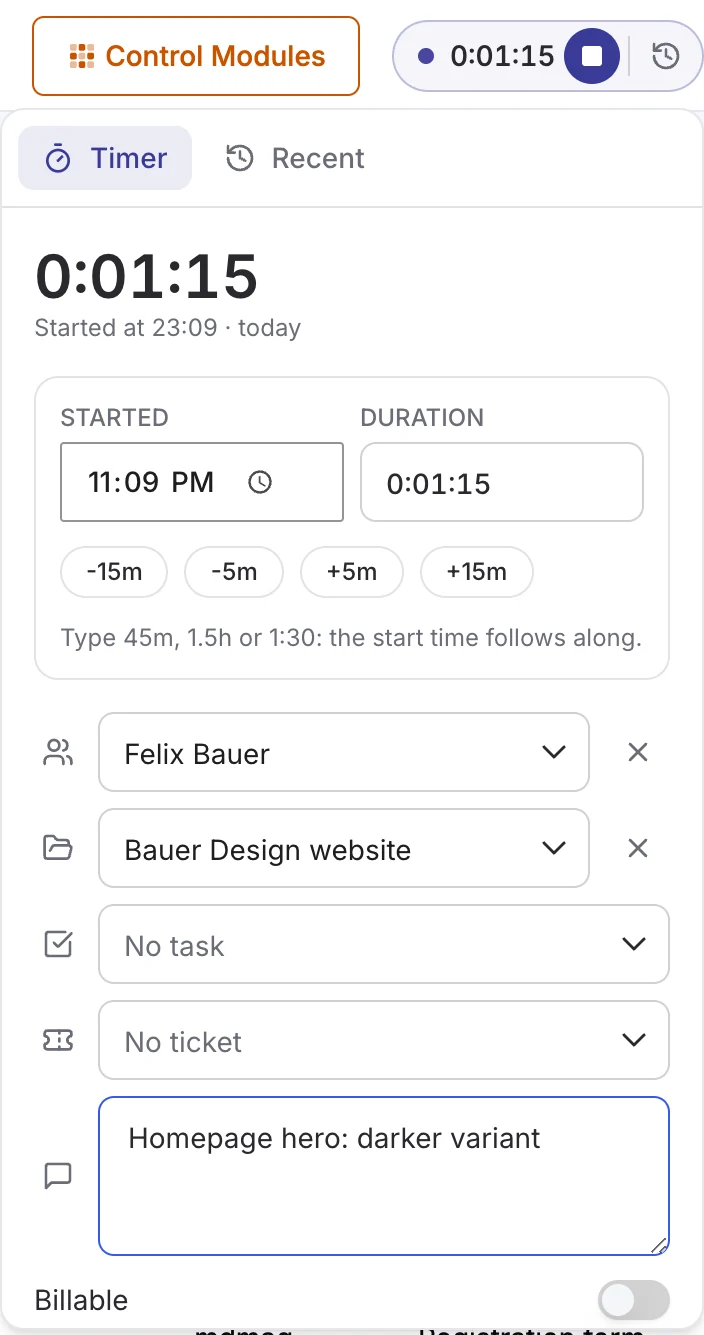
Start a timer from the top bar or from any project, task, subtask or deal, or type the time in afterwards.
See every entry by client, project and team member, with what is billable and what is still un-billed.
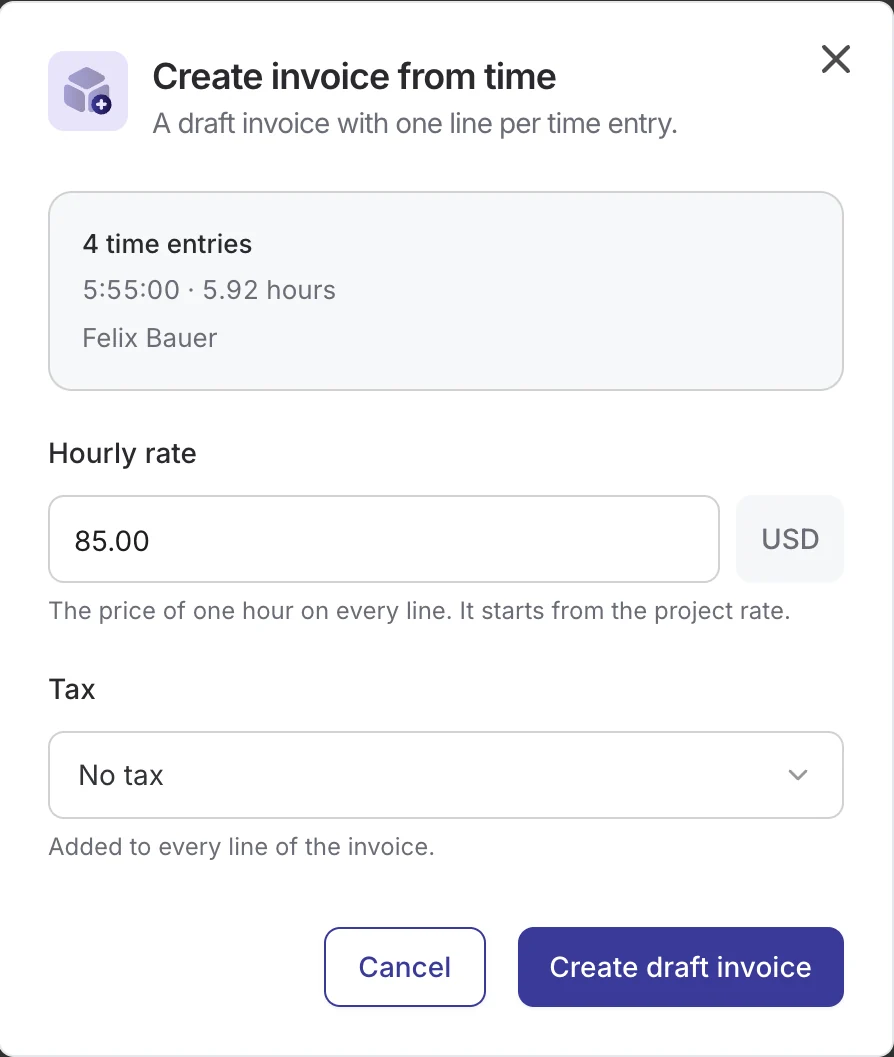
Select un-billed time and create a draft invoice at the project’s hourly rate, one line per entry.
The timer sits in the top bar of every DoubleScale screen, so it keeps running while you move between contacts, deals and projects.
Select a client’s un-billed entries and DoubleScale writes the draft invoice: one line per entry, the hours as the quantity, at the project’s hourly rate.
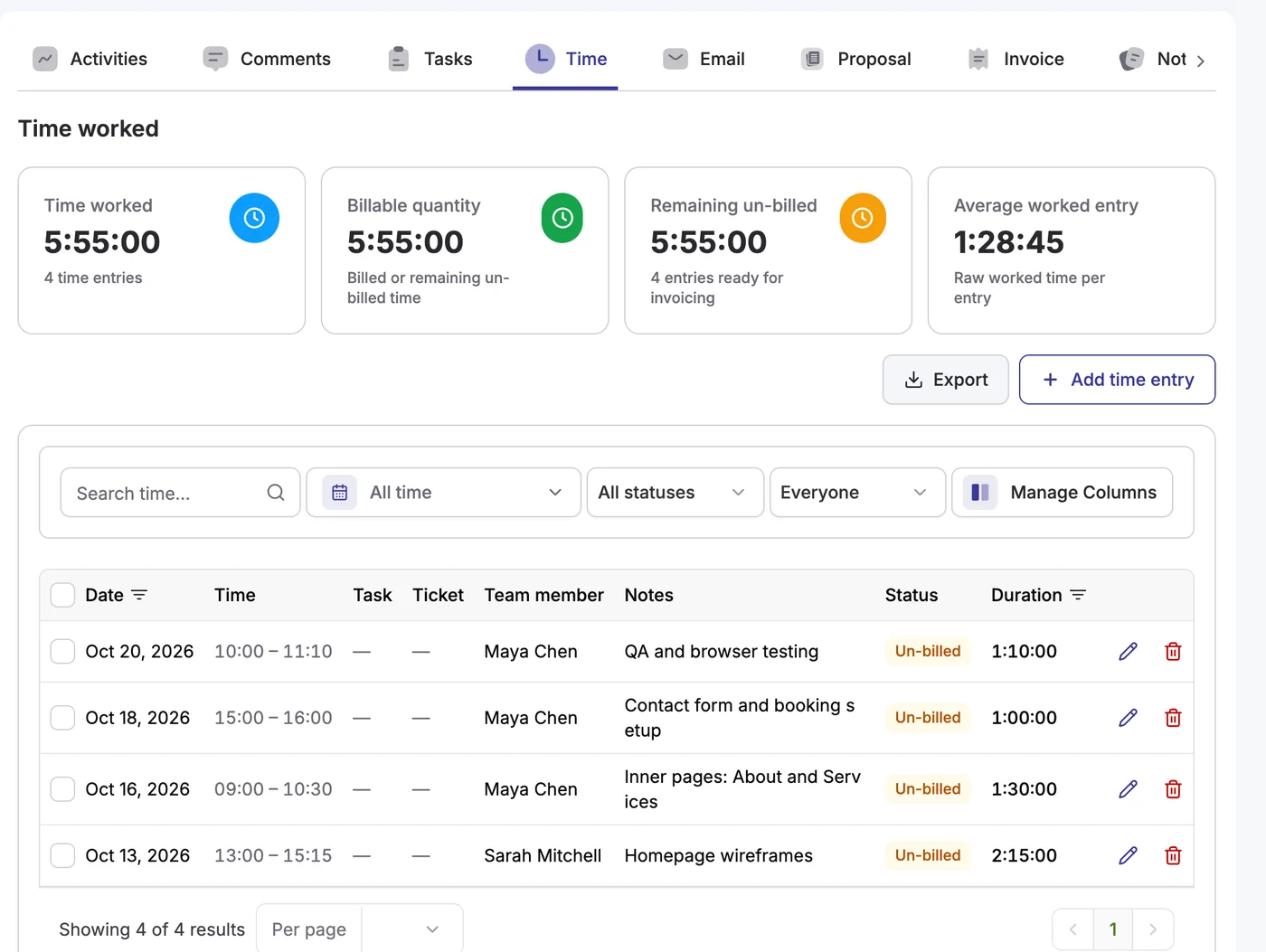
Each project and deal gets a Time tab with the time worked, what is billable, what is left to invoice and the average entry. Tasks and subtasks show their own time too.
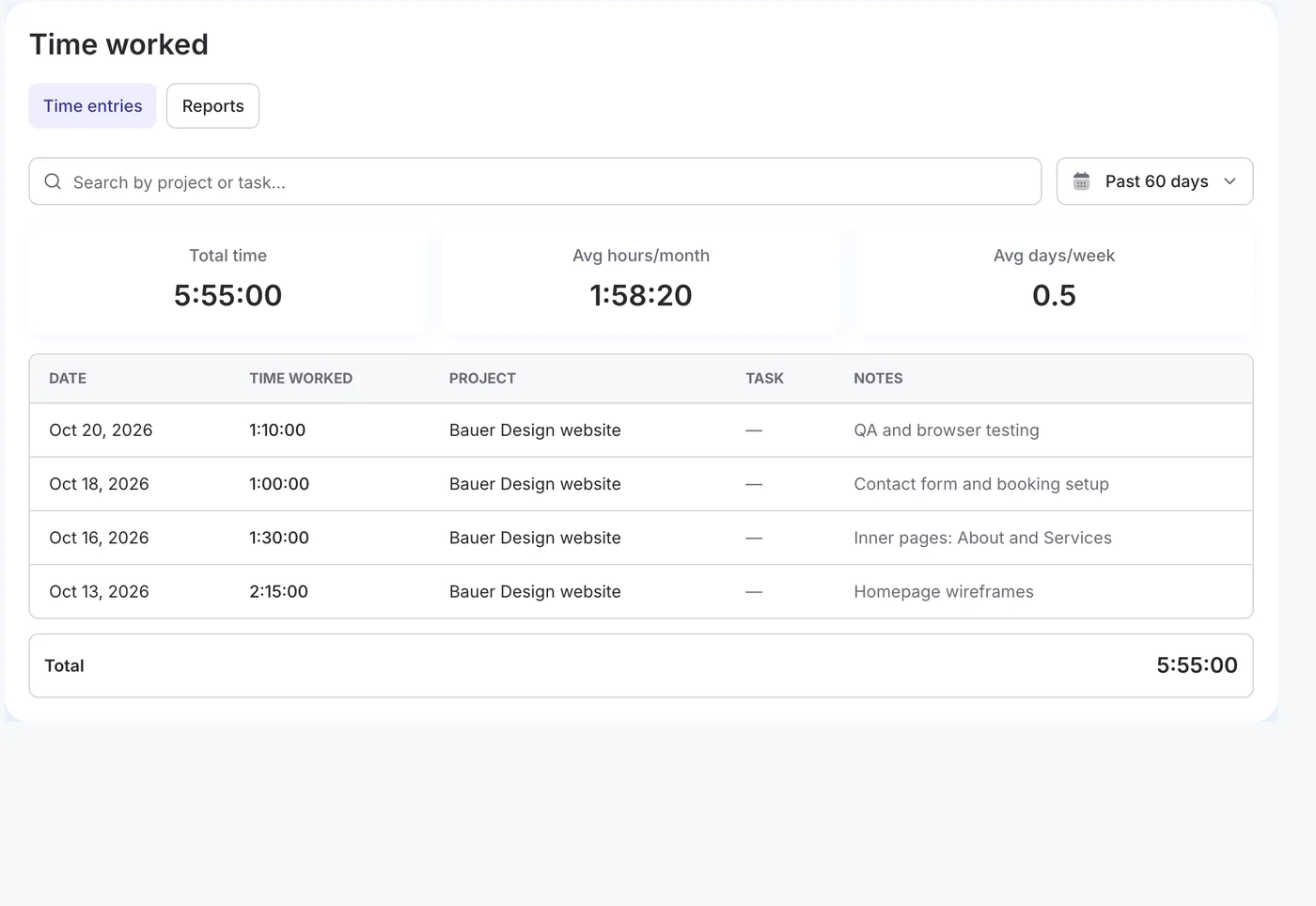
Clients open Time worked in their portal: the total, the average hours per month and every entry on their projects, for the period they pick.
CRM managers and project managers see everyone's time; everyone else sees their own.
Project team members log their hours without seeing rates, budgets or invoices.
Switch each entry to billable or non-billable, so internal work stays off invoices.
Time worked, billable time, un-billed time and the average entry on every list.
Take any filtered list of entries to a spreadsheet or your accountant.
Install it from Extensions, then turn it on or off in Control Modules.
No per-user pricing and no separate subscription. With a Plus or Enterprise licence, install it in one click from DoubleScale › Extensions; it works with DoubleScale Pro’s projects, tasks, deals and invoices.
How the DoubleScale Time Tracking add-on works.
The Time Tracking add-on is included with the Plus and Enterprise plans, yearly or lifetime. Install it from DoubleScale › Extensions with your licence.
Projects, tasks, subtasks, deals and helpdesk tickets. An entry started on a task picks up its project and client automatically.
On the Time page or a project's Time tab, select a client's un-billed entries and choose Create invoice. DoubleScale creates a draft invoice with one line per entry at the project's hourly rate, and marks the entries as billed.
Yes, in the client portal's Time worked page and on each project. You decide whether notes are shared; rates and billing details are never shown.
No. CRM managers and project managers see everyone's time; other team members see and log their own, and project members never see rates or money.
Start with the free plugin and add Pro modules when you need them. Unlimited contacts on every plan, and your data stays on your own server.