














On this page
Finishing a course is the moment a student is most proud of your product, and most open to what comes next: a review, a certificate, the next course. An email sent at that moment lands in a promotions tab. A WhatsApp message lands on their phone.
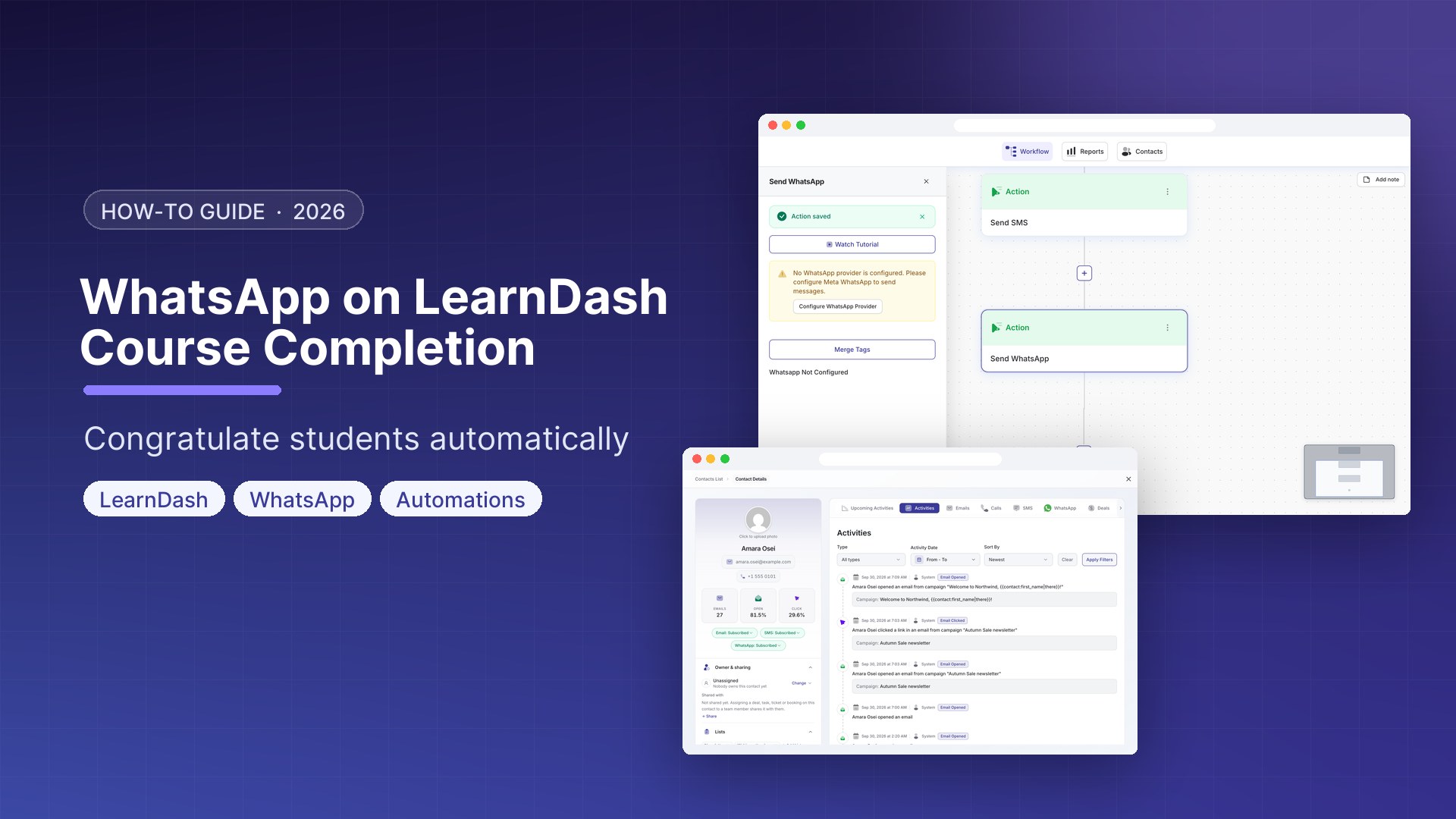
This guide shows how to send a WhatsApp notification when a student completes a LearnDash course, using the official WhatsApp Business Platform (Cloud API) and a DoubleScale automation. It also covers the part most tutorials skip: LearnDash does not store phone numbers, so you need a plan for getting them.
Full disclosure: we make DoubleScale. We have kept the two other tools’ strengths in, quoted every price from their own pricing pages, and listed the cases where DoubleScale is the wrong choice.
1. Connect the WhatsApp Cloud API to DoubleScale (Integrations → Messaging → Meta WhatsApp). 2. Get a “course completed” message template approved by Meta. 3. Make sure students have a WhatsApp number on their contact record. 4. Create an automation with the LearnDash Course Completed trigger and a Send WhatsApp action. 5. Optional: add a condition for one specific course, and an action that enrols the student in the next one.
What you need
✓ LearnDash LMS on your WordPress site.
✓ DoubleScale Pro (from $99 a year). The LearnDash triggers and WhatsApp sending are Pro features.
✓ A Meta Business account and a phone number for the WhatsApp Cloud API.
✓ Students’ WhatsApp numbers, with their consent to be messaged there.
Step 1: Connect WhatsApp
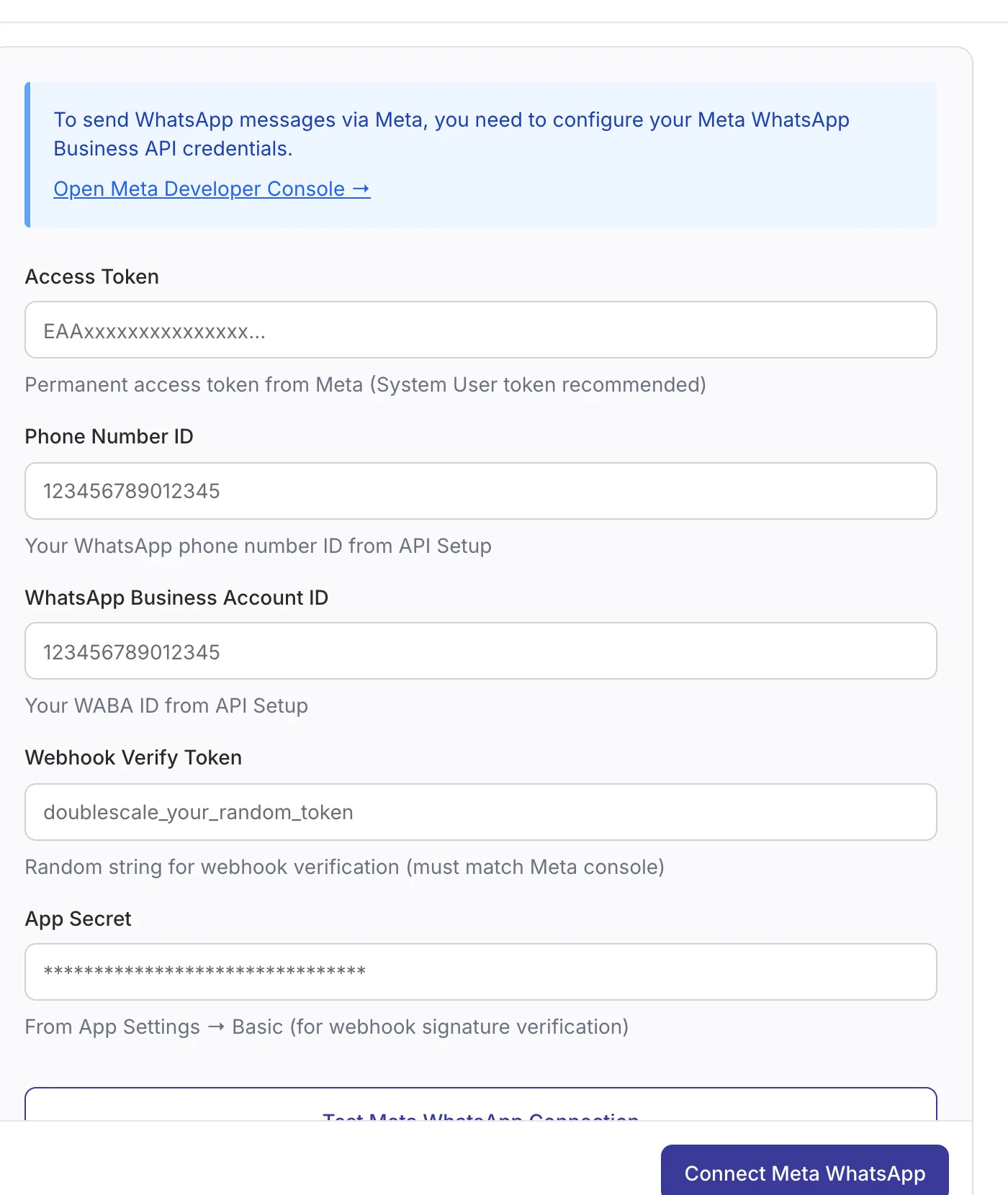
In Meta for Developers, create an app with the Connect with WhatsApp use case, register your number, create a System User with a permanent token, and point the webhook to DoubleScale. Then paste the access token, Phone Number ID, WhatsApp Business Account ID, verify token and App Secret into DoubleScale → Integrations → Messaging → Meta WhatsApp. DoubleScale shows every step inside the plugin; our WooCommerce WhatsApp guide walks through it with screenshots.
Step 2: Create a course-completion template
Every WhatsApp message a business starts must use an approved template. A completion notice that confirms the student’s progress fits Meta’s Utility category. Anything that promotes another course is Marketing, needs a marketing template and costs more, so keep the two apart.
| Template | Category | Example body |
|---|---|---|
| course_completed | Utility | Congratulations {{1}}! You have completed {{2}}. Your course page and resources: {{3}} |
| course_review | Marketing | Hi {{1}}, how was {{2}}? A two-minute review helps other students choose: {{3}} |
| next_course | Marketing | Ready for the next step, {{1}}? {{2}} picks up exactly where you left off: {{3}} |
Reply STOP to stop course updates
Add “Reply STOP to stop updates” to your template text. DoubleScale unsubscribes anyone who replies STOP automatically, but it does not add the line to WhatsApp messages for you.
Step 3: Get students' WhatsApp numbers (the step everyone misses)
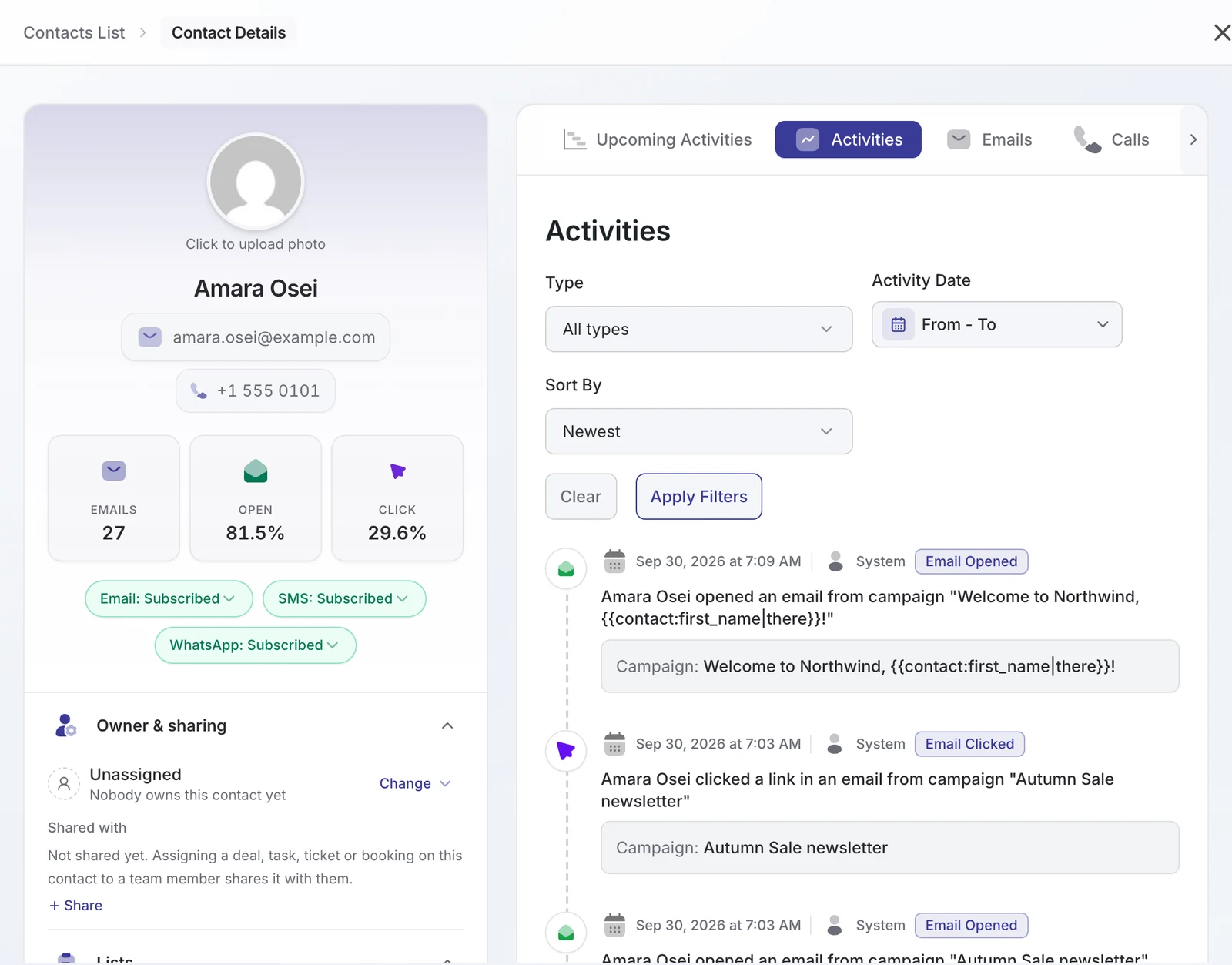
LearnDash identifies students by their WordPress account, and the Course Completed event only carries the student’s email. DoubleScale finds the matching contact by that email, so the WhatsApp number has to be on the contact already. Three reliable ways to get it there:
- You sell courses with WooCommerce: the order trigger captures the billing phone. With Phone number is also WhatsApp number turned on, DoubleScale converts it to international format using the billing country and saves it as the contact’s WhatsApp number. The same contact (same email) is then ready when the course is completed.
- You enrol through a form: add a phone field to your enrolment or registration form and map it to the contact’s WhatsApp field in the DoubleScale form integration. Contact Form 7, WPForms, Fluent Forms and Quill Forms work with the free plugin; Gravity Forms, Elementor Forms and others with Pro.
- You already have a student list: import a CSV with email and WhatsApp number columns into DoubleScale. Numbers must include the country code, for example +447700900123.
Contacts without a WhatsApp number are skipped by the Send WhatsApp action, not sent to the wrong place. Students who replied STOP are skipped too.
Step 4: Build the automation
- Go to DoubleScale → Automations → Create Automation and choose LMS → LearnDash → Course Completed. (The LearnDash group appears once LearnDash is active.)
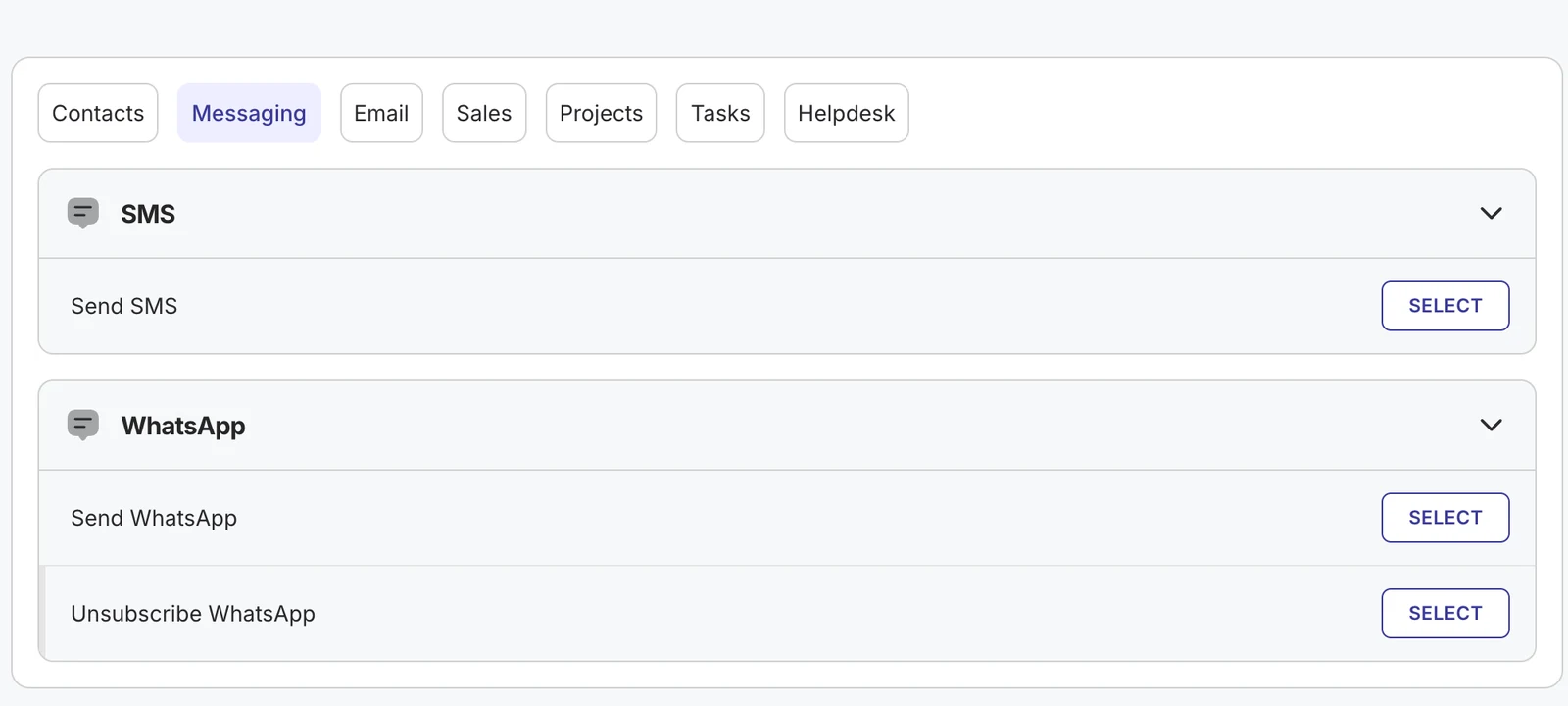
- Click + under the trigger, then Action → Messaging → Send WhatsApp.
- Choose your course_completed template and fill its variables with merge tags:
{{contact:first_name|there}},{{learndash:course_name}}and{{learndash:course_url}}. - Save the step and set the automation to Active.
Only for one course
The trigger fires for every course. To message students of a single course, add a Condition right after the trigger using the LearnDash rules (course completed, enrolled courses, groups, enrolment dates) and put the Send WhatsApp step on the “yes” branch. Conditions can be nested, so you can also check a tag or a purchase before messaging.
Go further: enrol them in the next course
DoubleScale also has LearnDash actions: add a user to a course or group, or remove them. Add Add User to Course after the WhatsApp step to unlock the follow-up course automatically, and the next completion message can point to it.
Other LearnDash moments worth a WhatsApp message
| Trigger | Message | Template category |
|---|---|---|
| User Enrolled in Course | Welcome, here is where to start, reply if you get stuck | Utility |
| Lesson Completed (first lesson) | Nice start, the next lesson takes 10 minutes | Utility |
| User Added to Group | Your cohort starts on Monday, here is the schedule | Utility |
| Course Completed + 7-day delay | How was the course? Leave a review | Marketing |
| User Left Course | Access ended; how to renew | Utility |
Your LearnDash course completion WhatsApp message should be the high point, not one of many. Keep the rhythm gentle. Two or three messages per course feel like a tutor checking in; daily nudges get blocked, and blocks lower your WhatsApp number’s quality rating.
Costs and limits
- Meta charges per delivered template message by category and country; utility messages cost less than marketing in most countries. Check Meta’s current pricing page.
- New WhatsApp numbers can message 250 unique people per 24 hours; Meta raises the limit as your quality stays high.
- DoubleScale Pro starts at $99 a year and adds no per-message fee.
Troubleshooting
| Problem | Likely cause | Fix |
|---|---|---|
| LearnDash triggers are missing | LearnDash not active, or DoubleScale Pro not installed | Activate both; the LMS group appears in Create Automation |
| Automation runs but nothing is sent | Student has no WhatsApp number | Capture it with step 3 |
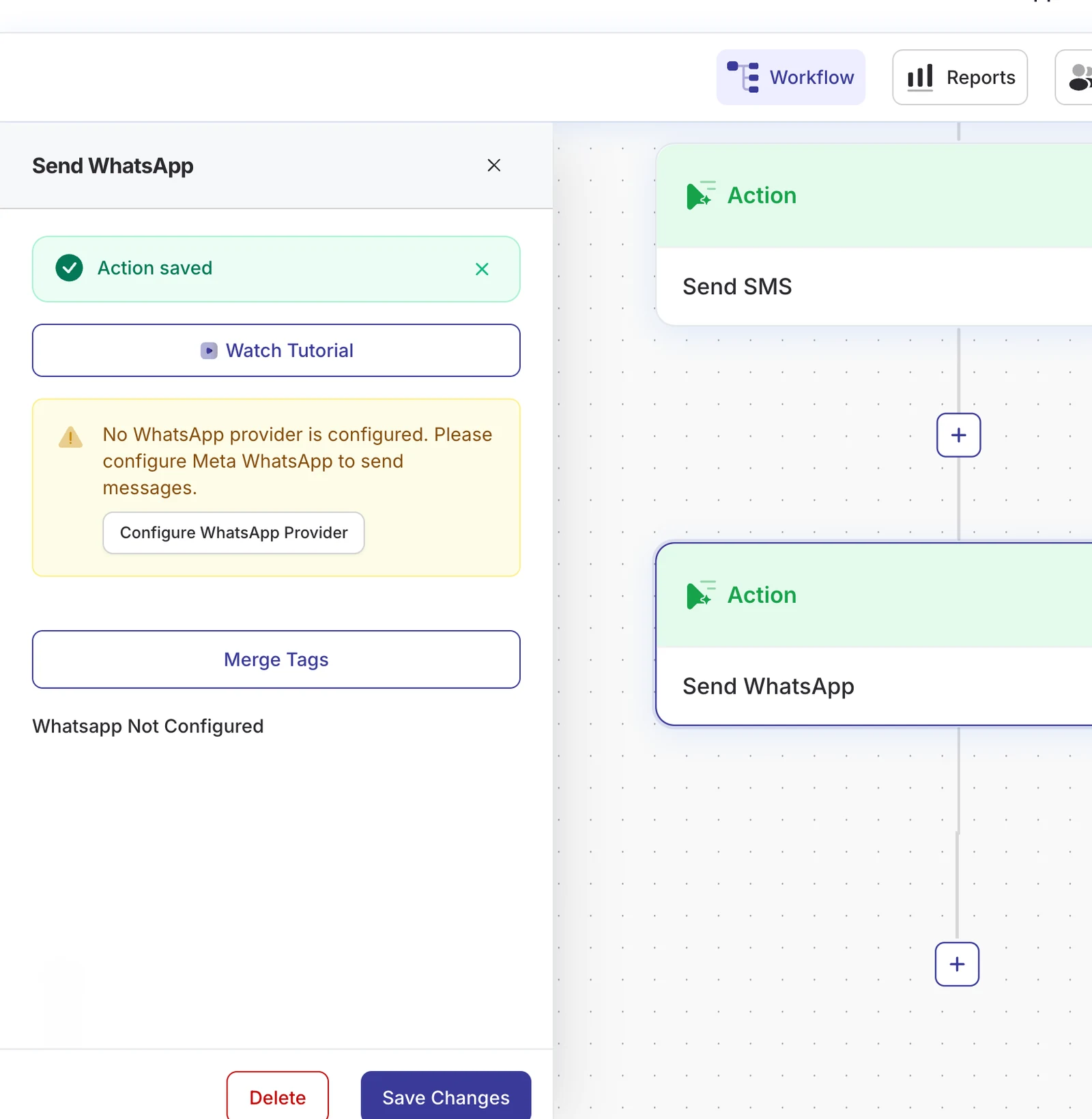
| “No WhatsApp provider is configured” | Meta not connected | Complete step 1 and test the connection |
| Course name is blank in the message | Merge tag without context or fallback | Use {{learndash:course_name}} in a Course Completed workflow and add fallbacks to contact tags |
| Template not listed | Not approved or not synced yet | Approval status is in WhatsApp Manager; syncing can take up to 24 hours |
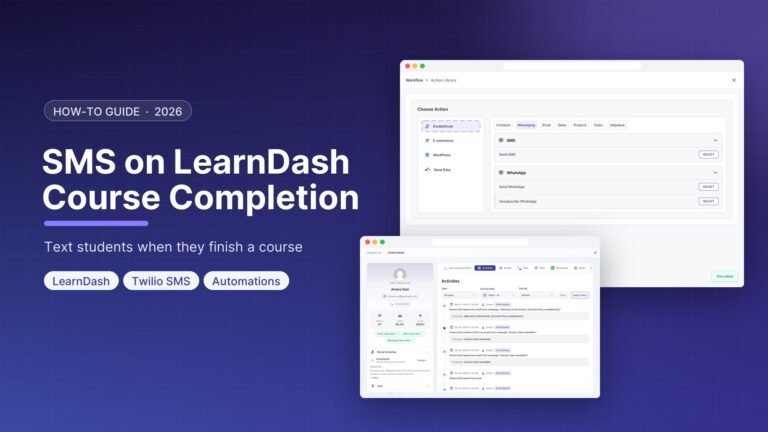
Prefer text messages? The LearnDash course completion SMS guide covers the same flow with Twilio. For all LearnDash triggers and actions, see LearnDash automation, and for growing a course business, a WordPress CRM for course creators.
FAQ
Can LearnDash send WhatsApp messages on its own?
No. LearnDash sends emails and on-site notifications. To send WhatsApp messages you need a plugin connected to the WhatsApp Business Platform, such as DoubleScale Pro.
Where does the student's phone number come from?
LearnDash does not store phone numbers. Capture them through WooCommerce checkout (if you sell courses there), a phone field on your enrolment form mapped to DoubleScale, or a CSV import.
Can I send the message only for one course?
Yes. Add a Condition after the Course Completed trigger using the LearnDash rules and send the WhatsApp message on the matching branch.
Is a course completion message a marketing message?
A plain completion confirmation fits WhatsApp’s Utility category. If the message promotes another course or asks for a review, use a Marketing template.
Can I also send a certificate?
LearnDash generates certificates on your site. Link to the course page or the student’s profile, where the certificate is available, using {{learndash:course_url}}.
DoubleScale Pro connects LearnDash to the official WhatsApp Cloud API, with templates, conditions and enrolment actions in one workflow.
Get our guides first on GoogleAdd DoubleScale as a preferred source and our articles show up more often in your Top Stories.

Mohamed Magdy, Founder & CEO, DoubleScale
Mohamed Magdy is the founder and CEO of DoubleScale, the all-in-one CRM for WordPress. He writes about CRM, email marketing and automation for WordPress businesses.
Practical CRM tips, once a month
Guides on growing with WordPress: lead capture, email marketing, automations and sales. No spam, unsubscribe anytime.