




















On this page
- What you need before you start
- Step 1: Set up the WhatsApp Cloud API in Meta
- Step 2: Connect WhatsApp to DoubleScale
- Step 3: Create your order-update templates
- Step 4: Make sure every customer has a WhatsApp number
- Step 5: Build the order notification automation
- Which order statuses to notify
- Step 6: Test, then go live
- What it costs
- Troubleshooting
- Want SMS too?
- FAQ
Order emails get buried. A WhatsApp message saying “your order has shipped” is usually read within minutes, which means fewer “where is my order?” tickets and more customers who feel looked after.
This guide shows how to send WhatsApp notifications for WooCommerce orders automatically, through the official WhatsApp Business Platform (Cloud API) from Meta. No unofficial WhatsApp Web hacks, no number bans. We use DoubleScale for the WordPress side because it is what we build, but the Meta setup, template rules and consent requirements apply whatever plugin you use.
1. Create a WhatsApp app in Meta for Developers and register your business number. 2. Connect it in DoubleScale under Integrations → Messaging → Meta WhatsApp. 3. Create and get approval for “Utility” message templates for your order updates. 4. Make sure customers give a phone number at checkout. 5. Build an automation: WooCommerce “Order Status Changed” → “Send WhatsApp” with your template. 6. Test it on your own order, then switch it on.
What you need before you start
✓ WooCommerce on a WordPress site you control.
✓ DoubleScale Pro (from $99 a year, unlimited contacts). WhatsApp sending is a Pro feature.
✓ A Meta Business account and a phone number that is not already used in the WhatsApp or WhatsApp Business app.
✓ About 30 minutes, plus waiting time for Meta to approve your templates (often minutes, sometimes up to a day).
✓ A way to collect WhatsApp consent at checkout (more on that in step 4).
Why the official API matters: plugins that send through WhatsApp Web or a personal number break whenever WhatsApp changes, and can get the number banned. The Cloud API is Meta’s own business channel, with delivery receipts and template approval built in.
Step 1: Set up the WhatsApp Cloud API in Meta
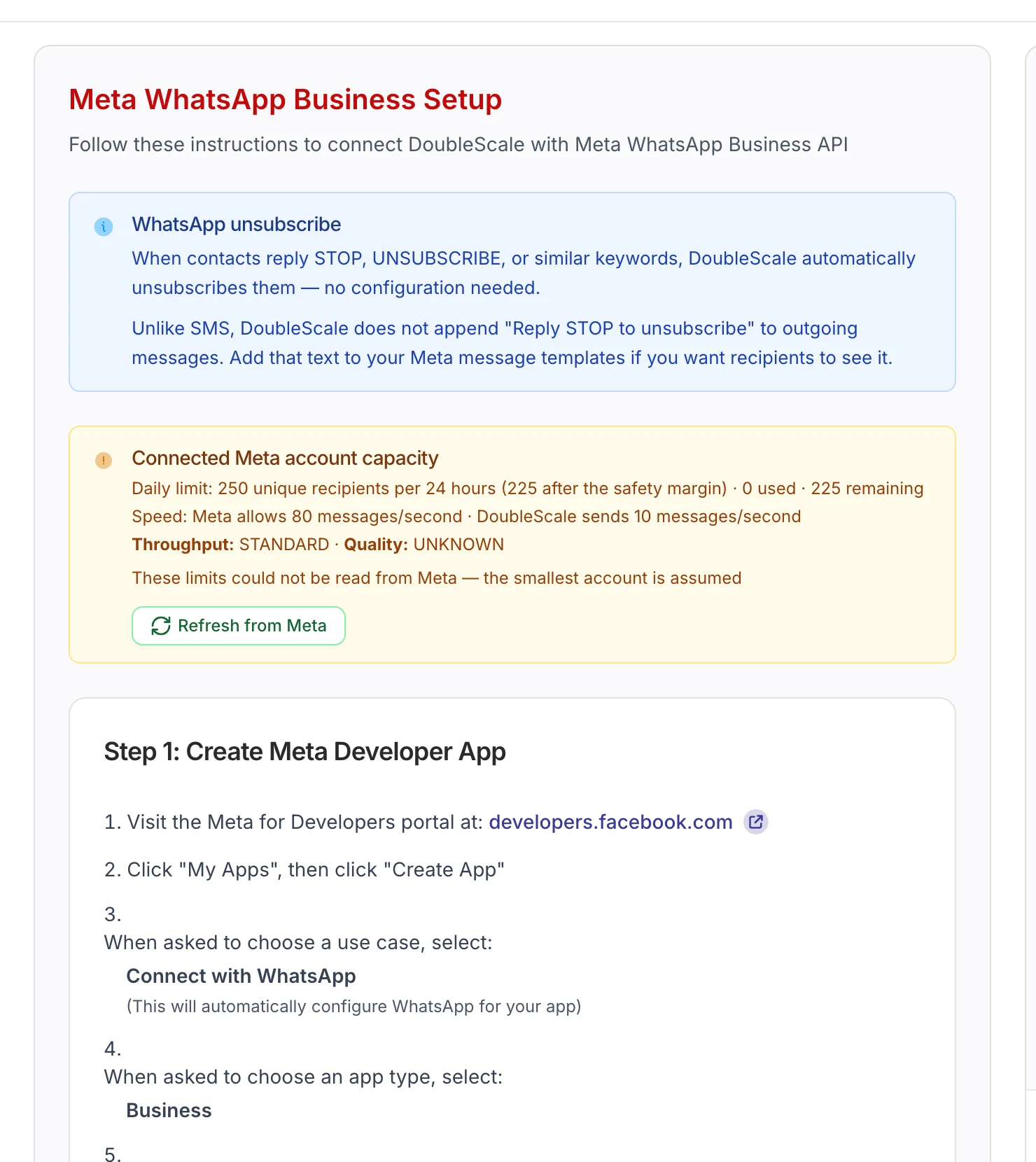
DoubleScale shows these exact steps inside the plugin, so you can follow along on one screen:
- Go to developers.facebook.com → My Apps → Create App. Choose the use case Connect with WhatsApp and the app type Business, then pick your Meta Business account.
- On the WhatsApp setup page, add and verify your business phone number. Meta’s test number only sends to five pre-registered numbers, so use your own number for real customers.
- Copy the Phone Number ID and the WhatsApp Business Account ID from the same page, and the App Secret from Settings → Basic.
- In Business Settings → System Users, create a system user, give it full control of the app and your WhatsApp account, and generate a permanent access token with the permissions
business_management,whatsapp_business_messagingandwhatsapp_business_management. Copy it immediately; Meta shows it once. - In your app, open WhatsApp → Configuration → Webhook, paste the callback URL DoubleScale gives you, enter your verify token and subscribe to the
messagesandmessage_statusfields. This is what brings delivery receipts and replies back into WordPress.
Step 2: Connect WhatsApp to DoubleScale
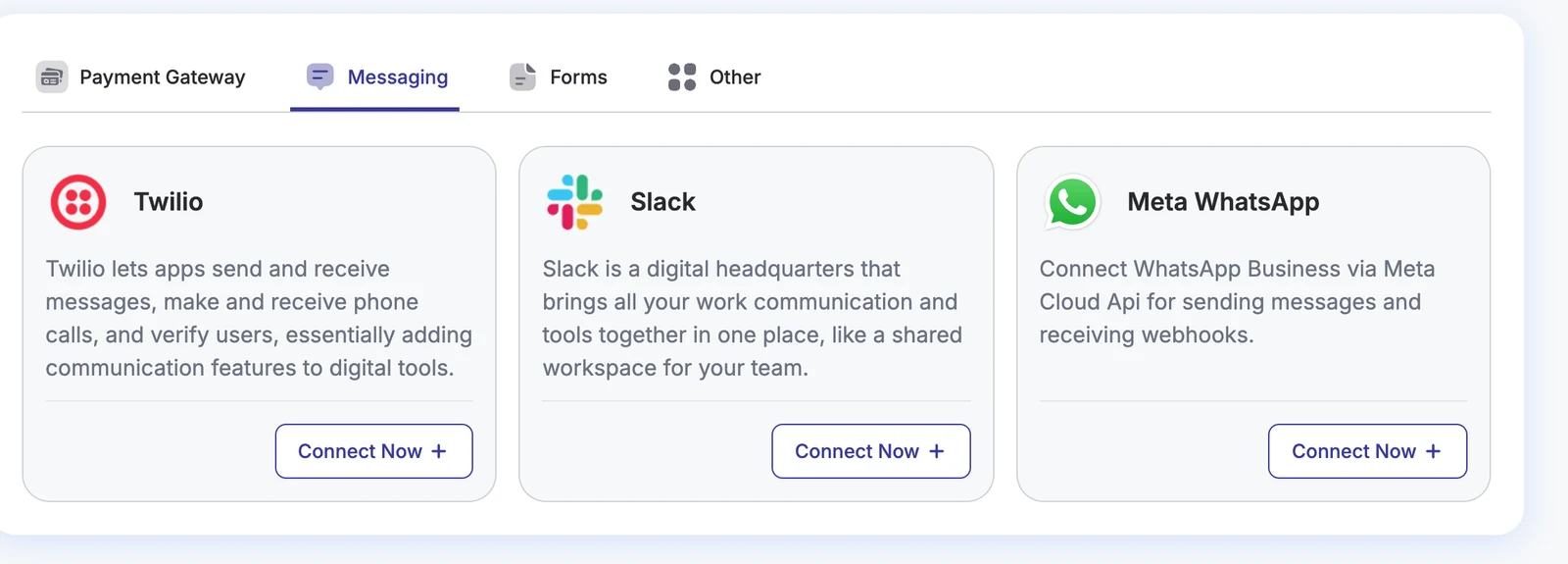
In WordPress, open DoubleScale → Integrations → Messaging and click Connect Now on Meta WhatsApp. Paste the access token, Phone Number ID, WhatsApp Business Account ID, your webhook verify token and the App Secret, test the connection and click Connect Meta WhatsApp.
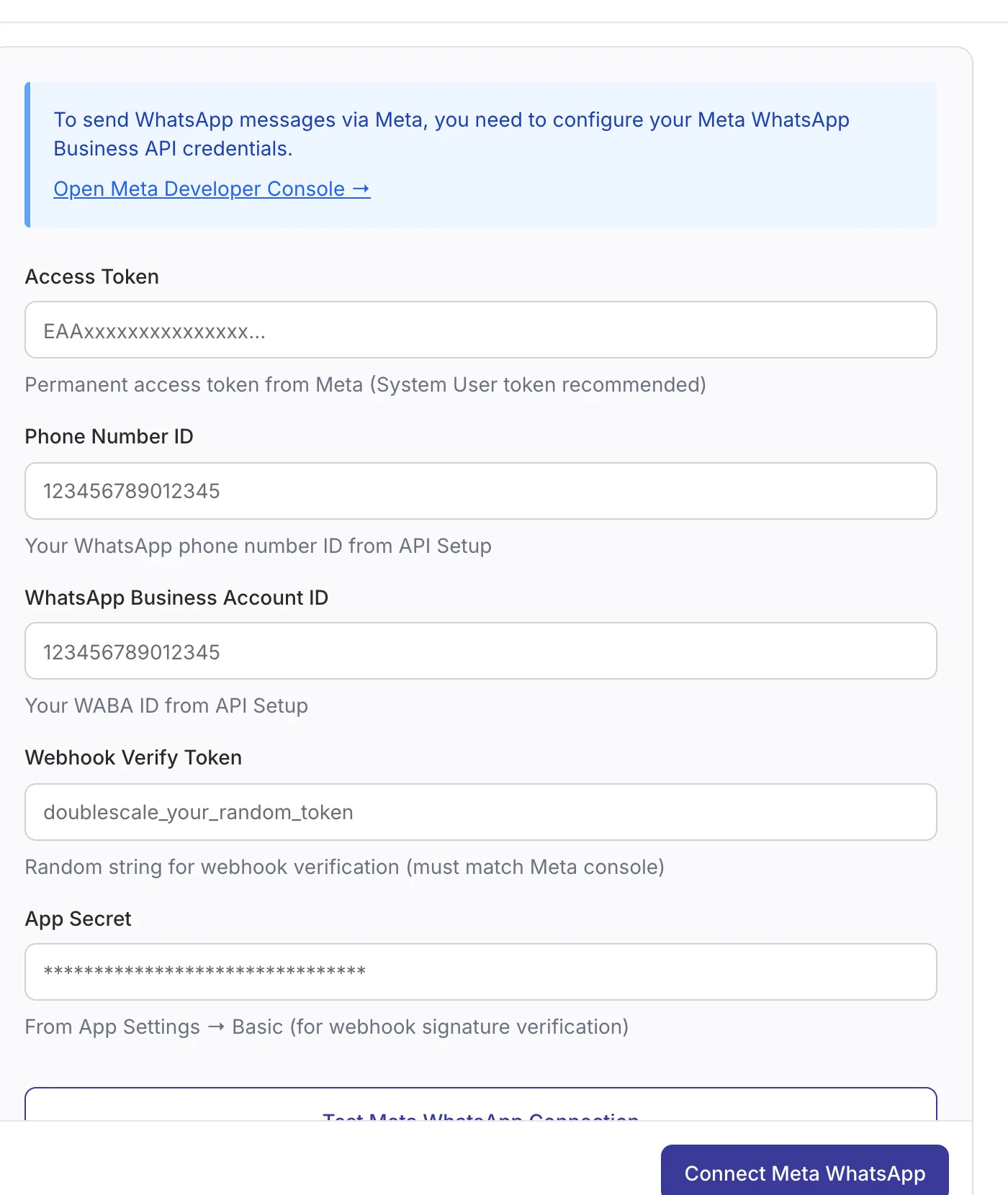
Once connected, the setup screen shows your account’s capacity. New WhatsApp accounts start with a limit of 250 unique recipients per 24 hours, which Meta raises as you send good-quality messages. DoubleScale reads the limit from Meta and paces sending for you.
Step 3: Create your order-update templates
WhatsApp only lets a business start a conversation with a pre-approved template. Order updates belong in the Utility category, which is reserved for transactional messages and is priced lower than marketing in most countries. Create templates in WhatsApp Manager → Message templates.
Templates use numbered variables. DoubleScale lets you fill each one with a merge tag when you build the automation, so you only need one template per type of update:
| Template | Example body | Variables |
|---|---|---|
| order_processing | Hi {{1}}, thanks for your order! We are preparing it now. Total: {{2}}. | {{1}} first name, {{2}} order total |
| order_shipped | Good news {{1}}, your order is now {{2}}. You can see the details here: {{3}} | {{1}} first name, {{2}} status, {{3}} order link |
| order_completed | Hi {{1}}, your order is complete. Questions? Just reply to this message. | {{1}} first name |
| payment_pending | Hi {{1}}, your order is waiting for payment. Finish it here: {{2}} | {{1}} first name, {{2}} payment link |
Reply STOP to stop order updates
Two template tips: add “Reply STOP to stop updates” to the template text, because DoubleScale does not append it to WhatsApp messages (it does for SMS). And keep marketing out of utility templates: a discount code in an order update can get the template reclassified as marketing. Template changes can take up to 24 hours to appear in DoubleScale.
Step 4: Make sure every customer has a WhatsApp number
WhatsApp needs a full international number such as +447700900123. Customers rarely type it that way, so DoubleScale converts it for you:
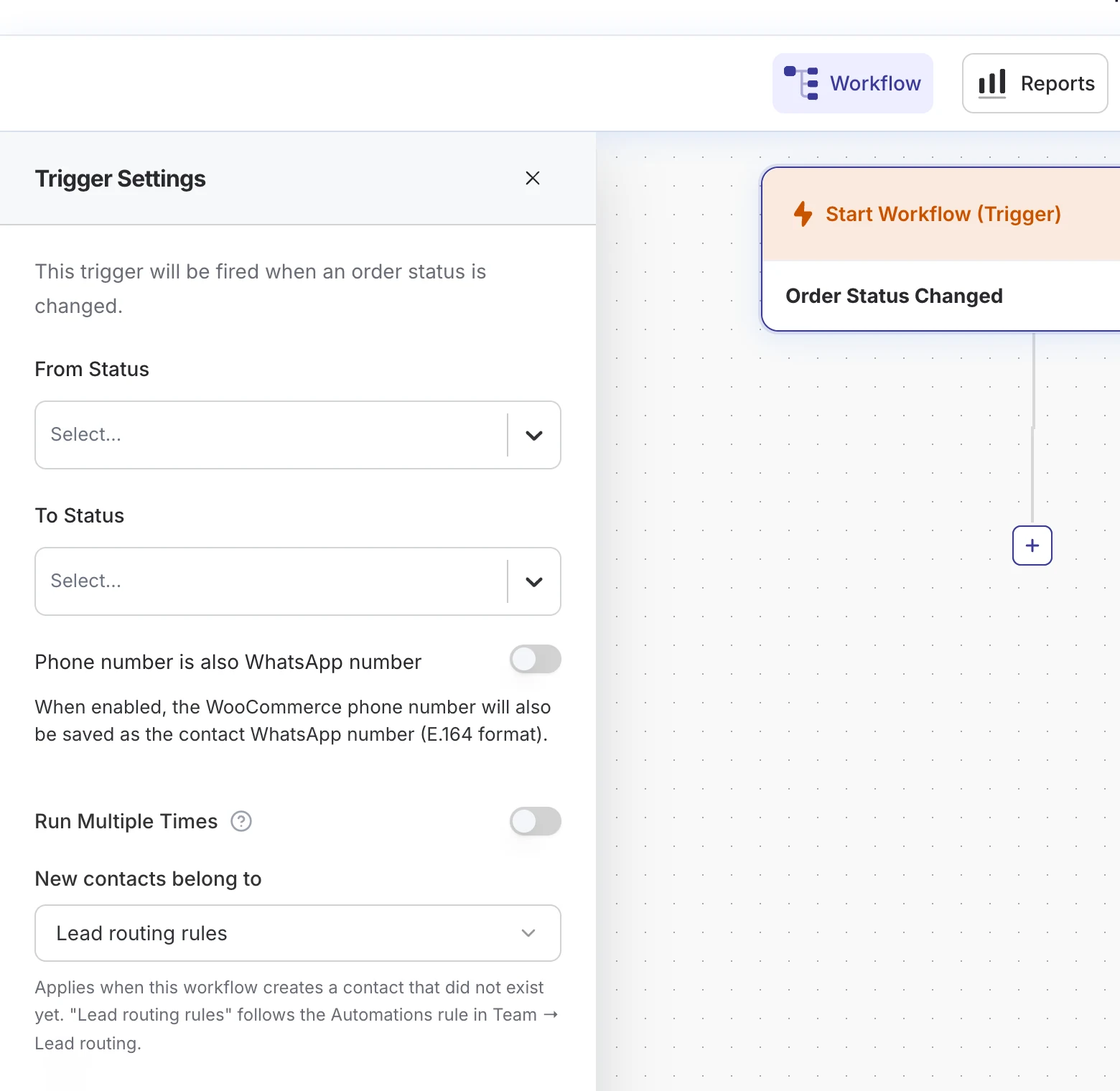
- In the WooCommerce trigger, turn on Phone number is also WhatsApp number. DoubleScale takes the billing phone (or the shipping phone if billing is empty), converts it to international format using the billing country, and saves it as the contact’s WhatsApp number.
- It never overwrites a number a contact already has, and it skips a number that belongs to another contact, so data stays clean.
- Make the phone field required at checkout: in Appearance → Customize → WooCommerce → Checkout for the classic checkout, or in the Checkout block settings if you use the block checkout.
Consent is not optional
WhatsApp’s Business Policy requires the customer’s opt-in before you message them, and it has to say they will get messages on WhatsApp. Add a clear checkbox to checkout (“Send me order updates on WhatsApp”) with your checkout field plugin, and only send to customers who ticked it. If someone replies STOP, UNSUBSCRIBE, CANCEL or QUIT, DoubleScale unsubscribes them from WhatsApp automatically and skips them in every automation from then on.
Step 5: Build the order notification automation
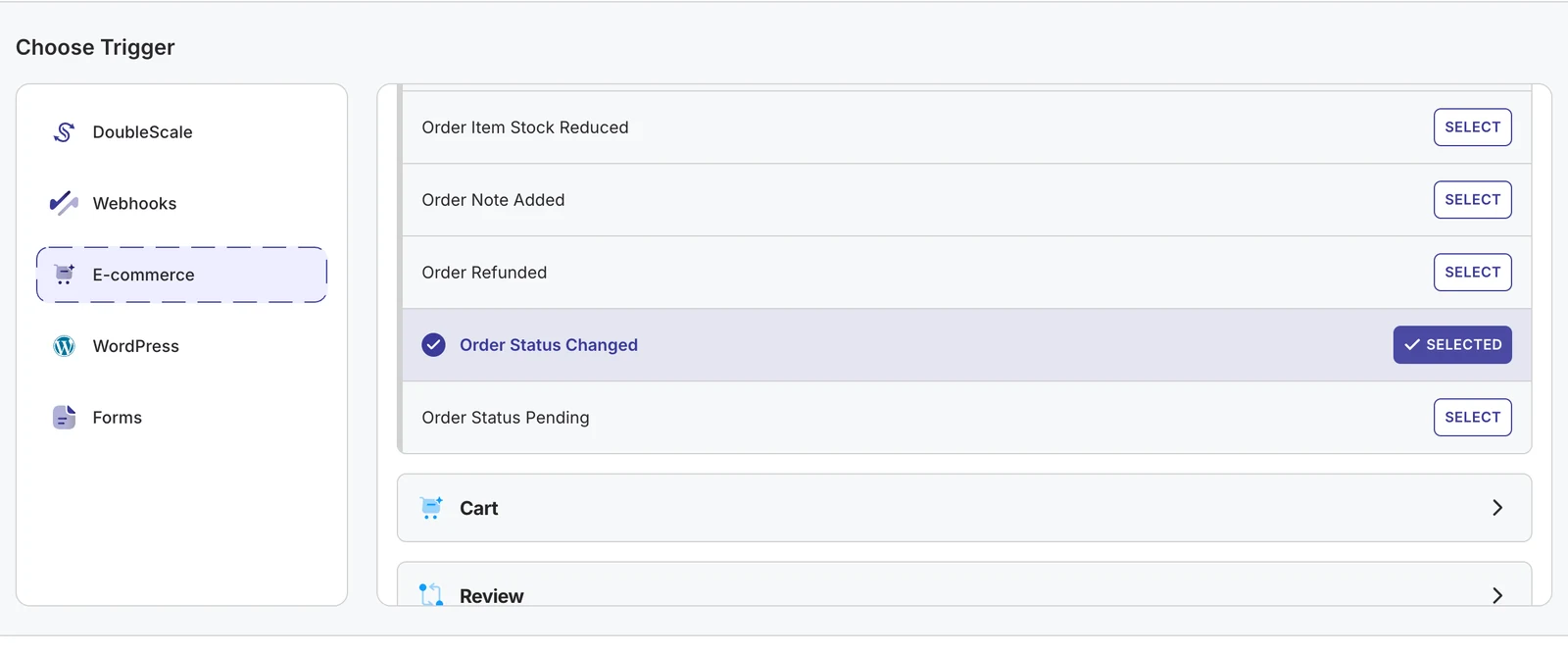
- Go to DoubleScale → Automations → Create Automation, name it (“WhatsApp order updates”) and choose E-commerce → WooCommerce → Order → Order Status Changed.
- In the trigger settings, set the To Status (for example Processing), leave From Status empty for “any”, and turn on Phone number is also WhatsApp number.
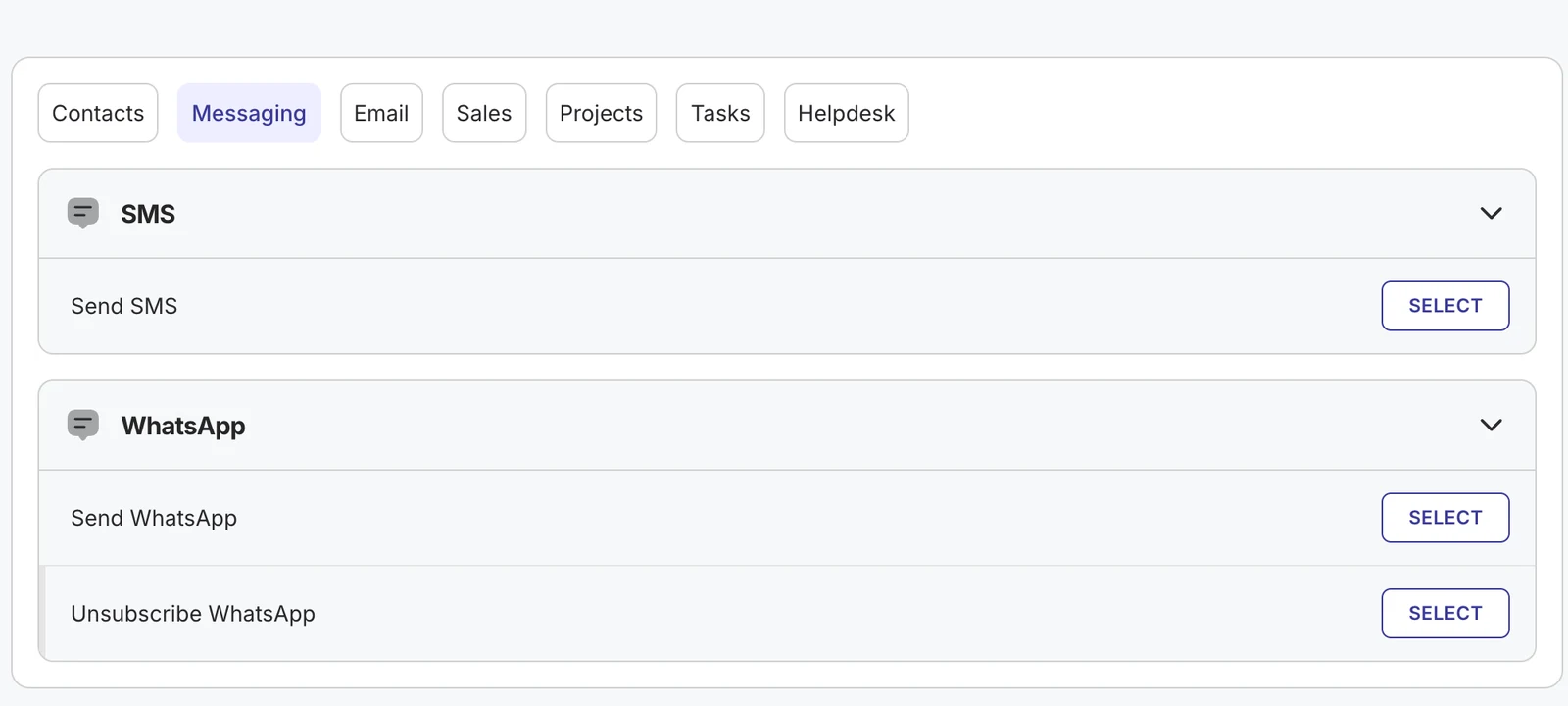
- Click + under the trigger, choose Action → Messaging → Send WhatsApp.
- Pick your approved template. DoubleScale lists its variables; fill each one with a merge tag such as
{{contact:first_name|there}},{{order:total}},{{order:status}}or{{order:view_url}}. - Save, and repeat with a second automation for each status that needs a different message (Completed, On hold, Cancelled), or use one automation per template.
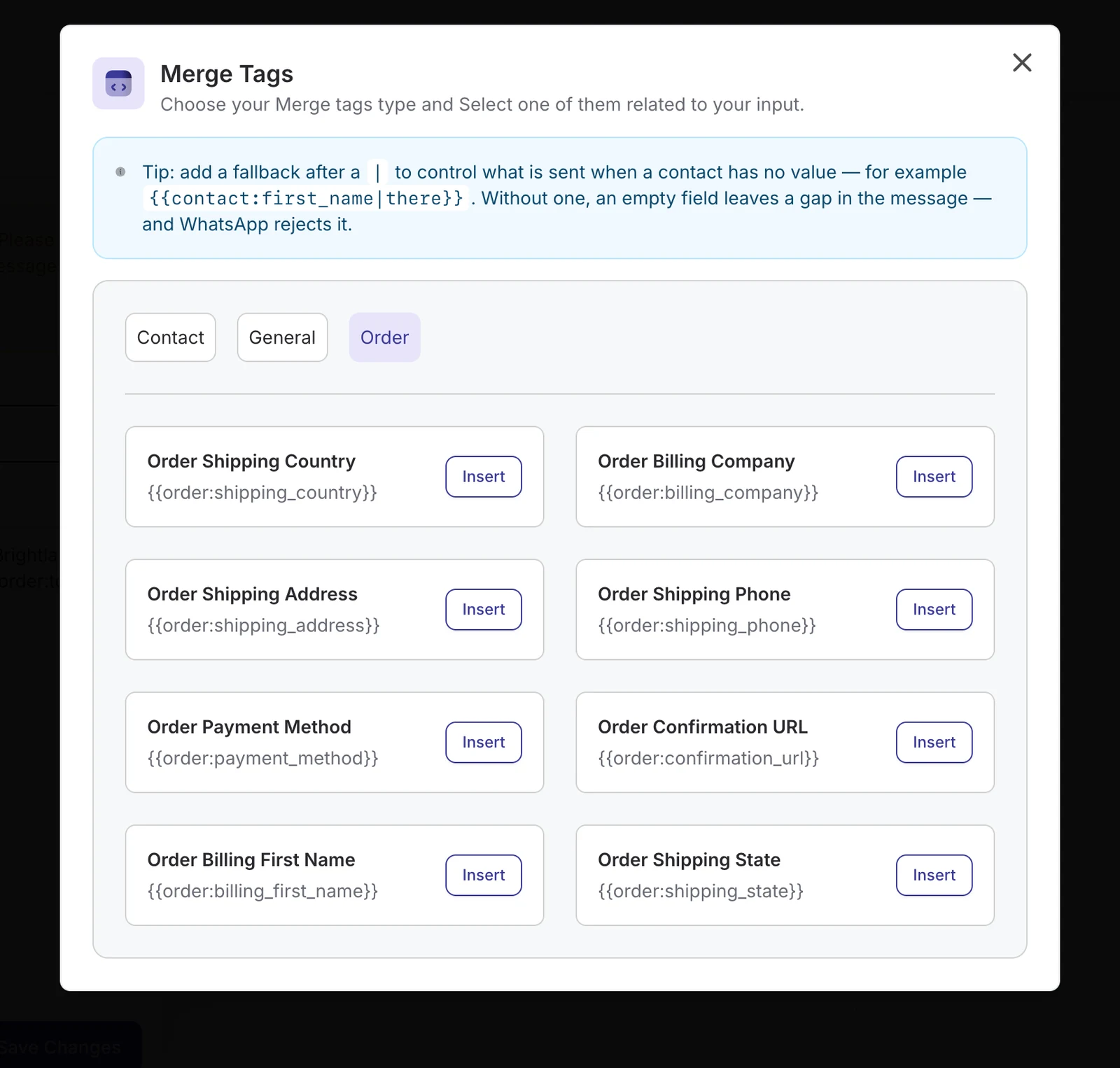
Always add a fallback to merge tags. {{contact:first_name|there}} prints “there” when a name is missing. WhatsApp rejects a template message when a variable is empty, so a fallback is the difference between “Hi there” and a failed send.
Which order statuses to notify
| WooCommerce event | Trigger to use | Send? | Why |
|---|---|---|---|
| Order placed and paid | Order Status Changed → Processing | Yes | Reassures the customer the order went through |
| Payment not finished | Order Status Pending | Yes, once | Use {{order:payment_url}} to recover the sale |
| Shipped or ready | Order Status Changed → your shipped status, or Completed | Yes | The message customers actually wait for |
| On hold | Order Status Changed → On hold | If manual payment | Bank transfer instructions or a short delay notice |
| Refunded | Order Refunded | Yes | Confirms money is on its way back |
| Cancelled | Order Status Changed → Cancelled | Optional | Only if the customer did not cancel it themselves |
When you plan WhatsApp notifications for WooCommerce orders, do not send every status. Three well-timed messages (confirmed, shipped, delivered or completed) feel helpful; six feel like spam, and recipients who block you lower your number’s quality rating.
Step 6: Test, then go live
- Place a test order with your own phone number and the WhatsApp opt-in ticked.
- Change the order status in WooCommerce and check your phone.
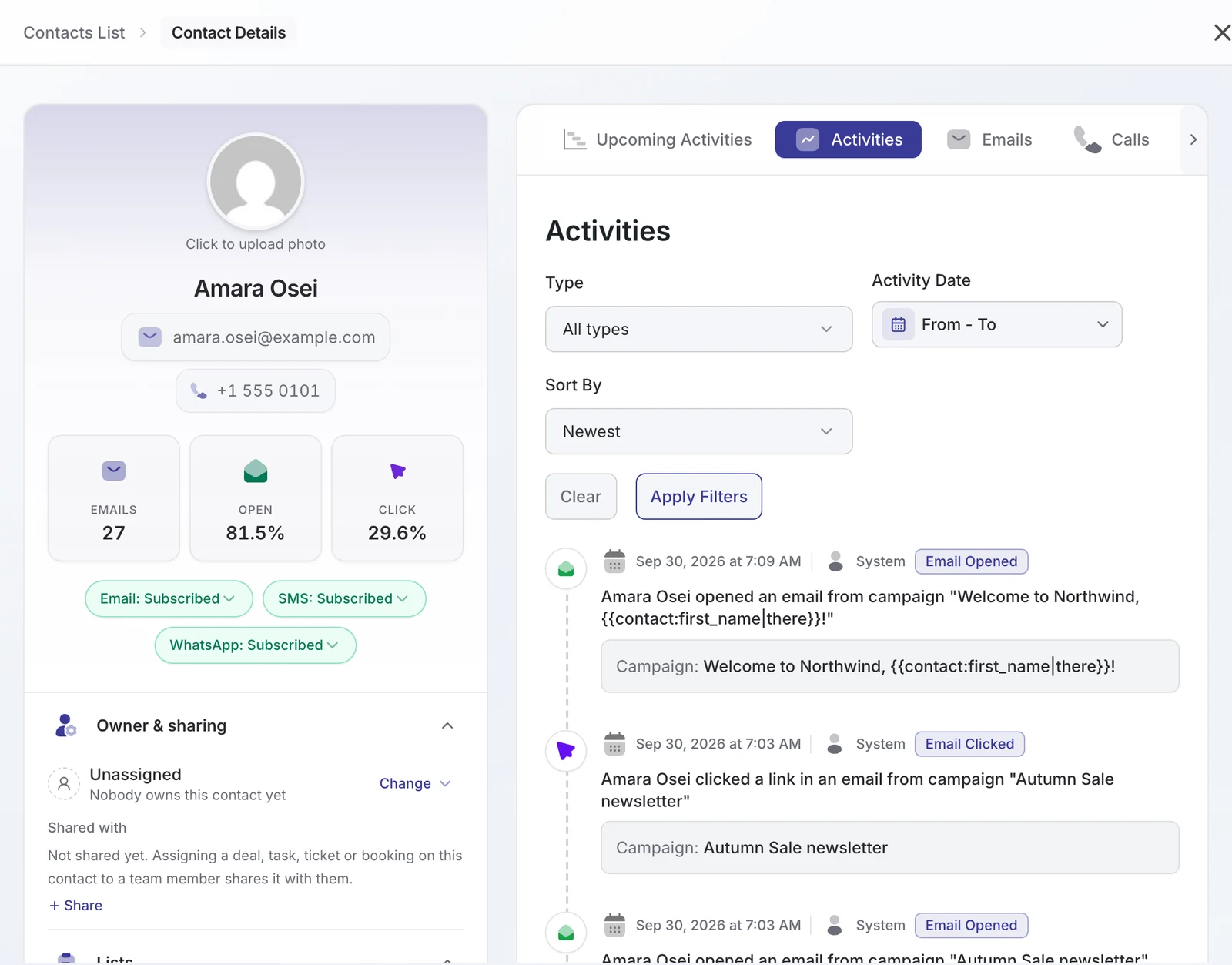
- Open the contact in DoubleScale: the message, its delivery status and any reply appear on the contact’s timeline.
- Open the automation’s Reports and Contacts tabs to see who went through the workflow and any step that failed.
- Switch the automation to Active.
What it costs
- Meta charges per delivered template message, by category (utility, marketing, authentication) and by the recipient’s country. Utility messages for order updates are usually priced well below marketing messages. Rates changed several times in 2025 and 2026, so check Meta’s current pricing page for your countries.
- DoubleScale Pro costs from $99 a year for one site. DoubleScale does not add a per-message fee; you pay Meta directly.
- Customer replies open a 24-hour service window in which your team can answer from the DoubleScale inbox.
Troubleshooting
| What you see | What it means | Fix |
|---|---|---|
| “No WhatsApp provider is configured” | Meta WhatsApp is not connected | Finish step 2 and test the connection |
| Template is missing from the dropdown | Not approved yet, or not synced | Check approval in WhatsApp Manager; changes can take up to 24 hours to sync |
| Contact skipped: “no WhatsApp phone number” | Phone not captured or not converted | Turn on “Phone number is also WhatsApp number” and require the phone field at checkout |
| Contact skipped: unsubscribed | The customer replied STOP or was unsubscribed | Respect it; they can opt in again |
| Delivered status never updates | Webhook not receiving events | Subscribe the webhook to messages and message_status and check the verify token |
| Sends stop after 250 people | New-account daily limit | Meta raises the limit as quality stays high; it resets every 24 hours |
Want SMS too?
Not every customer uses WhatsApp. You can add a Send SMS step to the same workflow through Twilio. Our guide to SMS notifications for WooCommerce orders covers it, and the abandoned cart guide shows WhatsApp in a recovery sequence. For everything else WhatsApp can do in WordPress, read WordPress WhatsApp marketing and automation.
FAQ
Can WooCommerce send WhatsApp messages without a plugin?
No. WooCommerce only sends emails. You need a plugin that connects to the WhatsApp Business Platform (Cloud API), such as DoubleScale Pro, and approved message templates from Meta.
Is WhatsApp order notification free?
The Cloud API itself has no subscription, but Meta charges per delivered template message by category and country. Utility templates for order updates are usually priced well below marketing templates. DoubleScale does not add per-message fees.
Do I need the WhatsApp Business app?
No. The Cloud API is separate from the WhatsApp Business app, and the number you register for the API cannot be active in the app at the same time.
Which template category should order updates use?
Utility. It covers transactional messages such as order confirmations and shipping updates. Adding promotions to a utility template can get it reclassified as marketing.
Why did a customer not receive the message?
The usual causes are: no WhatsApp number on the contact, the customer unsubscribed, an empty template variable, or the template not being approved. Check the automation’s reports and the contact’s timeline in DoubleScale.
Can customers reply?
Yes. Replies arrive in the DoubleScale inbox and on the contact’s timeline, and you can answer with free text for 24 hours after the customer’s last message.
DoubleScale Pro connects WooCommerce to the official WhatsApp Cloud API, with templates, merge tags and replies inside WordPress.
Get our guides first on GoogleAdd DoubleScale as a preferred source and our articles show up more often in your Top Stories.

Mohamed Magdy, Founder & CEO, DoubleScale
Mohamed Magdy is the founder and CEO of DoubleScale, the all-in-one CRM for WordPress. He writes about CRM, email marketing and automation for WordPress businesses.
Practical CRM tips, once a month
Guides on growing with WordPress: lead capture, email marketing, automations and sales. No spam, unsubscribe anytime.