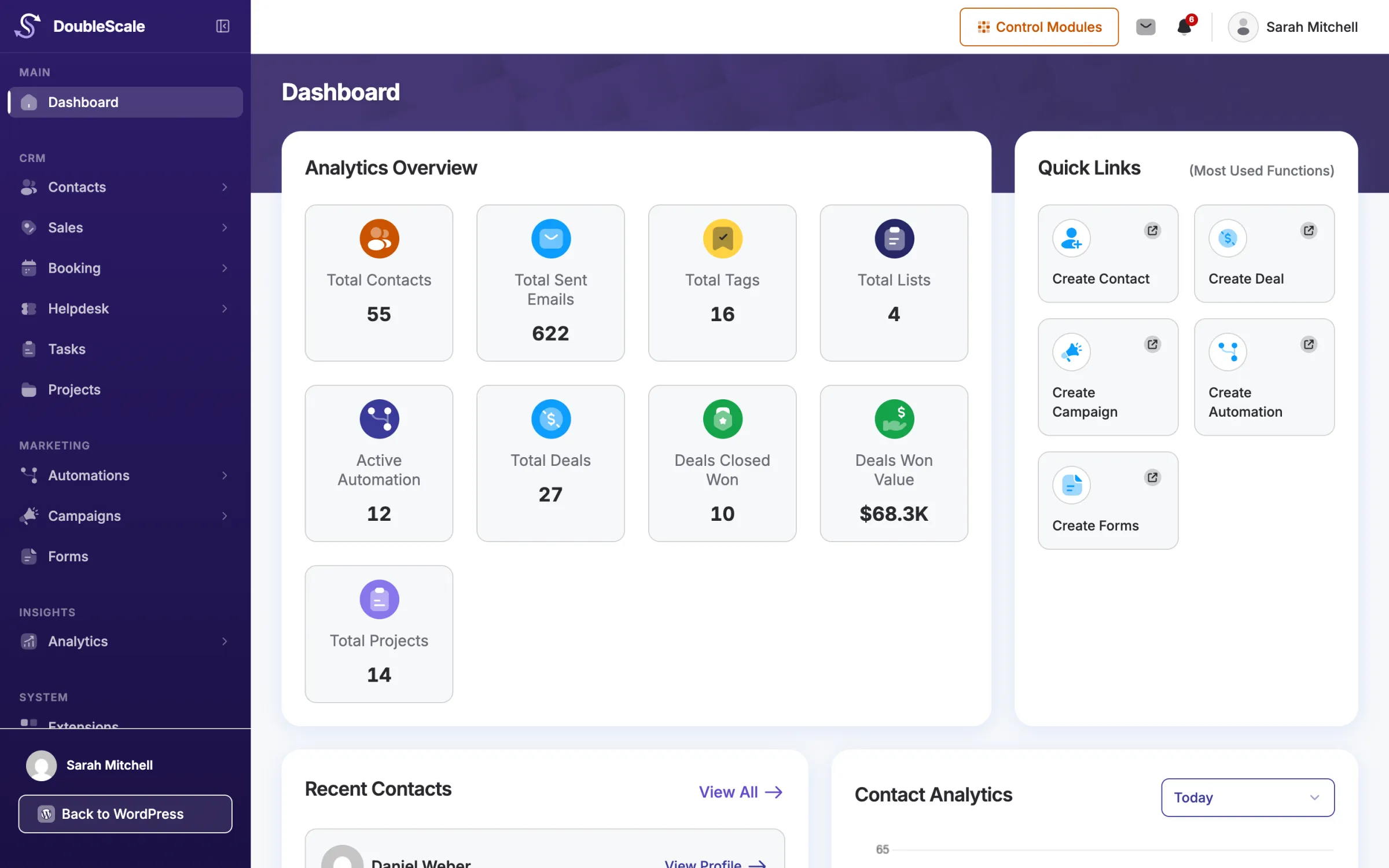
















Checked every minute
New mail is fetched every 60 seconds in the background, for the shared inbox and every personal account.
Connect your business inbox from any IMAP server, plus each sales rep’s own Gmail or Outlook. Customer emails land on the right contact automatically, attachments included, and you reply from DoubleScale without losing the thread.
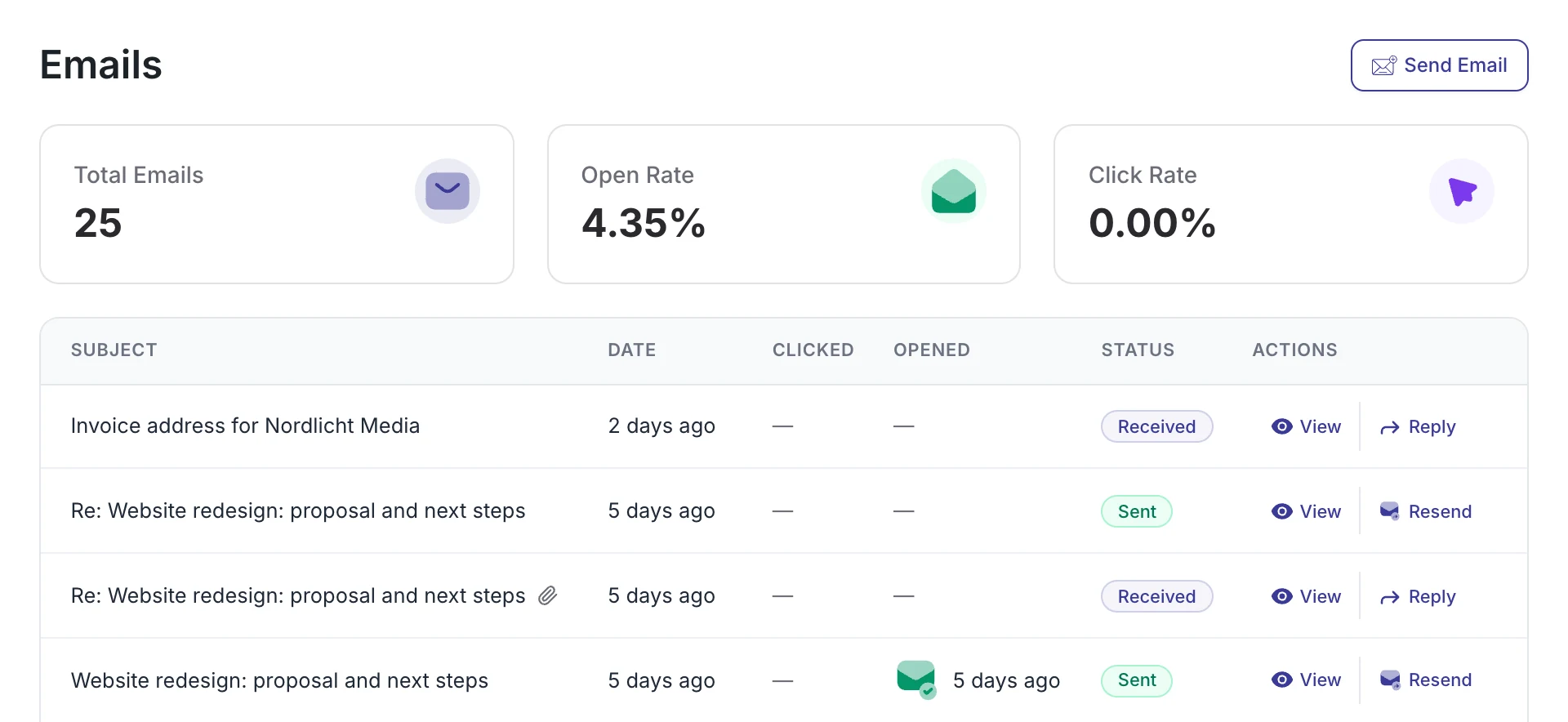
Your email stays where it is. DoubleScale reads new messages and files each one on the contact it belongs to.
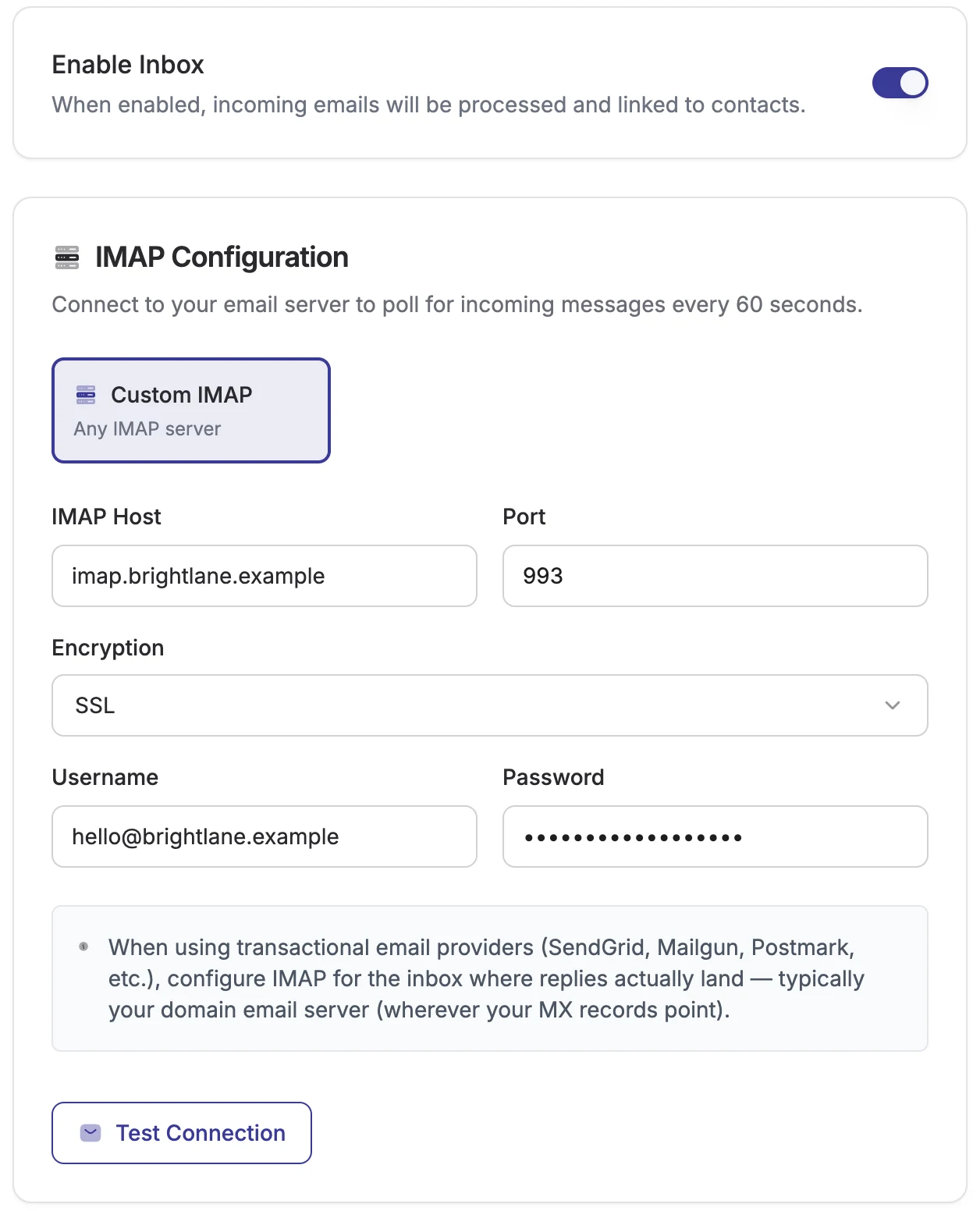
Add your shared inbox with its IMAP details, or connect Gmail or Outlook. Test the connection before you save.
New emails are matched to contacts by the sender’s address. Unknown senders can become new contacts if you want.
Read the email on the contact record and reply from DoubleScale. Replies stay in the same thread in your customer’s inbox.
Your web host, Zoho Mail, Fastmail, iCloud or your own mail server: if it supports IMAP, DoubleScale can read it. Gmail and Outlook can also connect with OAuth. Enter the server details once and DoubleScale checks for new mail every 60 seconds.
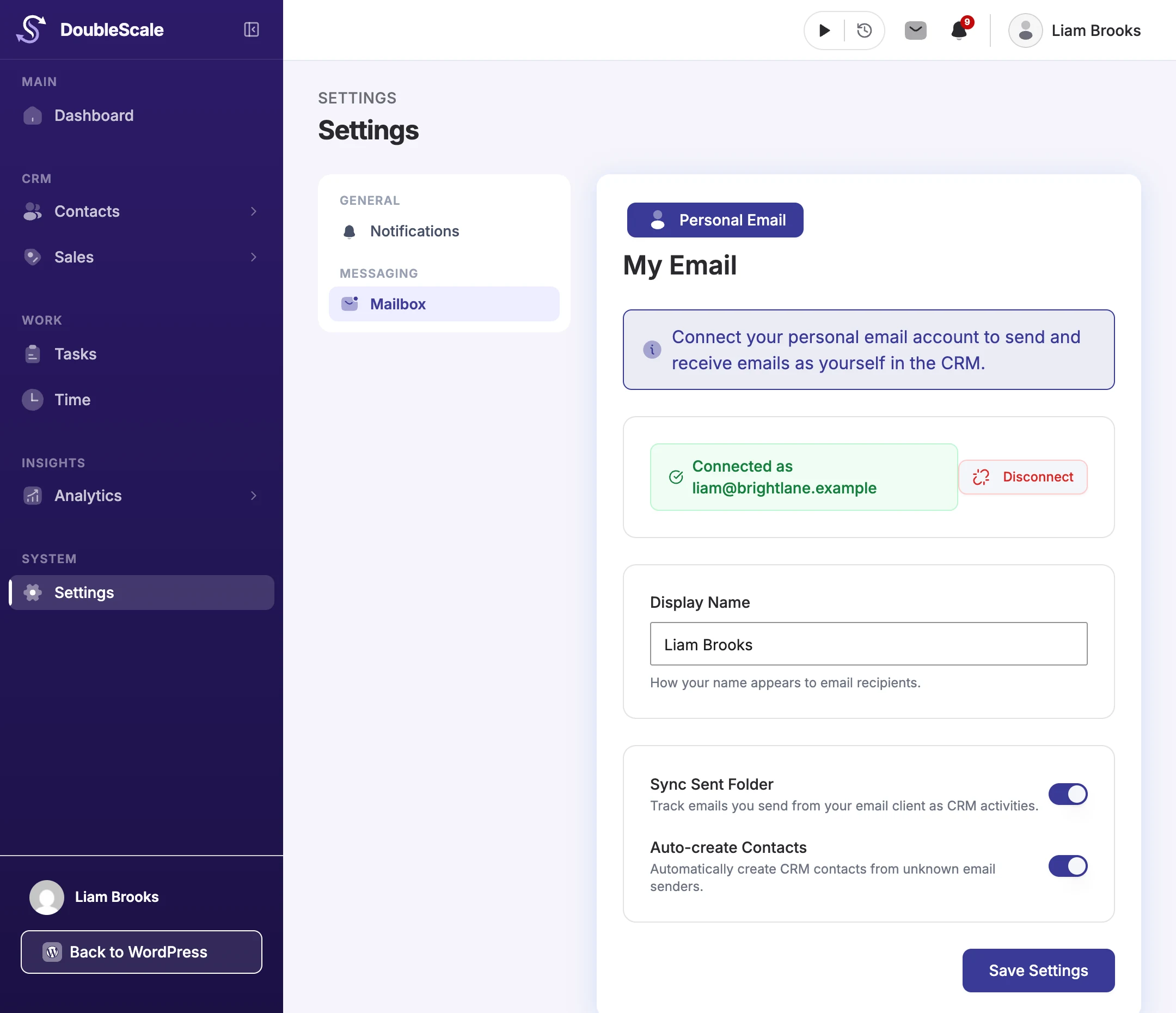
Every rep connects their own mailbox from Settings › Mailbox: click Connect Gmail or Connect Outlook and sign in with Google or Microsoft. No passwords to share, and their customer emails start landing on the right contacts.
 Gmail
 Outlook
Google Workspace and Microsoft 365 included
Plus one shared inbox for the business. Connect hello@ or info@ over IMAP, Gmail or Outlook, set its From name and Reply-To, and its emails reach the whole team.
Set up once by an admin. Gmail and Outlook sign-in uses your own Google Cloud or Microsoft Azure app, added in Settings › Mailbox › Email Provider Setup.
Received emails appear on the contact’s Emails tab and timeline, next to their deals, invoices, tickets and bookings.
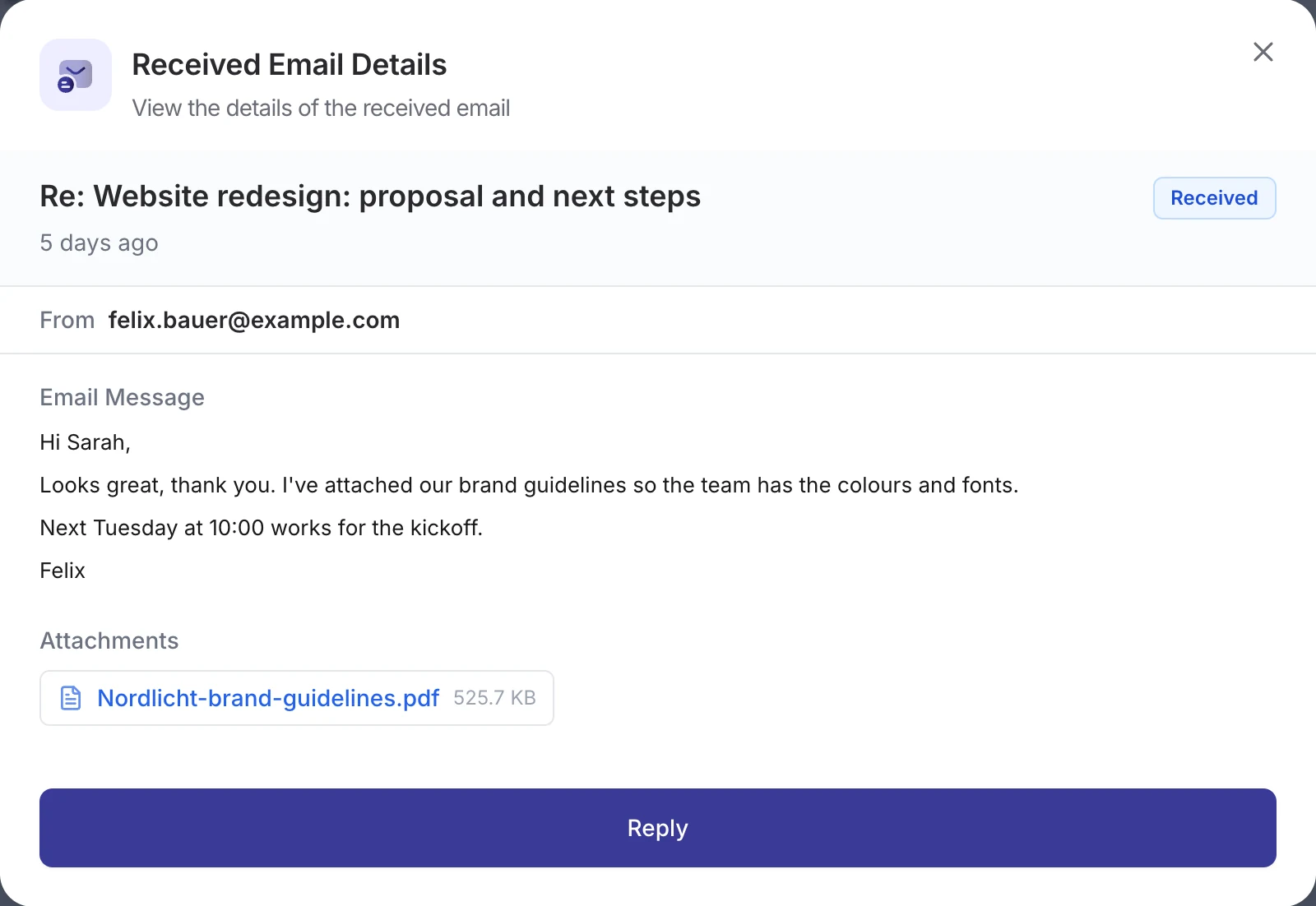
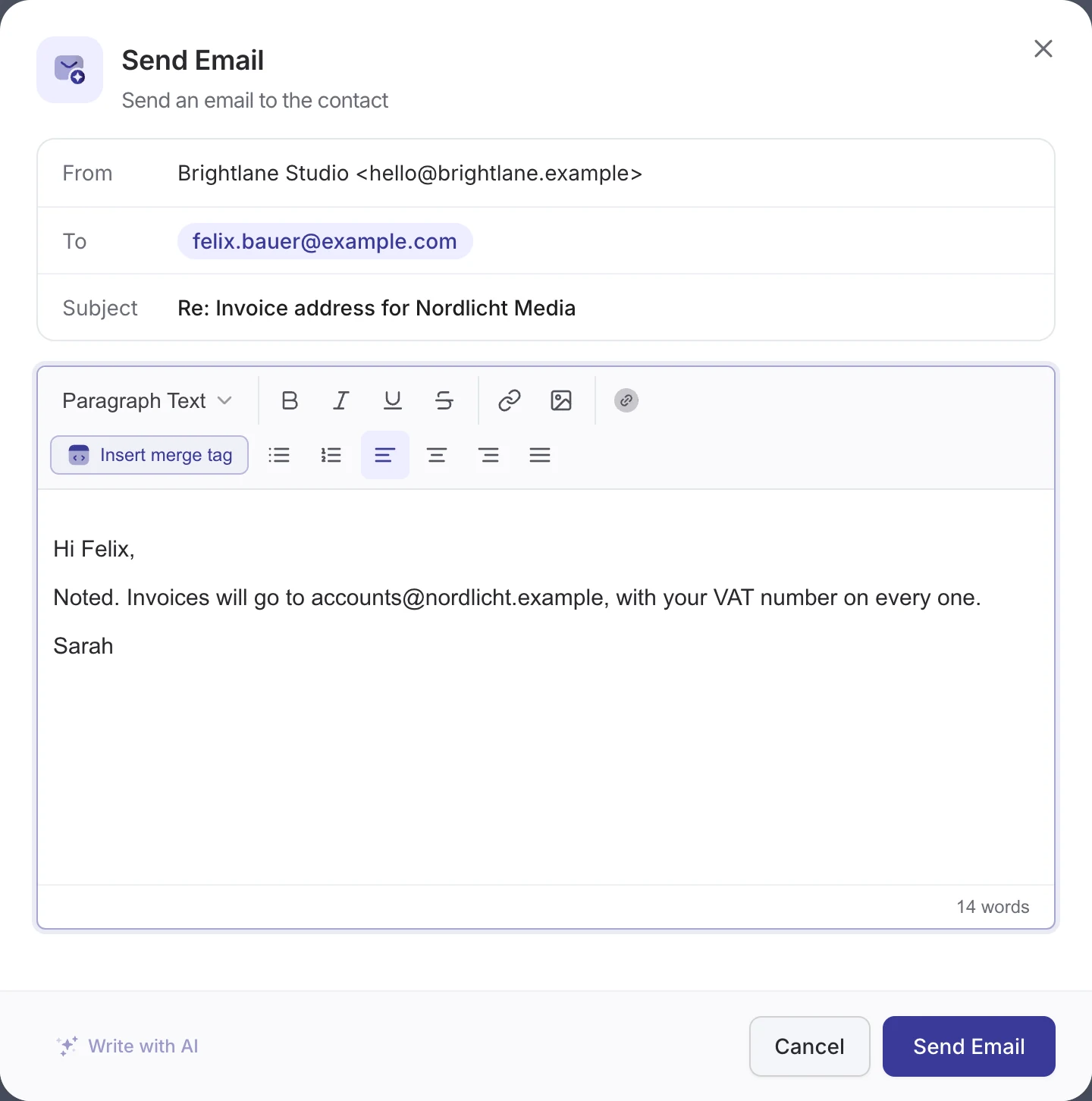
Click Reply and the subject, recipient and thread are filled in for you. Your customer sees a normal reply in the same conversation.
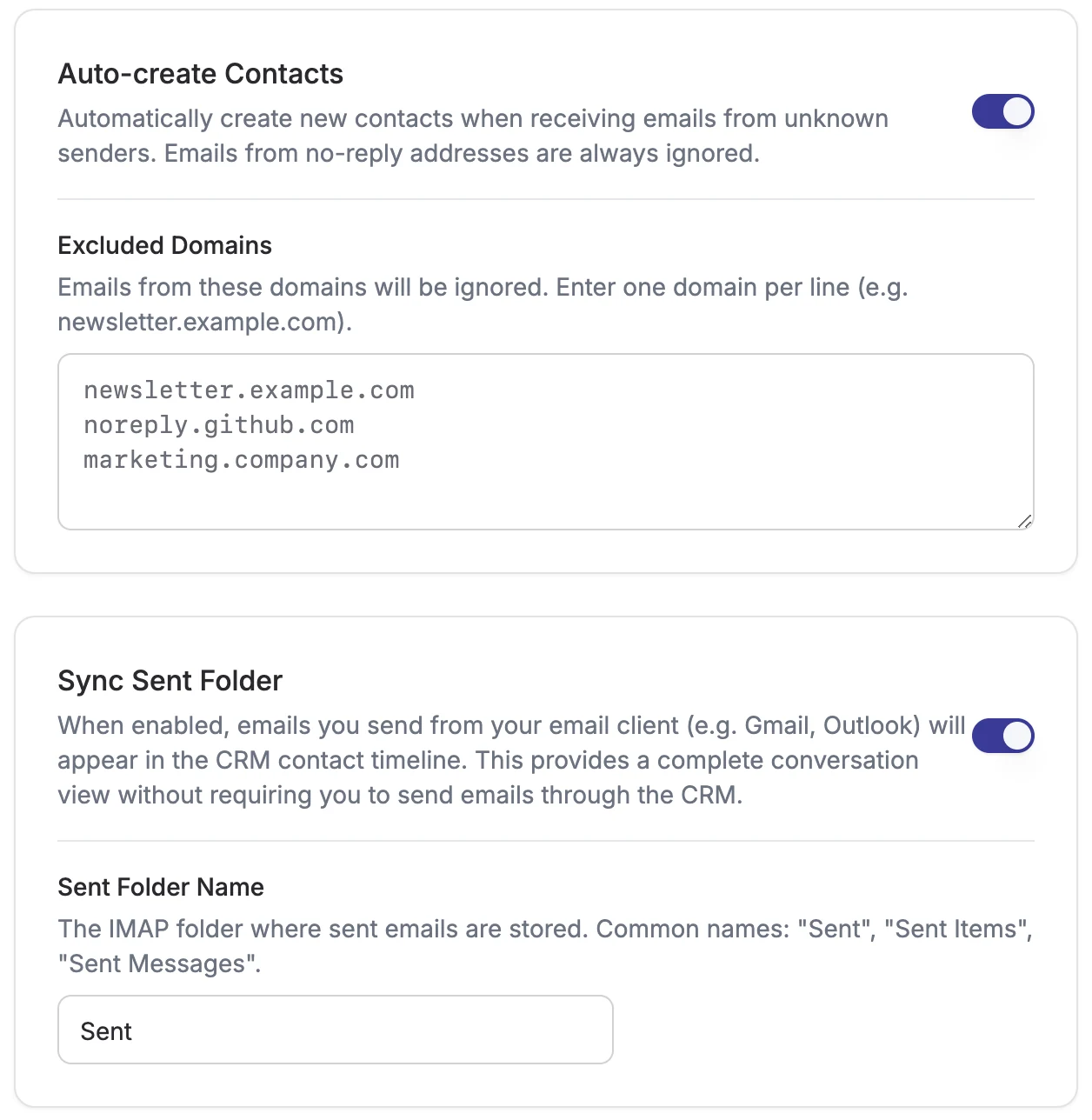
Choose whether a first email from someone new creates a contact. Keep automatic mail out of your CRM.
The Email Received trigger starts an automation when a contact emails you. Filter by words in the subject or the message, and use both in your actions with merge tags.
New mail is fetched every 60 seconds in the background, for the shared inbox and every personal account.
Mail from before you connected is not imported, so your CRM isn't flooded with years of old email.
After DoubleScale processes a new email, it is marked as read in the mailbox, so a shared address works well as the CRM's inbox.
The Inbox bell shows new emails, SMS and WhatsApp messages, with filters and Mark all read.
Admins and CRM managers set up the shared inbox. Every CRM user can connect their own account.
Emails and attachments are saved in your WordPress database and uploads, on your own server.
Mailbox is part of DoubleScale Pro on Basic, Plus and Agency, yearly or lifetime. No per-user or per-inbox fees.
How the DoubleScale mailbox and IMAP sync work.
Any mailbox that supports IMAP with a username and password, such as your web host, Zoho Mail, Fastmail or a self-hosted mail server. Gmail and Outlook (including Google Workspace and Microsoft 365) connect with OAuth, using your own Google Cloud or Microsoft Azure app. Personal accounts connect with Gmail or Outlook.
Yes. Every CRM user, including sales reps and sales managers, can connect their own Gmail or Outlook account under Settings › Mailbox › Personal Email. They send and receive as themselves, and their emails are filed on the right contacts. An admin adds the Google or Microsoft app once in Email Provider Setup.
Every 60 seconds, in the background, through WordPress's task scheduler. On sites with little traffic, a real server cron job keeps the checks on time.
No. DoubleScale starts with the emails that arrive after you connect the mailbox. Old email stays in your mail account.
No. It brings customer emails into the CRM and lets you reply from there. You keep using Gmail, Outlook or any other email app; turn on Sync Sent Folder and the emails you send from them show up on the contact too.
No. The Mailbox files customer emails on contact records. Helpdesk mailboxes turn emails sent to a support address into tickets. You can use both.
The free plugin sets the shared sending identity (From name, From email and Reply-To). Receiving email over IMAP, personal accounts and the Email Received trigger come with DoubleScale Pro on every paid plan.
Start with the free plugin and add Pro modules when you need them. Unlimited contacts on every plan, and your data stays on your own server.