



















On this page
WordPress WhatsApp marketing is not a plugin that blasts your list from wp-admin. On Meta’s Cloud API, a business can only start a conversation with an approved template. After the customer replies, you get a 24-hour window for free-text. That is the whole game: templates to open, session messages to continue, and automations so you are not copying numbers into WhatsApp Web.
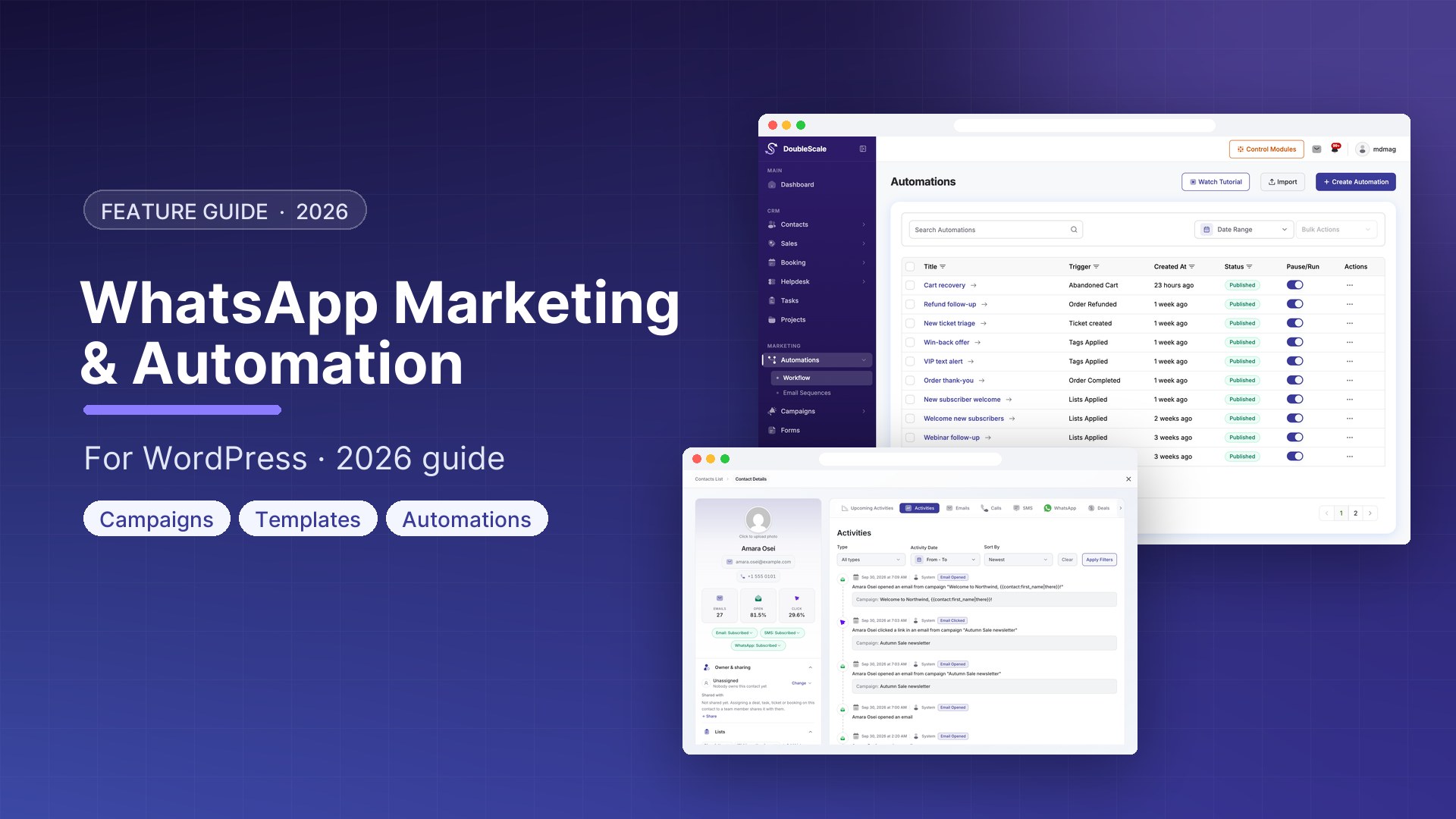
DoubleScale (with DoubleScale Pro) runs that loop inside WordPress. It connects the official Meta WhatsApp Business Cloud API, stores a dedicated WhatsApp number on the contact, sends from automations and the inbox, and logs every message on the same timeline as email and SMS. It does not create bulk WhatsApp campaigns. If you need Mailchimp-style WhatsApp broadcasts, this is the wrong product — and that is by design, because Meta’s rules do not work that way.
This guide covers how WhatsApp marketing actually works on WordPress, what DoubleScale Pro does, and how to wire automations without leaving your CRM. Store-specific order messages are in How to send WhatsApp messages from WooCommerce. Cart recovery is in WooCommerce abandoned cart recovery.
What WordPress WhatsApp marketing actually is
A lot of “WhatsApp for WordPress” plugins are click-to-chat buttons. Useful for a floating icon. Useless if you want order updates, form follow-ups, or a two-way inbox tied to a CRM contact.
Real WhatsApp marketing on WordPress means:
- A WhatsApp Business Account and Cloud API credentials (access token, Phone Number ID, WABA ID, App Secret)
- Templates you create in Meta Business Manager and wait for approval (marketing, utility, or authentication)
- A CRM field for the WhatsApp number (E.164, like
+14155552671) — not a generic phone field you hope is WhatsApp - A way to send templates from automations (form submitted, order completed, inbound message)
- A 24-hour conversation window so agents can reply in free text after the customer writes back
- Opt-out handling (STOP / unsubscribe keywords) so you do not keep messaging people who asked you to stop
DoubleScale Pro is built around that model. Twilio WhatsApp is not used; WhatsApp goes through Meta only. SMS, if you use it, still goes through Twilio.
How DoubleScale handles WhatsApp
Live send requires DoubleScale Pro plus the free DoubleScale plugin. The free plugin holds the contact record (whatsapp_phone, whatsapp_status) and the automation canvas. Pro connects Meta, runs the inbox, and actually sends.
1. Meta Cloud API connection
Under DoubleScale → Settings → Integrations → Meta WhatsApp you paste the permanent access token, Phone Number ID, WhatsApp Business Account ID, webhook verify token, and App Secret. DoubleScale talks to Graph API v21.0, checks that the phone number belongs to that WABA, and exposes a webhook at admin-ajax.php?action=doublescale_whatsapp_webhook. Incoming payloads are signed with X-Hub-Signature-256.
Step-by-step credentials live in the WhatsApp Meta API setup guide.
2. Approved templates, not a campaign composer
You create templates in Meta WhatsApp Manager, wait for approval, then sync them into DoubleScale. The plugin does not submit new templates to Meta for you. Variables map to merge tags such as {{contact:first_name}}. Headers can include media when the template defines them.
New WhatsApp campaigns (broadcast to a segment from the campaign builder) are disabled. WhatsApp send is available for automations and individual contact messaging only. That matches how Meta expects businesses to message: triggered, templated, and conversational — not a newsletter dump.
3. Templates vs the 24-hour session
| Mode | When you use it | What DoubleScale sends |
|---|---|---|
| Template | You start the conversation, or the 24-hour window is closed | Meta type: template using an approved name and language |
| Session (free-text) | The contact messaged you within 24 hours | Meta type: text from the inbox or an auto-reply |
If you try to send free-text with no inbound in the last 24 hours, DoubleScale blocks it and tells you to use a template first. Automation free-form replies are allowed only when the trigger is WhatsApp Message Received and the window is still open. Every other automation uses a template.
4. Individual messages and the unified inbox
From a contact you can send a template, or session text if the window is open. The number must be on whatsapp_phone, and whatsapp_status must be subscribed (not unsubscribed or blocked). Replies land in the Pro inbox next to email and SMS, on the same contact timeline. Details: WhatsApp individual messaging and the WhatsApp marketing feature page.
5. Automations
This is the marketing engine. Pro implements the WhatsApp trigger and send action; the free plugin only shows stubs.
- Trigger: WhatsApp Message Received — optional filter “message contains” a phrase. Merge tags include
{{messaging:message_body}}, from/to numbers, and media flags. - Action: Send WhatsApp — approved template for most flows; free-form only after an inbound WhatsApp trigger inside the 24-hour window. Skips contacts unsubscribed from WhatsApp.
- Action: Unsubscribe WhatsApp — updates channel status. Optional keyword match in the flow.
- Other triggers that can send a template — WooCommerce order created/completed, form plugins (including Contact Form 7, WPForms, Fluent Forms, Gravity Forms, Quill Forms, and others), contact subscribed/unsubscribed (including WhatsApp channel events).
Docs: WhatsApp automations.
6. WooCommerce and forms
WooCommerce customers sync into DoubleScale. If phone is WhatsApp is enabled (the default), billing phone is copied to whatsapp_phone in E.164. Abandoned checkout can store that number on the contact so a later automation can send a template — covered in the abandoned cart guide.
Forms do not need a special WhatsApp widget. Pattern: form submitted → create/update contact → Send WhatsApp template.
7. Opt-out
Inbound STOP, UNSUBSCRIBE, CANCEL (and similar) can auto-unsubscribe the WhatsApp channel. START, SUBSCRIBE, YES can opt back in. You can turn WhatsApp auto keyword unsubscribe off in settings; it defaults to on. There is no separate WhatsApp double-opt-in landing page — lawful consent still has to happen in your checkout, form, or WhatsApp flow. DoubleScale enforces list status on send.
A practical WordPress WhatsApp automation
- Connect Meta WhatsApp in Integrations and test the connection.
- In Meta, create a utility template (for example an order or booking confirmation) and wait for approval.
- In DoubleScale, sync templates, then map variables to contact or order merge tags.
- Create an automation: trigger form submitted or WooCommerce order completed → action Send WhatsApp with that template.
- Add a second automation: trigger WhatsApp Message Received (optionally “message contains” a keyword) → session auto-reply or a task for your team, and keep the thread in the inbox.
Agents reply in the inbox while the 24-hour window is open. When it expires, the next outbound has to be a template again.
What DoubleScale does not do (so you do not buy the wrong thing)
- No new bulk WhatsApp campaign sends from the campaign builder
- No Twilio WhatsApp (Meta Cloud API only)
- No free-text outside the 24-hour window
- No using a generic phone field in place of
whatsapp_phone - No creating Meta templates inside WordPress — create them in Meta, then import
- No live WhatsApp send on the free plugin alone
How this compares to typical WordPress WhatsApp plugins
| Click-to-chat button | Zapier → WhatsApp SaaS | DoubleScale Pro | |
|---|---|---|---|
| Runs in WordPress | Widget only | No — another dashboard | Yes — wp-admin, self-hosted CRM |
| Official Cloud API | Usually not | Depends on the SaaS | Yes — Meta Graph v21.0 |
| CRM contact + timeline | No | Glued | Same contact as email, SMS, deals, tickets |
| Automations | No | Zap-by-zap | Native triggers and Send WhatsApp action |
| Two-way inbox | Opens WhatsApp Web | In the other app | Unified inbox in DoubleScale |
| Broadcasts | No | Often the pitch | Not offered — templates + automations + 1:1 |
Frequently asked questions
Can I do WhatsApp marketing in WordPress without a SaaS?
Yes. DoubleScale Pro is a self-hosted plugin. Messages still travel through Meta’s Cloud API (that is required), but contacts, automations, and the inbox stay in your WordPress database.
Do I need DoubleScale Pro?
Yes for sending and receiving. The free plugin stores WhatsApp fields and shows automation steps; Pro connects Meta and runs the inbox.
Why can’t I send a WhatsApp campaign to my list?
DoubleScale blocks WhatsApp campaign creation. Use an automation with an approved template, or message one contact from the inbox. That is how Meta’s template and quality rules work.
What is the 24-hour window?
After a customer messages you, Meta lets you send free-text for 24 hours. After that, you must use an approved template again. DoubleScale checks the window before session sends.
Does this work with WooCommerce?
Yes. Orders sync to contacts, billing phone can populate WhatsApp, and order triggers can send templates. See the WooCommerce WhatsApp guide.
If you want WhatsApp on the same contact as email, SMS, pipelines, and tickets, start from pricing or the WhatsApp marketing overview. Setup details are in the Meta API guide.

Mohamed Magdy, Founder & CEO, DoubleScale
Mohamed Magdy is the founder and CEO of DoubleScale, the all-in-one CRM for WordPress. He writes about CRM, email marketing and automation for WordPress businesses.
Practical CRM tips, once a month
Guides on growing with WordPress: lead capture, email marketing, automations and sales. No spam, unsubscribe anytime.