















On this page
- What do you need before you start?
- Step 1: Install DoubleScale and turn on the Knowledge Base
- Step 2: Plan your topics from real questions
- How many articles do you need to launch?
- Step 3: Write your first article
- Step 4: Publish your help page
- Step 5: Add client-only and team-only articles
- Step 6: Let visitors open a ticket when the article isn’t enough
- Step 7 (optional, Pro): Add the AI assistant and live chat
- Step 8: Measure what works and write what’s missing
- What are the most common help center mistakes?
- What are other ways to build a help center in WordPress?
- Frequently asked questions
- Related guides
- Sources
To build a help center in WordPress, install a knowledge base plugin, plan a handful of topics from your real support questions, write your first ten or so articles, and publish them on a help page with search. Then connect it to the place customers go when an article doesn’t help, and check every month which articles are read and found helpful.
This guide walks through every step with DoubleScale, whose knowledge base is free in the core plugin and sits next to its helpdesk, client portal and CRM. You’ll end up with a searchable help center on your own site, client-only guides inside the client portal, team-only notes, a ticket form for the questions articles can’t answer, and, if you add Pro, an AI assistant that answers from your articles. Plan on an afternoon for setup and a few hours for the first articles.
Install DoubleScale from WordPress.org and turn on Helpdesk, then the Knowledge Base toggle inside it.
Plan 5 to 7 topics from your last few months of tickets, and write 10 to 20 articles to start.
Publish the help page with one click (or the [doublescale_help_center] shortcode) and set who can read each article.
Connect a ticket form for unanswered questions, and optionally the Pro AI assistant and live chat.
Measure views, helpful votes and unanswered questions every month, and write what’s missing.
What do you need before you start?
You need a WordPress site where you can install plugins, and a rough list of the questions customers ask you. That’s it for the free version. The AI assistant and live chat are optional and need DoubleScale Pro plus a key from an AI provider.
- WordPress with PHP 7.4 or newer (DoubleScale 1.10.1 is tested up to WordPress 7.1.5).
- Your support history: a few months of tickets or emails. This is where your first articles come from.
- A few screenshots of the screens customers get stuck on.
- Optional: DoubleScale Pro (from $99 a year for one site during Black Friday, $124 from 2 December 2026) and an OpenAI, Anthropic, Google Gemini or OpenAI-compatible API key.
Step 1: Install DoubleScale and turn on the Knowledge Base
The knowledge base is part of the free DoubleScale plugin, and it switches on as part of the helpdesk. It starts off, so you turn it on once.
- 1Install the pluginIn WordPress, go to Plugins, Add New, search for DoubleScale, then Install and Activate. Or download it from WordPress.org.
- 2Turn on HelpdeskOpen DoubleScale’s Modules screen and switch on Helpdesk. The knowledge base only runs while the helpdesk is on, because the two work together.
- 3Turn on Knowledge BaseInside the Helpdesk card, switch on the Knowledge Base toggle. A Knowledge Base menu appears in the DoubleScale admin.
Step 2: Plan your topics from real questions
Plan your help center around the questions customers already ask, grouped into 5 to 7 topics. Topics (categories in the admin) are what customers browse when they don’t search, so name them the way customers think: “Billing”, not “Revenue operations”.
Pull your last two or three months of tickets, skim the subjects, and count how often each question comes up. The top ten become your first articles; the groups they fall into become your topics. Here is a starting map for a typical service or software business. Copy it and rename freely.
In DoubleScale you create topics and sub-topics on the Articles screen and put them in order by dragging, in a list or a board view. The order you set is the order customers see. Keep it to two levels: a topic and, where needed, a sub-topic.
How many articles do you need to launch?
Ten to twenty is enough to launch, as long as they answer your most frequent questions. A help center with eight great articles that cover most of last month’s tickets beats one with eighty that cover the edge cases. Customers judge it on whether their question is there, not on size.
- Minimum: the five questions you answer every week.
- Good launch: 10 to 20 articles across your topics, plus a ticket form for everything else.
- After launch: add two to four a month, chosen from what customers searched for or asked without finding an answer.
Step 3: Write your first article
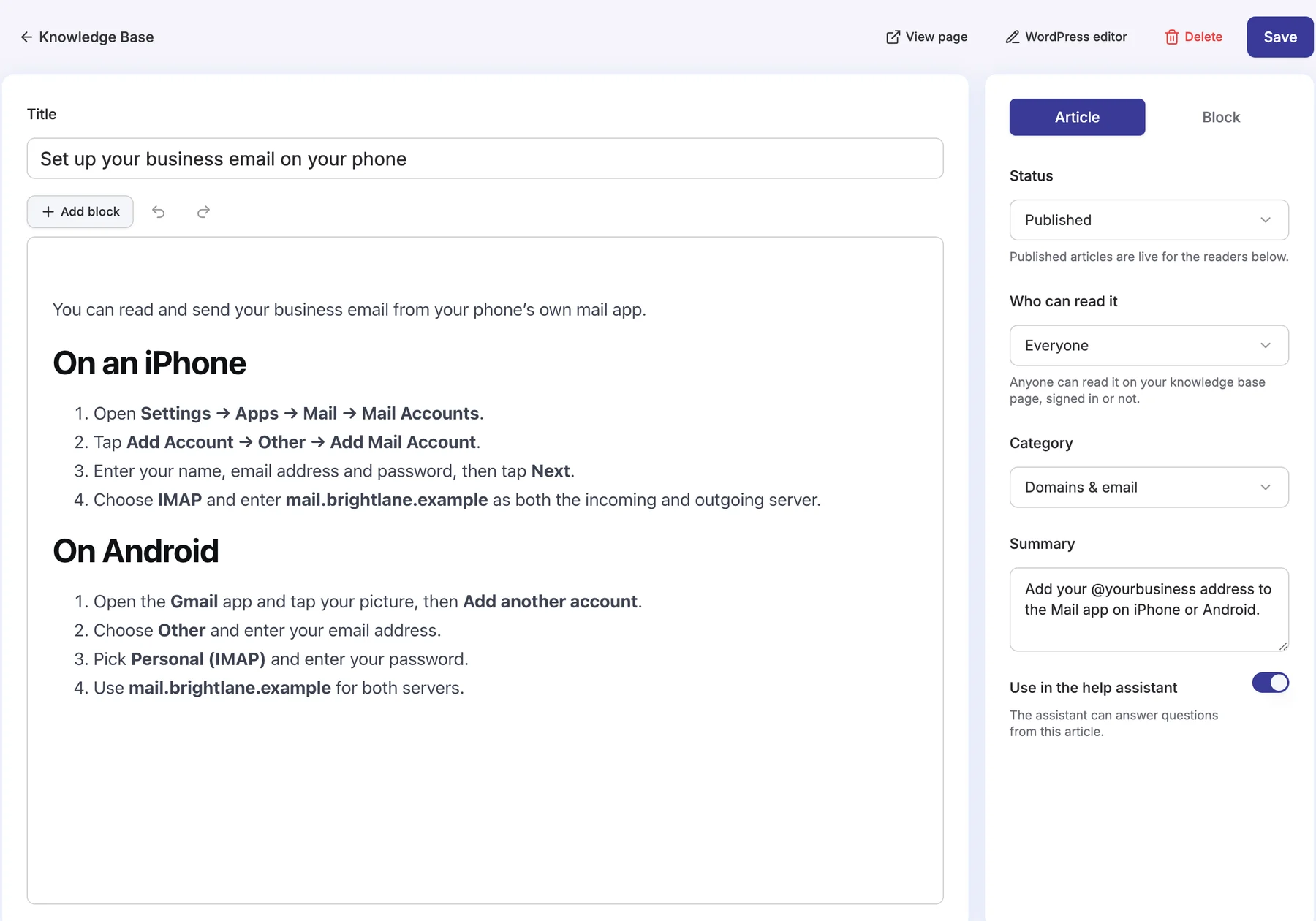
Articles are written in the WordPress block editor, with the settings that matter beside it. Go to Knowledge Base, then Articles, and click Write the first article (or Create draft once you have some).
- 1Title it with the customer’s words“How do I change my card?” or “Change your billing card”, not “Payment method management”. Search matches titles first.
- 2Write a one-sentence summaryThe Summary field shows in search results and on topic pages. Make it the answer in short: “Go to Account, Billing, and click Update card.”
- 3Write the stepsUse headings, numbered steps, images and callouts. Drafts save themselves, and unsaved changes are kept as a backup.
- 4Pick the categoryChoose the topic (or sub-topic) it belongs in.
- 5Choose Who can read itEveryone (public help page), Client portal only (signed-in clients), or Team only (internal, never shown to customers).
- 6PublishSet Status to published. The article becomes a page on your site, in your sitemap and readable by search engines if it is public.
Article-writing checklist
- One question per article. If the title needs “and”, split it.
- The answer in the first two lines, then the detail.
- Numbered steps with the exact button and menu names customers see.
- A screenshot where people usually get stuck, not on every step.
- The exact policy wording for anything with money or deadlines (refund windows, cancellation notice).
- A link to the next likely question at the end.
- Words customers use in tickets, including the “wrong” ones, in the summary.
- A last-checked date in your head: review it when the product or policy changes.
Step 4: Publish your help page
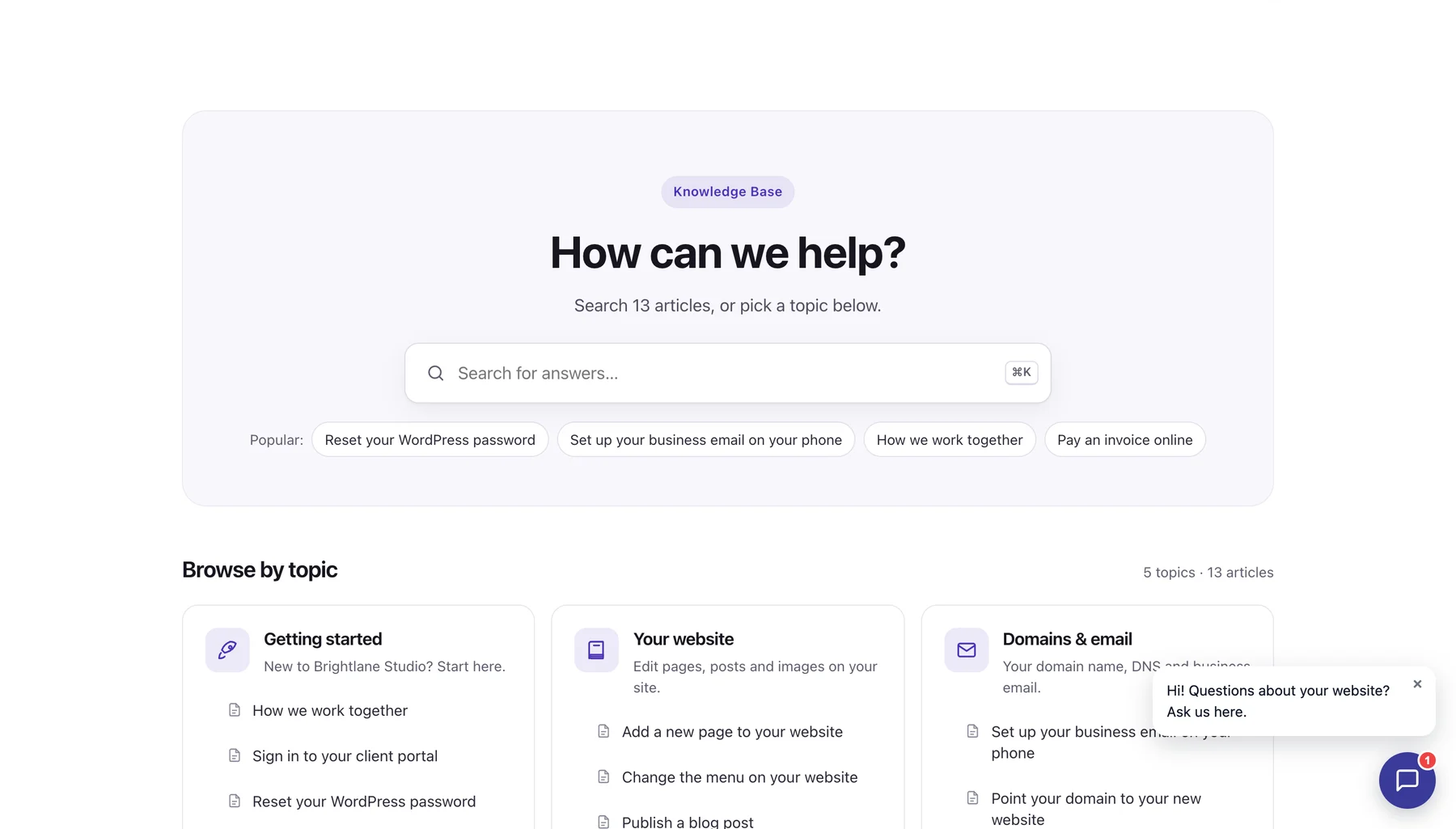
Your articles need one page on your site to live on, and DoubleScale can create it for you. On the Articles screen, a strip at the top shows where your knowledge base is live, or warns “Your knowledge base has no page on your site” with a Create page button.
- One click: click Create page, then Change address to pick where it lives, for example
/help-center/. Old addresses keep working: they lead to the new ones. - On any page you choose: paste the shortcode
[doublescale_help_center]into a page, for instance your existing Support page. - Category word: in the same address dialog you can set the word used in topic addresses, so a topic reads like
/help-center/topics/billing/.
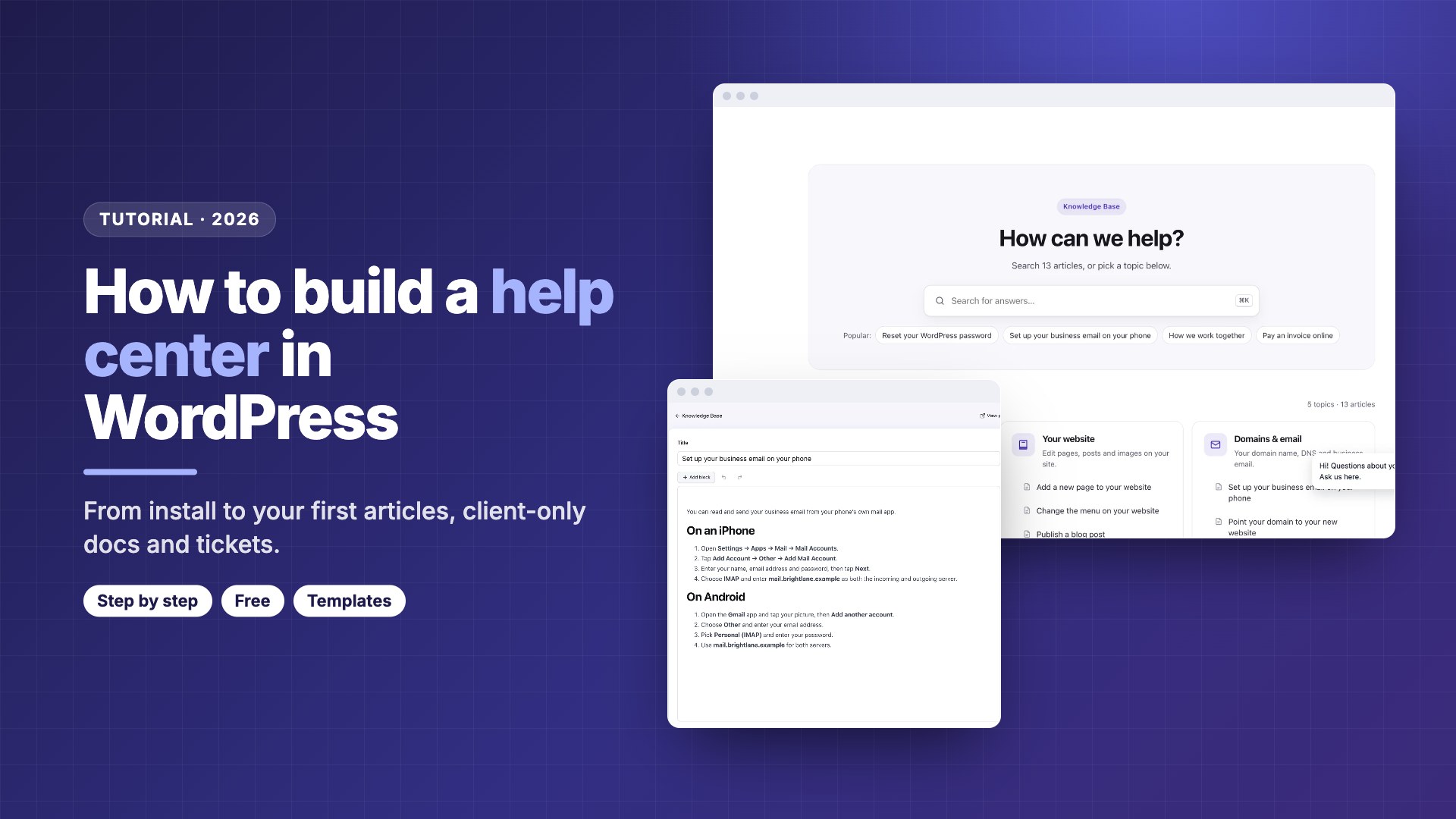
The help page works with block and classic themes and uses your brand colour. It shows a search box (customers can also press Ctrl K, or Cmd K on a Mac, from anywhere on the page), popular articles and topic cards. Search runs as people type, across titles, summaries and topics, with the matching words highlighted.
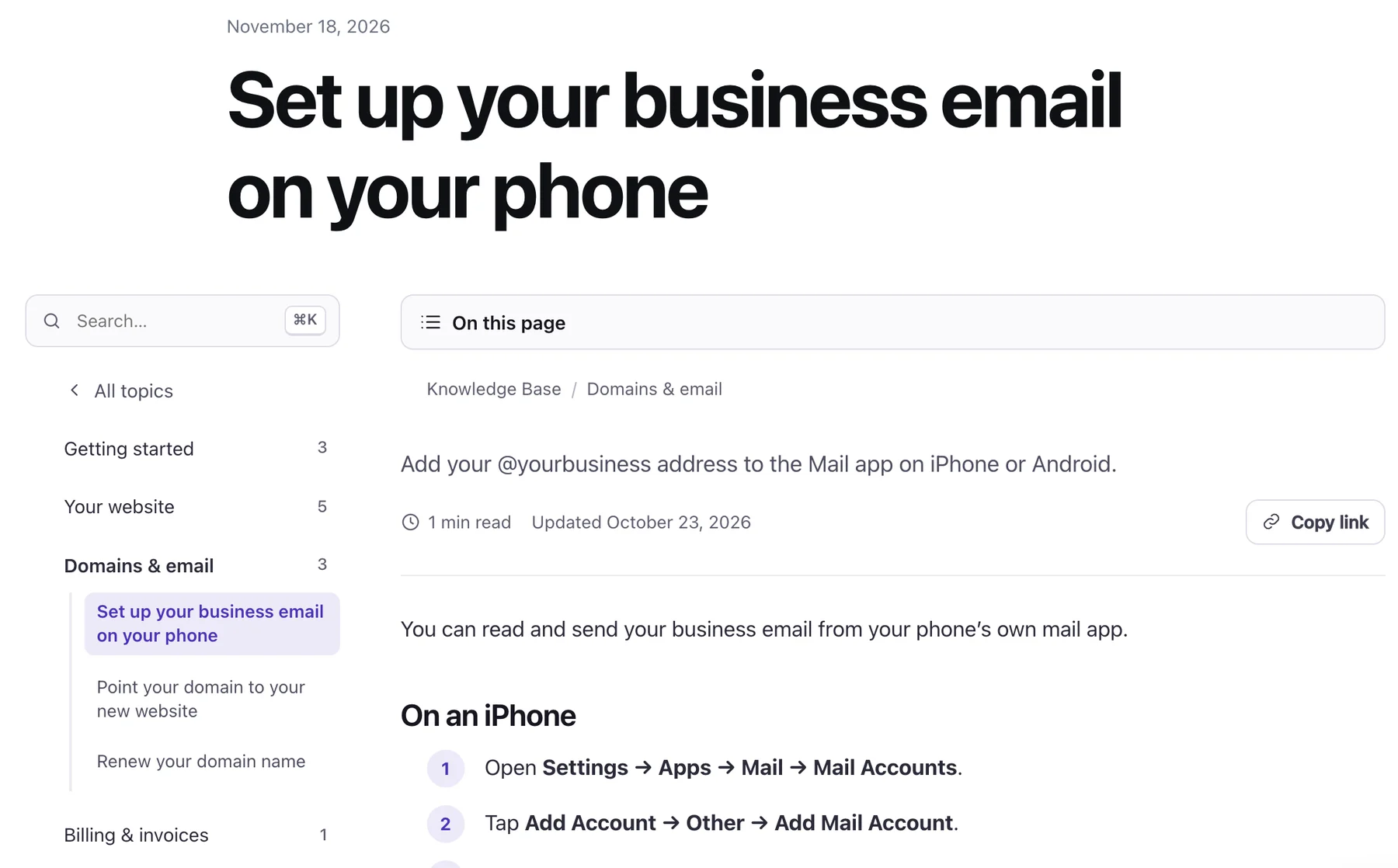
Each article page shows the topics tree beside the content, an “On this page” table of contents, the read time and last update, a Copy link button for pasting into replies, and a “Was this helpful?” vote with reasons.
Step 5: Add client-only and team-only articles
Some answers are only for paying clients or only for your team, and DoubleScale handles both in the free plugin with the Who can read it setting on each article.
- Client portal only: the article shows only to clients signed in to the DoubleScale client portal, in its Knowledge Base section, next to their tickets, invoices and projects. Good for care plans, how you work, onboarding checklists and private guides. In the portal settings, keep the Knowledge Base section switched on.
- Team only: visible only in your WordPress admin. Use it for internal checklists, escalation rules and saved replies, so every agent answers the same way.
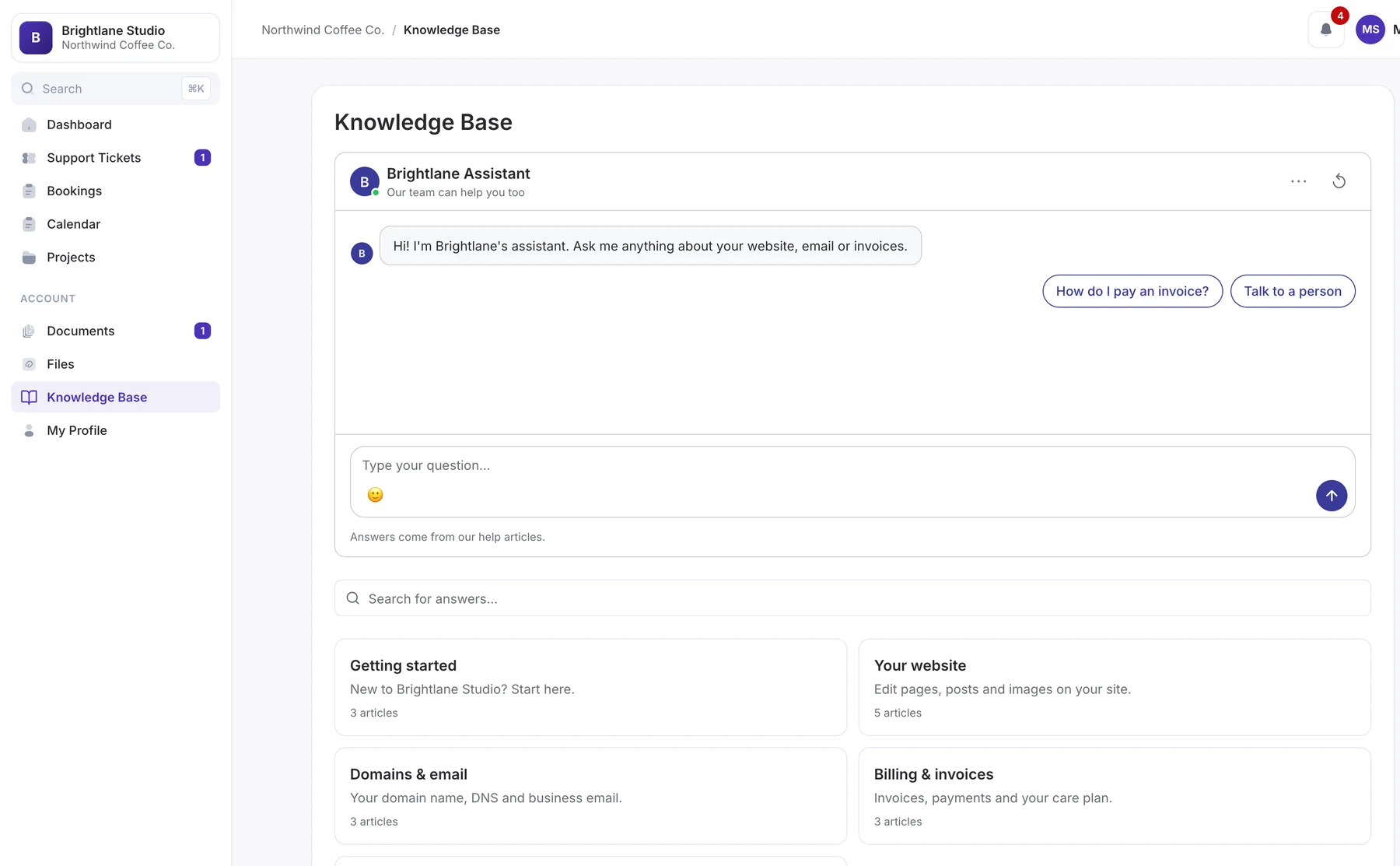
To share the writing, give people a knowledge base role in DoubleScale’s team settings: a Knowledge Base Manager handles every article, and a Knowledge Base Agent writes their own.
Step 6: Let visitors open a ticket when the article isn’t enough
Give customers a way out on the same page, so a failed search becomes a clear ticket instead of an email to the wrong address. In DoubleScale, go to Helpdesk, Settings, Knowledge base tickets, and choose who can open a ticket from the knowledge base.
- Anyone, with their email address: visitors fill in a short form (name, email, subject and message). The ticket arrives in your helpdesk inbox, and they follow it from a link emailed to them.
- Only signed-in customers: visitors sign in to the support portal before they can open a ticket. Signed-in customers always go to the support portal either way.
- Ask visitors to confirm their email first: an optional switch. DoubleScale emails a link and opens the ticket only when it is clicked, which stops tickets sent with someone else’s address but adds a step.
Spam protection is always on: a hidden field that only bots fill in, plus limits on how many requests one visitor, one email address and your whole site can send.
Step 7 (optional, Pro): Add the AI assistant and live chat
With DoubleScale Pro, an AI assistant answers visitors from your published articles and the site pages you pick, with numbered links to its sources. When it doesn’t know, it says so and offers your team. Both the assistant and live chat come with every Pro plan, with no per-agent fee.
- 1Connect your AI providerIn Settings, AI, add a key from OpenAI, Anthropic (Claude), Google Gemini or an OpenAI-compatible service. Your provider bills you for usage; DoubleScale adds no AI fee.
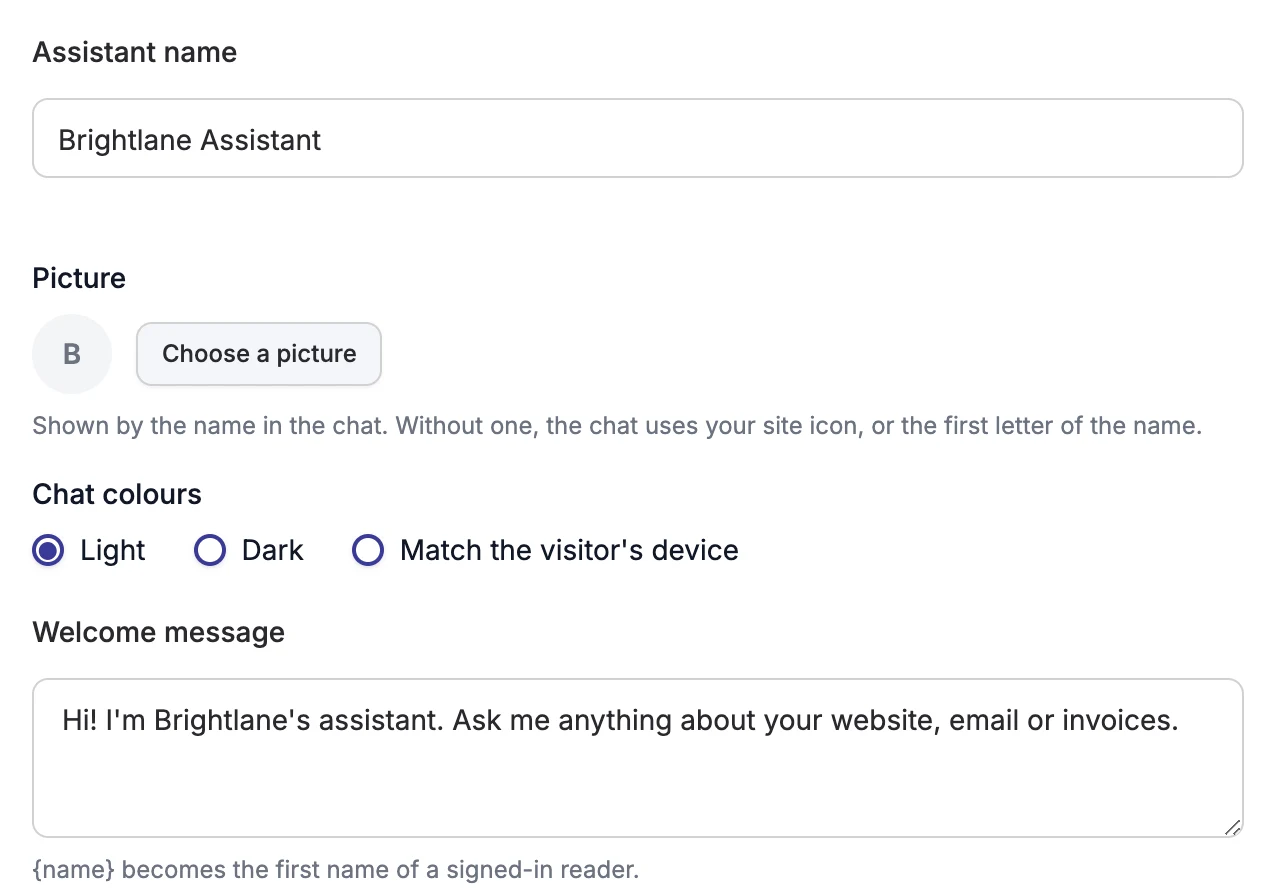
- 2Set up the assistantUnder Knowledge Base, AI Assistant, switch it on and set its name, picture, welcome message, tone and the reply when your articles hold no answer. Turn on “Learn from your site’s pages” to add pages such as pricing or shipping.
- 3Test it with Try itAsk real questions from your tickets, and switch “Ask as” between a visitor (public articles), a portal client (public and portal articles) and your team (every article) to check each audience.
- 4Add quick replies and ready answersQuick replies are up to four buttons under the welcome. Ready answers are your exact wording for questions you get every day.
- 5Turn on live chatIn Helpdesk, Settings, Live chat, switch it on, choose where the chat shows and who answers. Every chat becomes a ticket; if the visitor leaves, your reply is emailed after 5 minutes.
Live chat works without the AI too. For a deeper comparison of AI chat options, read our guide to AI chatbots for WordPress customer support.
Step 8: Measure what works and write what’s missing
Measure your help center by whether the questions it covers stop arriving as tickets. The Articles screen gives you the signals along the way: total, published and draft articles, views, and the share of readers who found articles helpful, overall and per article.
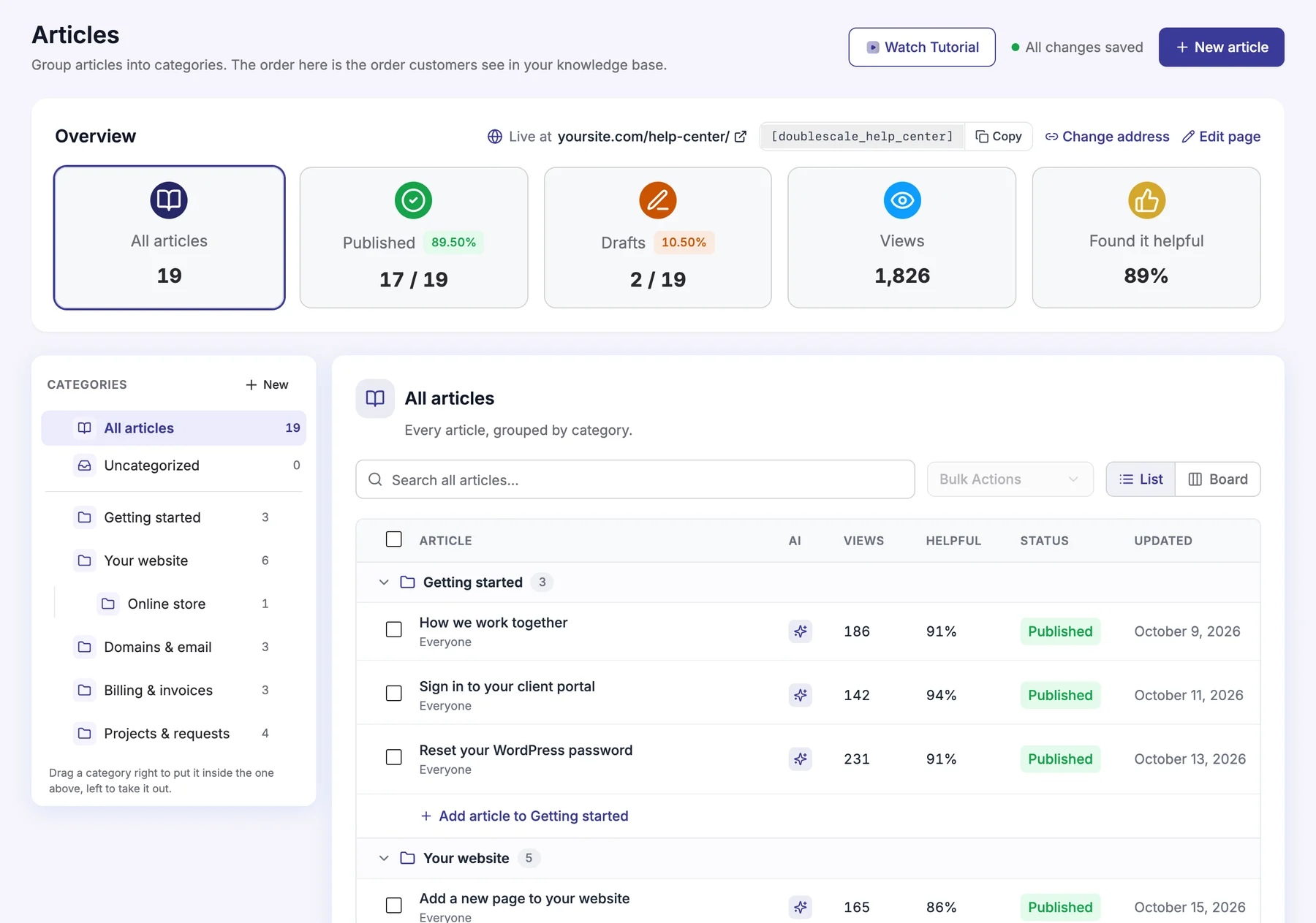
- Many views, low helpful share: the article is found but doesn’t answer. Rewrite the first lines and check the steps against the product.
- Few views, high helpful share: good article, hard to find. Link it from your ticket replies with Copy link, and from related articles.
- Tickets on a topic didn’t drop: compare the ticket count on that topic for the month before and after publishing. No change means the article isn’t reaching people at the moment they ask.
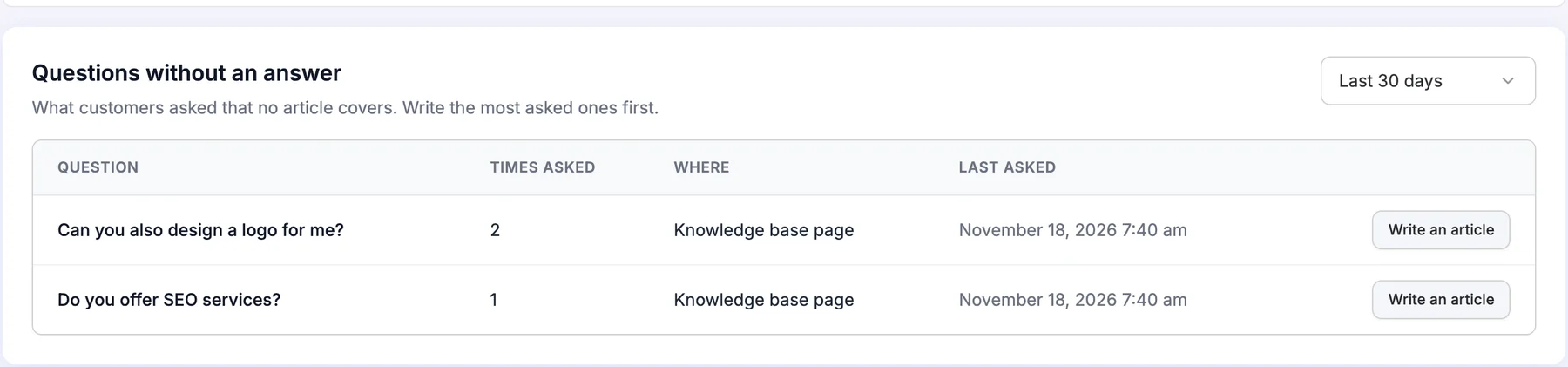
- Questions without an answer (Pro): what people asked the assistant that no article covers, grouped and counted, with a Write an article button. Start each month with the top three.
What are the most common help center mistakes?
Most help centers fail because they are hard to find or written in the company’s words, not because of the plugin. These are the ones to avoid:
- Writing from the product menu instead of the ticket queue. Customers ask “why was I charged twice”, not “Billing settings overview”.
- Hiding the help center. No menu link, no link from the contact page, no links in replies.
- No way out. A help page without a ticket form or chat leaves stuck customers to find your email, and you lose the context.
- Launching with too much. Fifty thin articles written in a week are worse than fifteen good ones. Quality and coverage of the top questions matter more than count.
- Mixing audiences. Internal refund rules in a public article, or client-only pricing in search results. Set Who can read it on every article.
- Never updating. A wrong article is worse than none, especially once an AI assistant answers from it. Review articles when the product or a policy changes.
- Ignoring the signals. Views, helpful votes and unanswered questions tell you what to fix. Check them monthly.
What are other ways to build a help center in WordPress?
You can also use a docs-first plugin such as BetterDocs, Echo KB, weDocs or EazyDocs, a paid plugin like Heroic KB, or a hosted service and link to it from your site. Docs-first plugins offer more layouts, multiple knowledge bases or a glossary, which DoubleScale doesn’t have; the trade-off is a separate helpdesk. We compare seven options in WordPress knowledge base plugins for support teams. DoubleScale’s own honest limits: one help center with topics rather than several knowledge bases, no tags or glossary, no built-in language switcher, and a young product (launched November 2026, 90+ installs).
The DoubleScale knowledge base is in the free plugin: public, client-only and team-only articles, search as you type, a ticket form and BetterDocs import.
Frequently asked questions
How do I create a knowledge base in WordPress?
Install a knowledge base plugin, create a few topics, write articles in the block editor and publish them on a help page. With DoubleScale, install the free plugin, switch on Helpdesk and then the Knowledge Base toggle inside it, write your first article from Knowledge Base, Articles, and click Create page or paste the [doublescale_help_center] shortcode on any page.
Is the DoubleScale knowledge base free?
Yes. Writing and publishing articles, the public help page with search, client-only and team-only articles, the ticket form, views and helpful votes, and the BetterDocs import are all in the free plugin on WordPress.org. The AI assistant, live chat and Questions without an answer come with DoubleScale Pro, from $124 a year for one site ($99 during Black Friday).
What is the shortcode for the DoubleScale help center?
The shortcode is [doublescale_help_center]. Paste it into any page to show your knowledge base there, with search, popular articles and topics. You can also let DoubleScale create the page for you from the Articles screen and then change its address. Old addresses keep working after a change, because they redirect to the new ones.
Can I make help articles private to clients or staff?
Yes. Every article has a Who can read it setting: Everyone, Client portal only or Team only. Client-only articles show only to clients signed in to the DoubleScale client portal, in its Knowledge Base section. Team-only articles are visible only in your WordPress admin, which makes them useful for internal checklists and saved replies.
How many articles should a help center have?
Start with 10 to 20 that answer your most frequent questions, then add a few a month based on what customers search for and still ask. Coverage of the top questions matters far more than the total. A small help center that answers last month’s common tickets will deflect more than a large one full of rare edge cases.
Can customers open a support ticket from the help center?
Yes. In Helpdesk, Settings, Knowledge base tickets, choose whether anyone can open a ticket with their email address or only signed-in customers. You can also ask visitors to confirm their email before the ticket opens. Tickets land in the DoubleScale helpdesk inbox, and spam protection with rate limits is always on.
Do help center articles help SEO?
Public articles can, because they are WordPress pages on your own domain that answer the exact questions people search for. DoubleScale adds them to your sitemap and they are readable by search engines. Client-only and team-only articles stay out of search by design. Clear titles in your customers’ words help both search engines and your own help-page search.
Is it safe to run a help center in WordPress?
Yes, if you keep plugins updated like any other WordPress software. Your articles live in your own WordPress database. DoubleScale has one patched advisory on WPScan, a Subscriber+ file upload issue in the client portal (CVSS 8.8, October 2026), fixed in version 1.6.0; the current 1.10.1 is patched. Turn on auto-updates for plugins you rely on.
Related guides
- 7 WordPress knowledge base plugins for support teams
- How to set up a WordPress helpdesk
- WordPress live chat plugins that turn chats into tickets
- DoubleScale client portal
Sources
Checked on 19 November 2026: DoubleScale on WordPress.org (version 1.10.1, requirements); the DoubleScale 1.10.1 and Pro plugin code for screen names, settings and the shortcode; doublescale.io/features/knowledge-base, doublescale.io/features/live-chat and doublescale.io/pricing; WPScan for the security record.
Get our guides first on GoogleAdd DoubleScale as a preferred source and our articles show up more often in your Top Stories.

DoubleScale Team, Editorial team
The DoubleScale team builds the all-in-one CRM for WordPress. We test the tools we write about and check every price and feature on the vendor's own pages before we publish.
Practical CRM tips, once a month
Guides on growing with WordPress: lead capture, email marketing, automations and sales. No spam, unsubscribe anytime.