
























Invoices bill your contacts for products or services. DoubleScale tracks invoice status, due dates, partial payments, and online collection via Stripe (Pro).
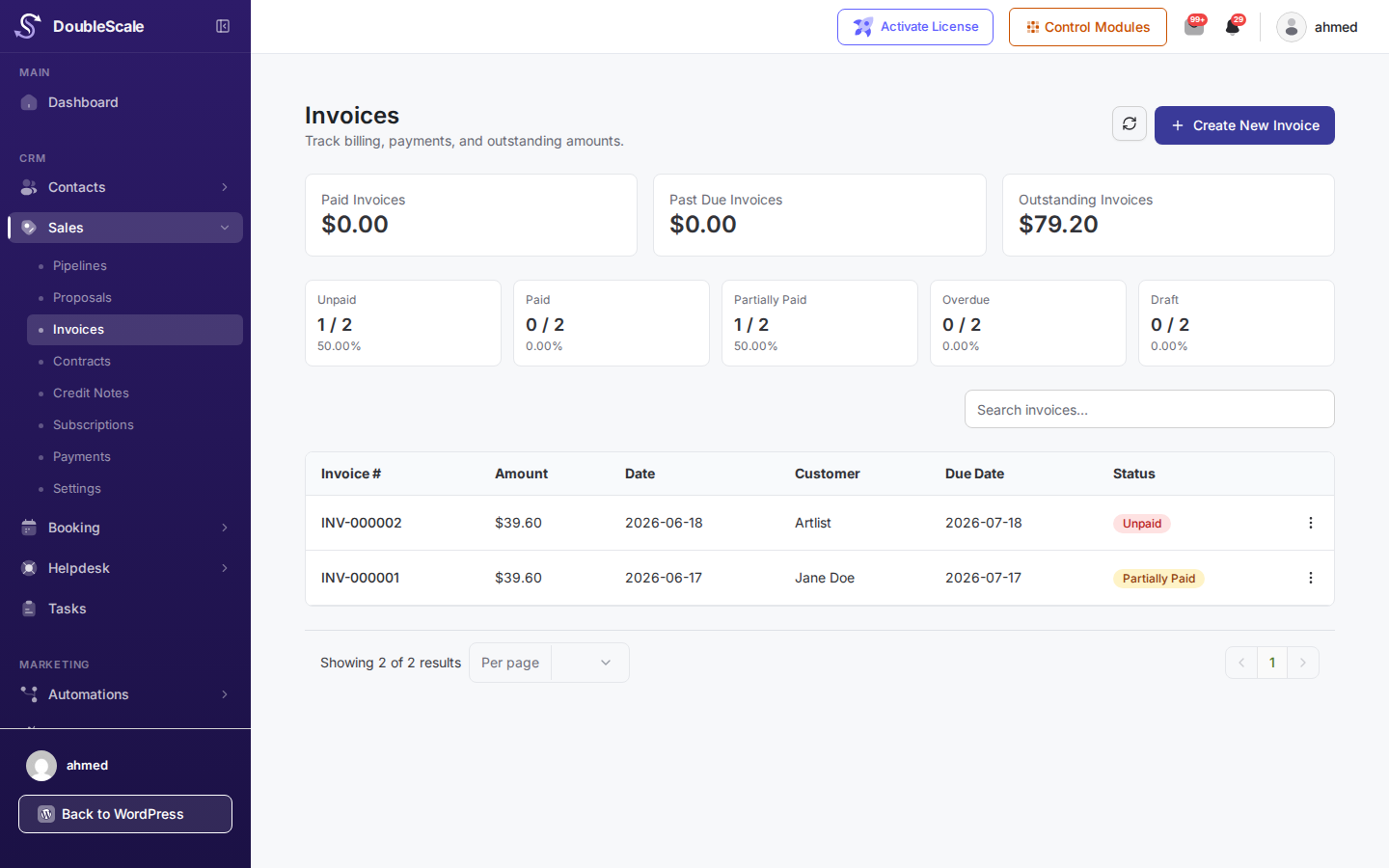
Create an invoice
- Go to DoubleScale â Sales â Invoices.
- Click New Invoice, or convert an accepted proposal.
- Assign the contact, add line items, set the due date and invoice number (auto-numbering uses your Sales settings format).
- Save or send.
Invoice statuses
- Draft: not yet sent to the customer.
- Sent: emailed with a secure payment/view link.
- Partially paid: some payment recorded, balance remains.
- Paid: fully settled.
- Overdue: past due date with outstanding balance.
- Void: cancelled invoice.
Send and collect payment
Customers receive an email with a link to the public invoice page. With Stripe configured under Sales Settings â Payments, they can pay online by card. You can also record manual payments (bank transfer, cash, etc.) from the invoice view.
PDF and receipts
Download or email PDF copies of invoices. Your company address from Sales Settings appears on PDFs and payment receipts.
Automations
Triggers: Invoice Sent and Invoice Paid. Use them to thank customers, notify sales reps, or update deal stages.