



















Connect your Zoho Mail account to DoubleScale to send campaigns, automations and WordPress emails through Zoho. The connection uses Zoho sign-in (OAuth), so DoubleScale never sees or stores your Zoho password.
Setup has two parts: first you create a client in the Zoho API Console to get a Client ID and Client secret, then you paste them into DoubleScale and sign in with your Zoho account. It takes about 5 minutes.
Before you start
You need two things:
- Your redirect URI. For DoubleScale this is always your site address followed by
/wp-admin/admin.php, for examplehttps://yoursite.com/wp-admin/admin.php. It must match exactly, includinghttps://andwwwif your site uses it. - Your Zoho domain. Log in to Zoho Mail and look at the address in your browser. If it is
mail.zoho.eu, your domain is zoho.eu; if it ismail.zoho.com, it is zoho.com. DoubleScale supports zoho.com, zoho.eu, zoho.in, zoho.com.cn, zoho.com.au and zoho.jp.
Part 1: Create your Zoho API client
- Go to the Zoho API Console and sign in with the Zoho account you want to send emails from. If your account is on another Zoho domain, use the console on that domain, for example
api-console.zoho.eu. - Click Get Started (or Add Client if you already have clients) and choose Server-based Applications.
- Enter a Client Name, such as “DoubleScale SMTP”, your site address as the Homepage URL, and your redirect URI under Authorized Redirect URIs. Then click Create.
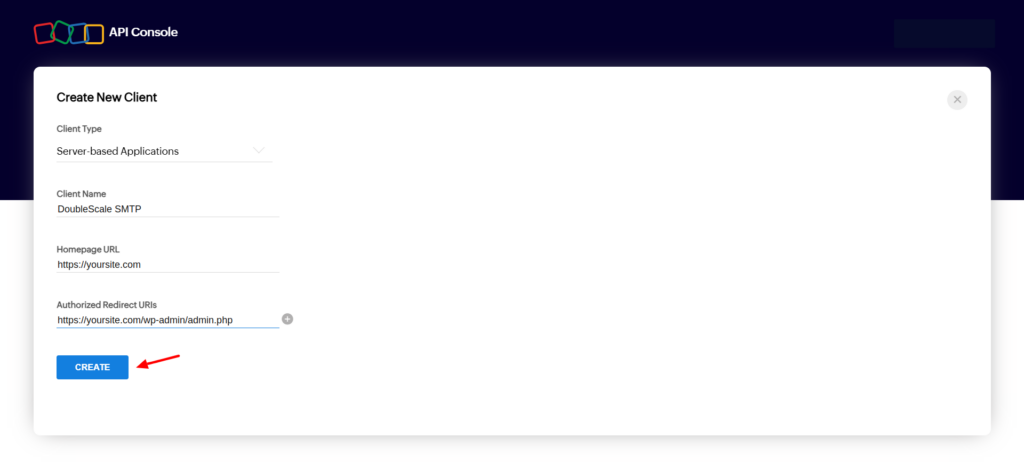
- Open the Client Secret tab and copy the Client ID and Client Secret.
Part 2: Connect Zoho in DoubleScale
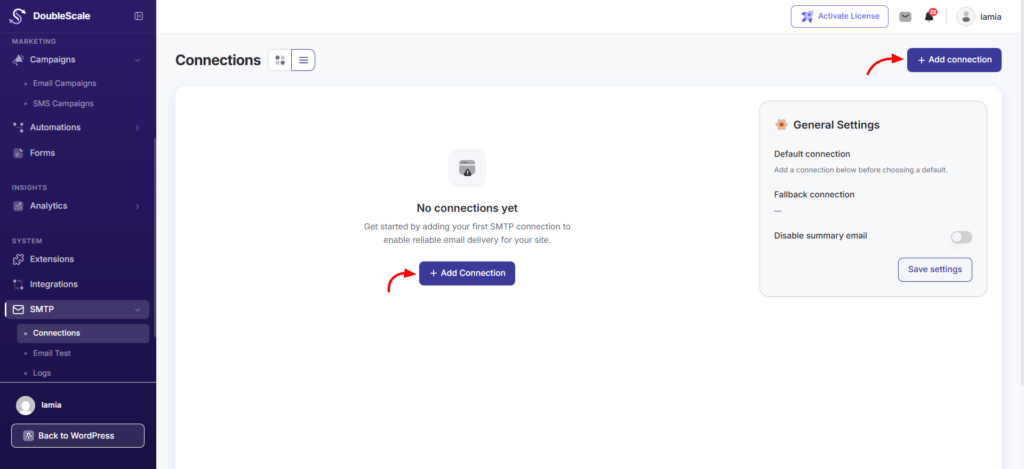
1. In DoubleScale, go to SMTP > Connections and click Add connection.
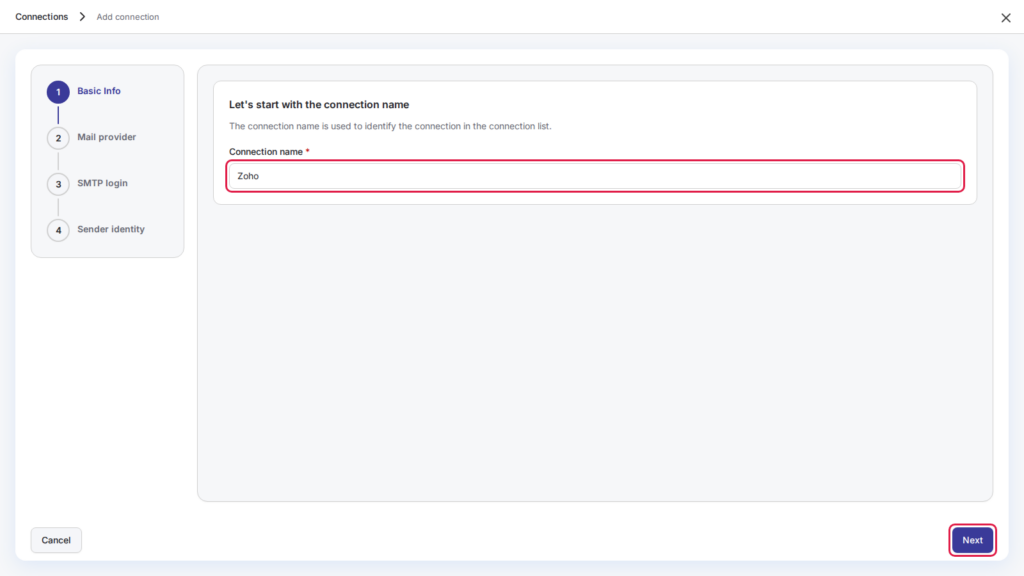
2. Enter a connection name, for example “Zoho”, and click Next.
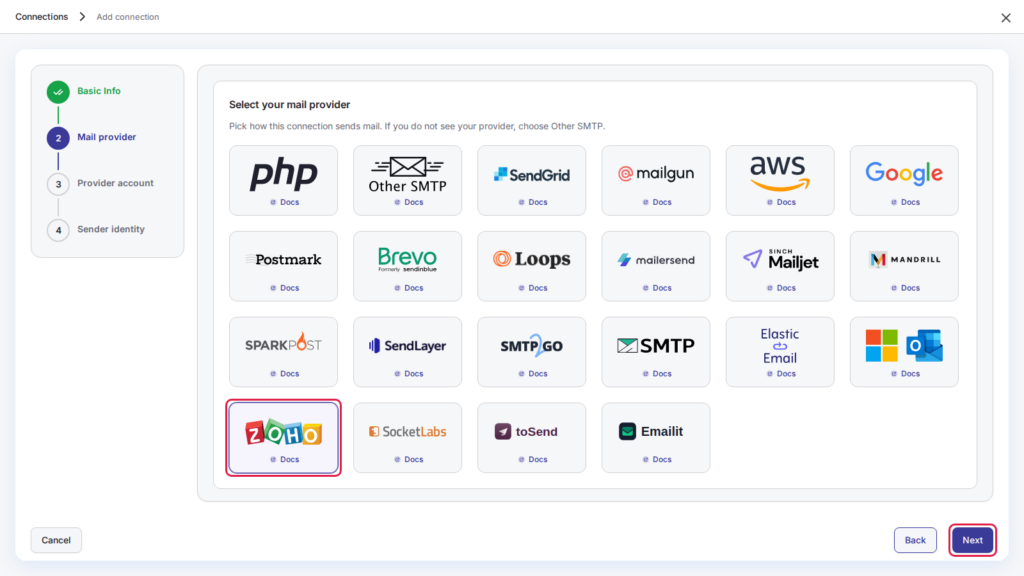
3. Choose Zoho from the list of mail providers and click Next.
4. Choose your Zoho domain, then paste the Client ID and Client secret you copied from the Zoho API Console.
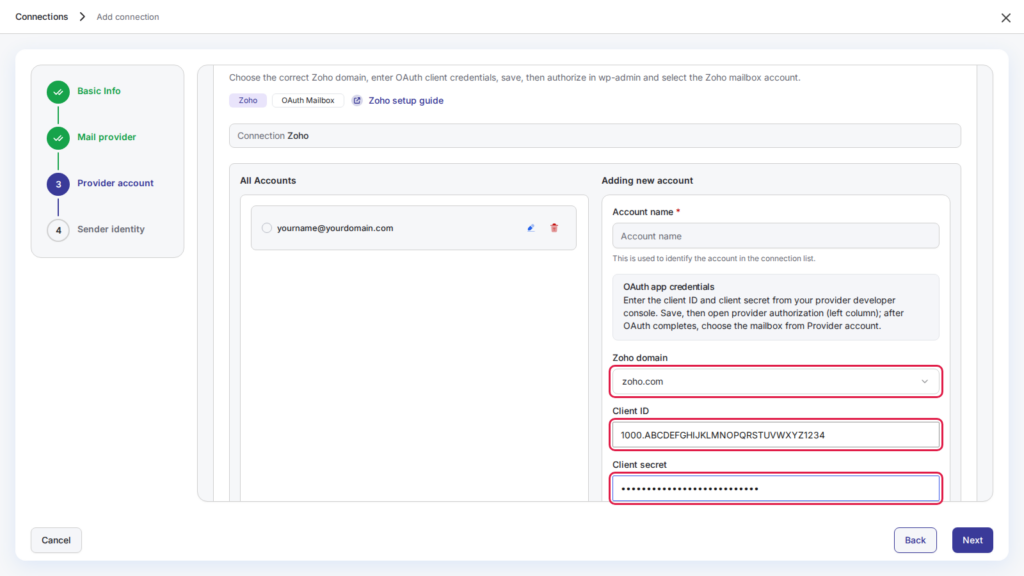
5. Click Save OAuth app & authorize (opens wp-admin).
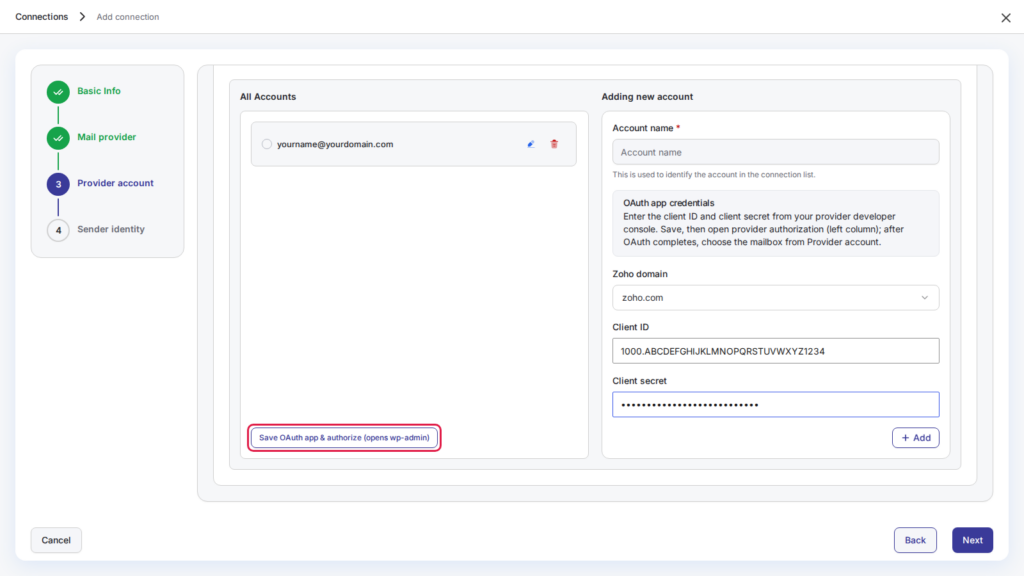
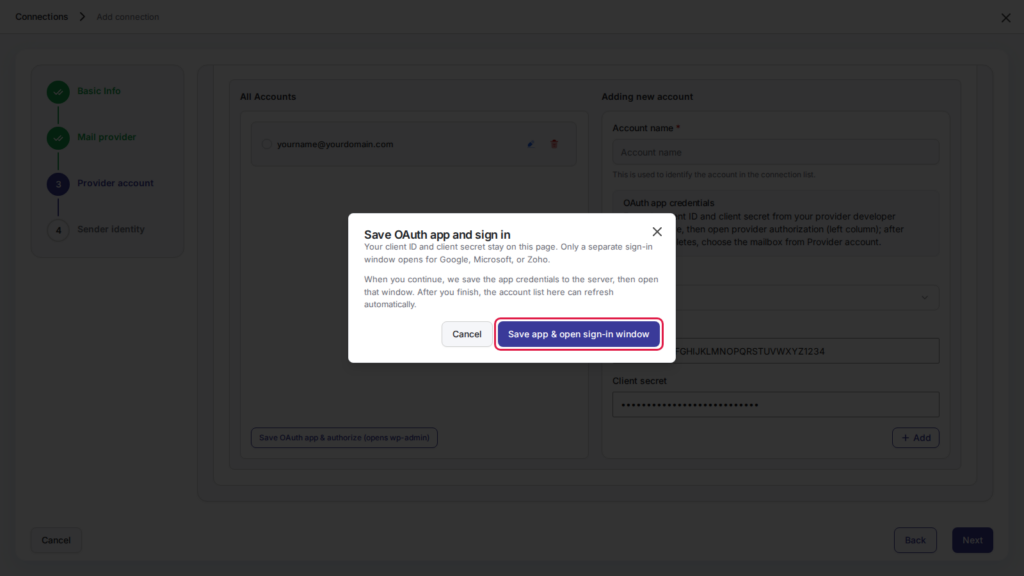
6. Click Save app & open sign-in window. A Zoho window opens: sign in with the account you want to send from.
Zoho then asks you to allow DoubleScale to create mail and view your mail account details. Click Accept.

If nothing opens, your browser blocked the window. Allow pop-ups for your site and click the button again.
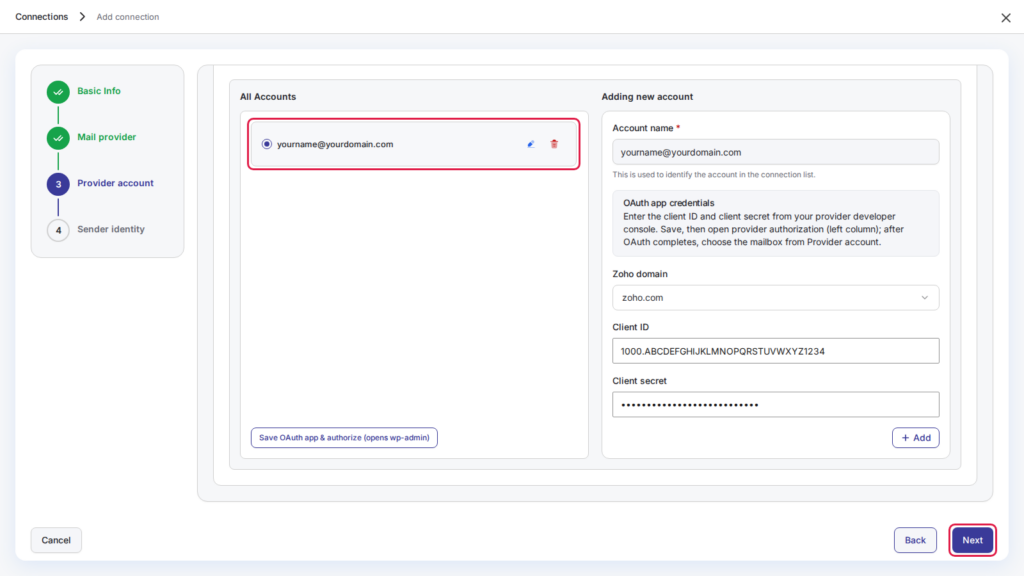
7. When the Zoho window closes, your Zoho account appears under All Accounts. Select it and click Next.
8. Choose the From email from the list (DoubleScale loads the addresses on your Zoho account) and enter the From name people will see, such as your company name. Turn on Force from email and Force from name if you want every email sent through this connection to use them, even when another plugin sets a different sender. Then click Save connection.
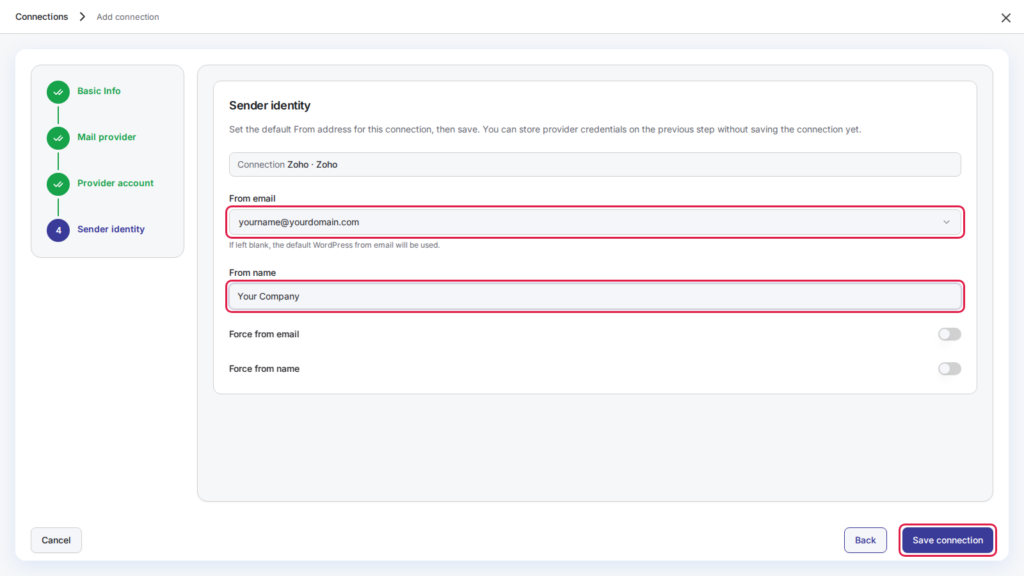
9. Go to SMTP > Email Test and send a test email to make sure everything works.
Troubleshooting
- Invalid Redirect Uri. The redirect URI in the Zoho API Console doesn’t match your site. Open your client and make sure Authorized Redirect URIs contains your exact address ending in
/wp-admin/admin.php, includinghttps://andwwwif your site uses it. - invalid_client. The Client ID or Client secret is wrong, or the Zoho domain you chose in DoubleScale is not the one your account uses. Check your domain as described above, then paste the values again.
- The From email list is empty. DoubleScale could not load your Zoho addresses. Edit the connection, sign in with Zoho again and make sure you clicked Accept.