



























SparkPost is an email delivery service. Connect it to DoubleScale to send your campaigns, automations and WordPress emails through SparkPost.
SparkPost Mailer Overview
SparkPost is a leading email delivery service provider known for its high deliverability rates and powerful features. With its robust infrastructure and developer-friendly API, SparkPost ensures efficient email delivery for businesses of all sizes.
Key Features:
- High Deliverability: SparkPost leverages advanced algorithms and infrastructure to optimize email delivery, ensuring that your emails reach recipients’ inboxes reliably.
- Scalable Solutions: Whether you’re sending a few emails or managing large-scale email campaigns, SparkPost scales effortlessly to meet your needs, ensuring consistent delivery and performance.
- Developer-Friendly API: SparkPost offers a comprehensive API that allows for seamless integration into your applications and websites, enabling you to automate and customize email sending processes with ease.
- Global Infrastructure: SparkPost operates in multiple regions worldwide, allowing you to choose the region closest to your audience for optimal performance.
Setting Up SparkPost
Obtain API Key
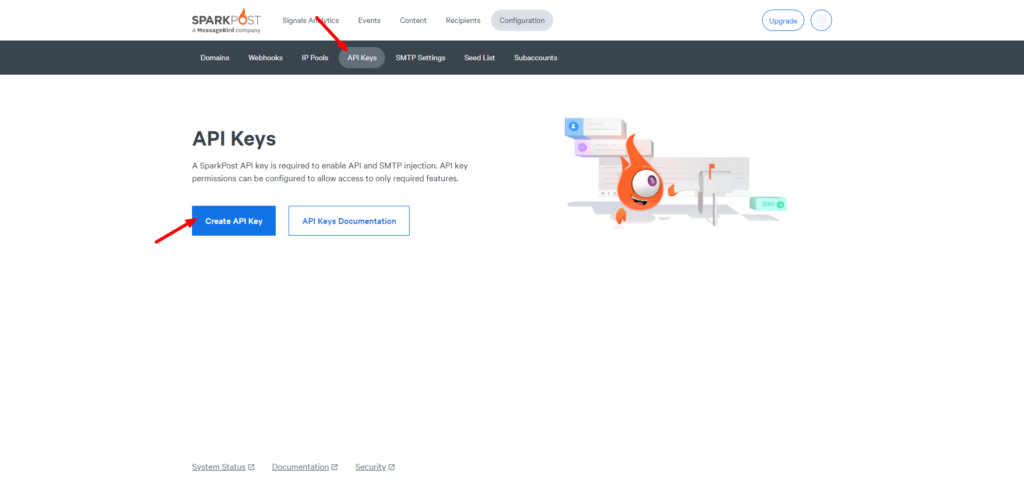
- Log in to your SparkPost account.
- Navigate to the API Keys section.
- Click the “Create API Key” button.
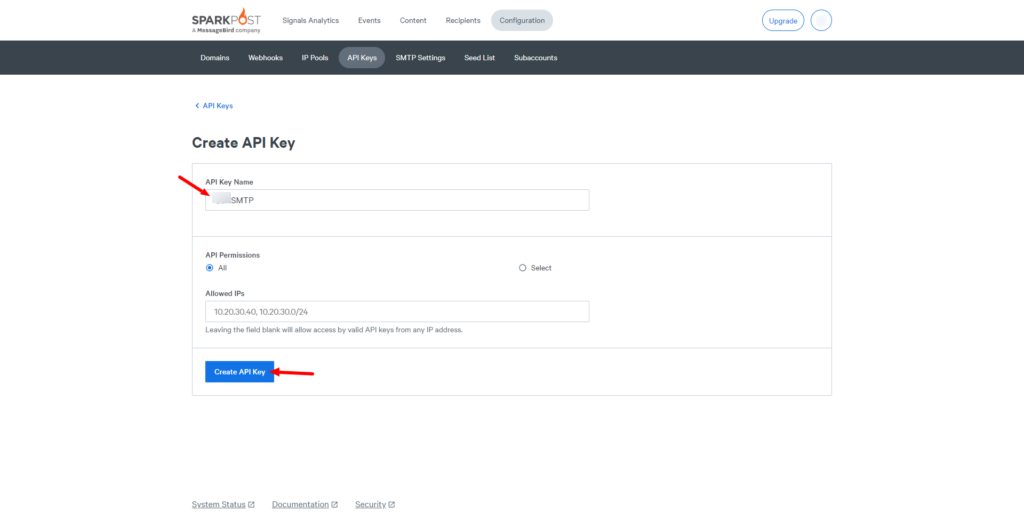
- Provide a descriptive name, such as “SMTP”.
- Click the “Create API Key” button to generate a new API key.
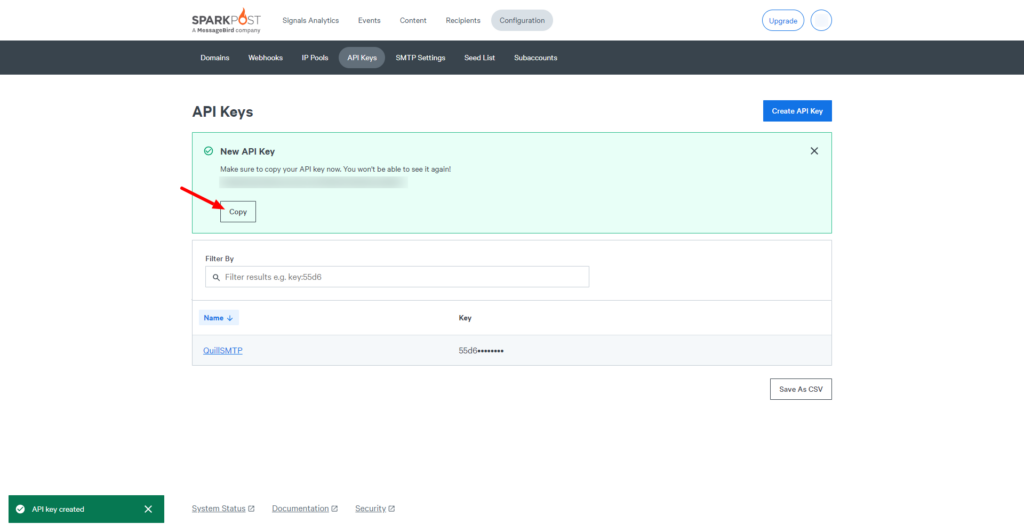
- Copy the generated API key for later use in DoubleScale.
Setting Up Connection
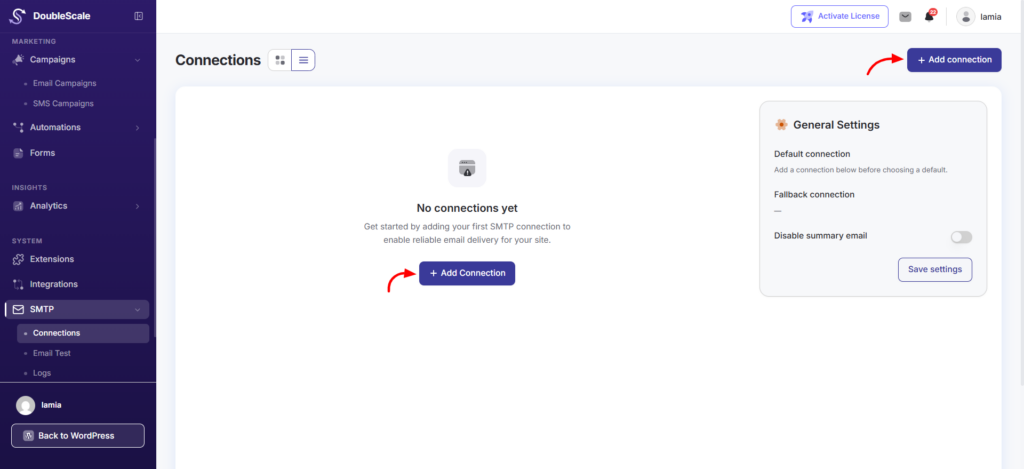
- In DoubleScale, go to SMTP > Connections and click “Add connection”.
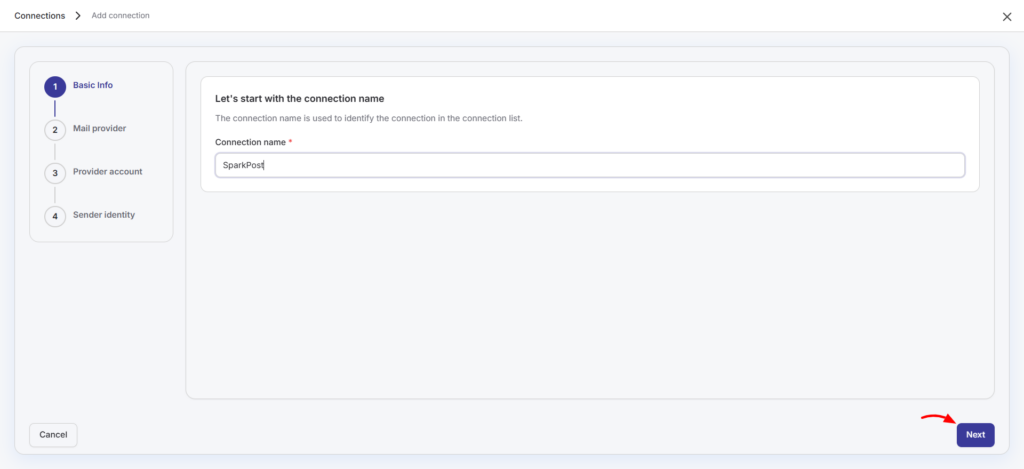
- Name your connection accordingly (e.g., “SparkPost”).
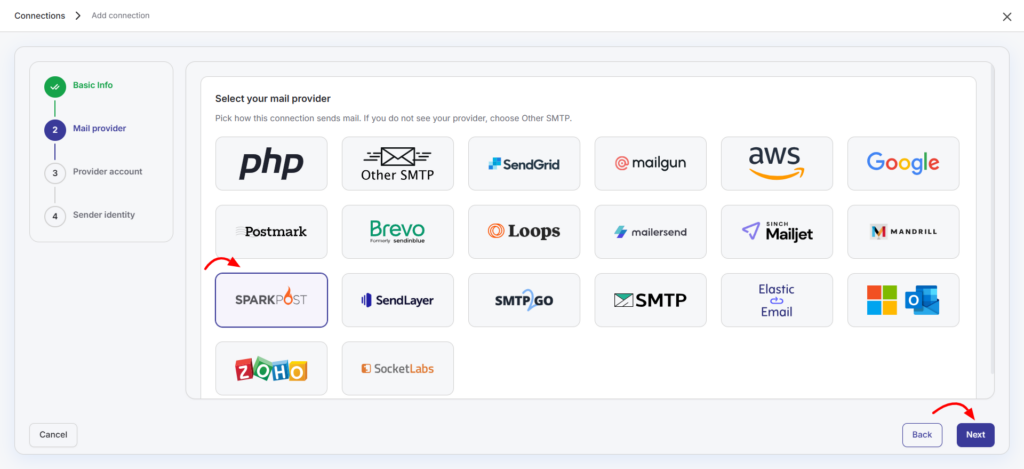
- Choose SparkPost from the list of available mailers.
- Then click the “Next” button.
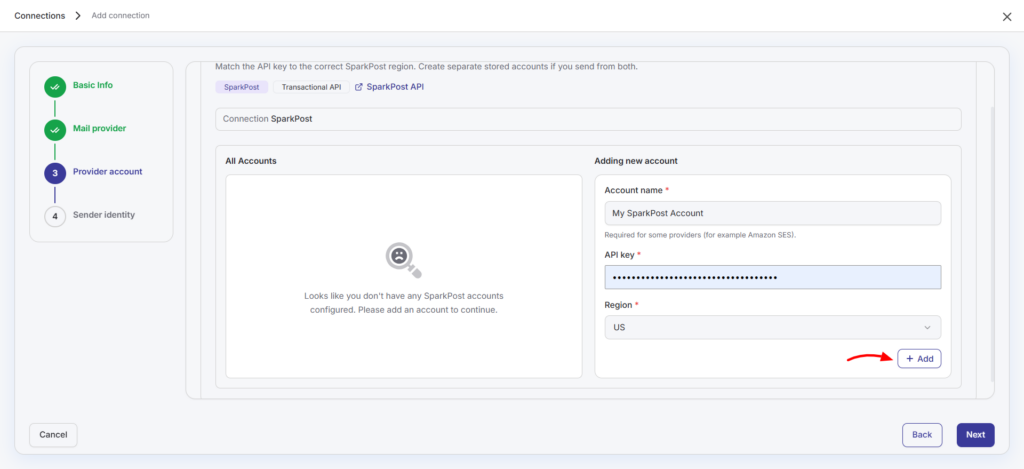
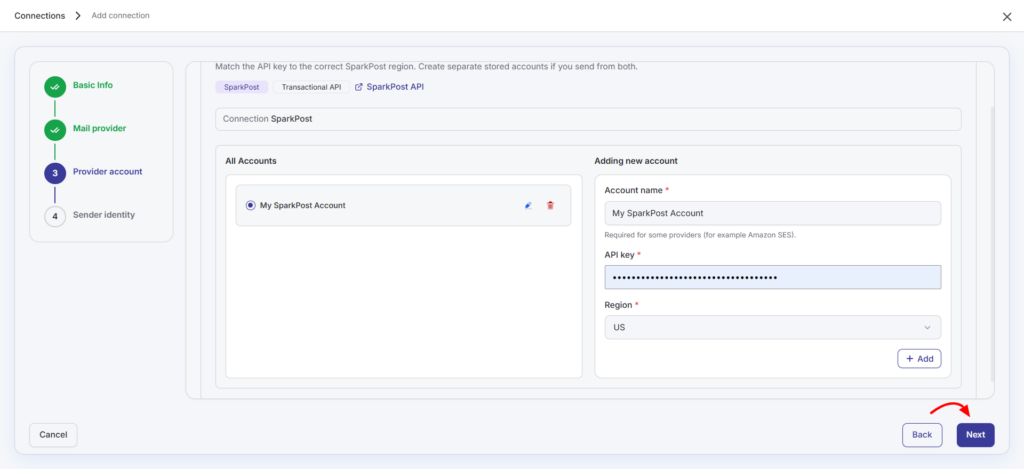
- Provide a descriptive account name (e.g., “My SparkPost Account”).
- Paste the API Key obtained earlier into the “API Key” field.
- Specify the region.
- Click the “Add” button.
- Click the “Next” button to continue.
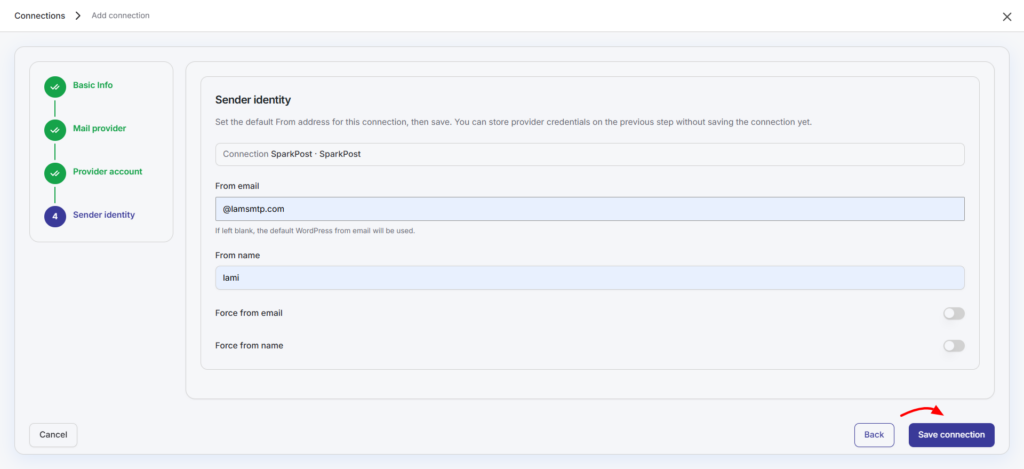
- Enter your email address in the “From email” field.
- Optionally, toggle the “Force from email” option if you wish to enforce this email address for all outgoing emails.
- Specify your sender’s name in the provided “From name” field.
- Optionally, toggle the “Force from name” option to ensure consistent usage of this sender name across all emails.
- Then click the “Save connection” button.