






















This guide walks you through creating and sending a proposal in DoubleScale — from picking a contact to adding line items and emailing the customer.
Before you start
- The Sales and Documents modules must be enabled.
- You need at least Manage Own Sales or Manage All Sales.
- The contact you are quoting should already exist in CRM (or create them first).
Step 1 — Open Proposals
In wp-admin go to DoubleScale → Sales → Proposals.
Step 2 — New proposal
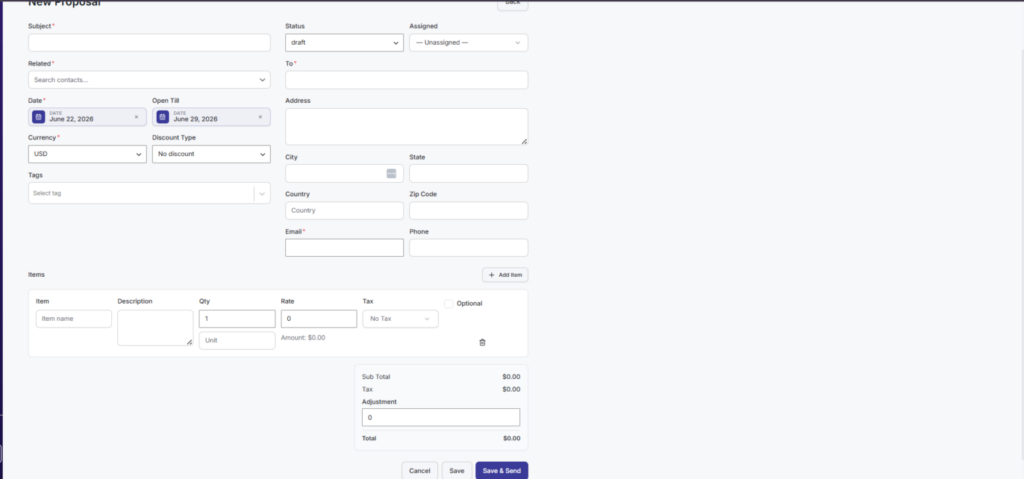
Click New Proposal. The editor opens with contact, subject, dates, and line items.
Step 3 — Contact & details
- Search and select the contact (company name and email pull from the contact record).
- Enter a subject — shown on the PDF and public page.
- Set Open till — after this date the proposal expires.
- Add optional notes visible to the customer.
Step 4 — Line items
Click Add line item for each product or service. For each row set description, quantity, unit price, and optional tax rate. Totals update automatically.
Step 5 — Save or send
- Save draft — keep working without notifying the customer.
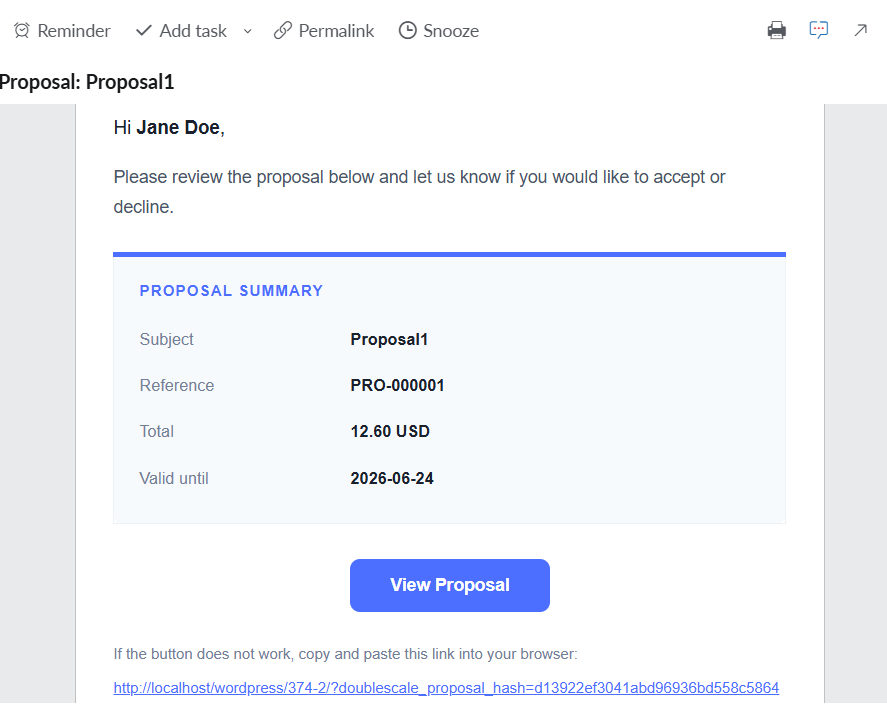
- Send — emails the customer a secure link; status becomes Sent.
What happens next
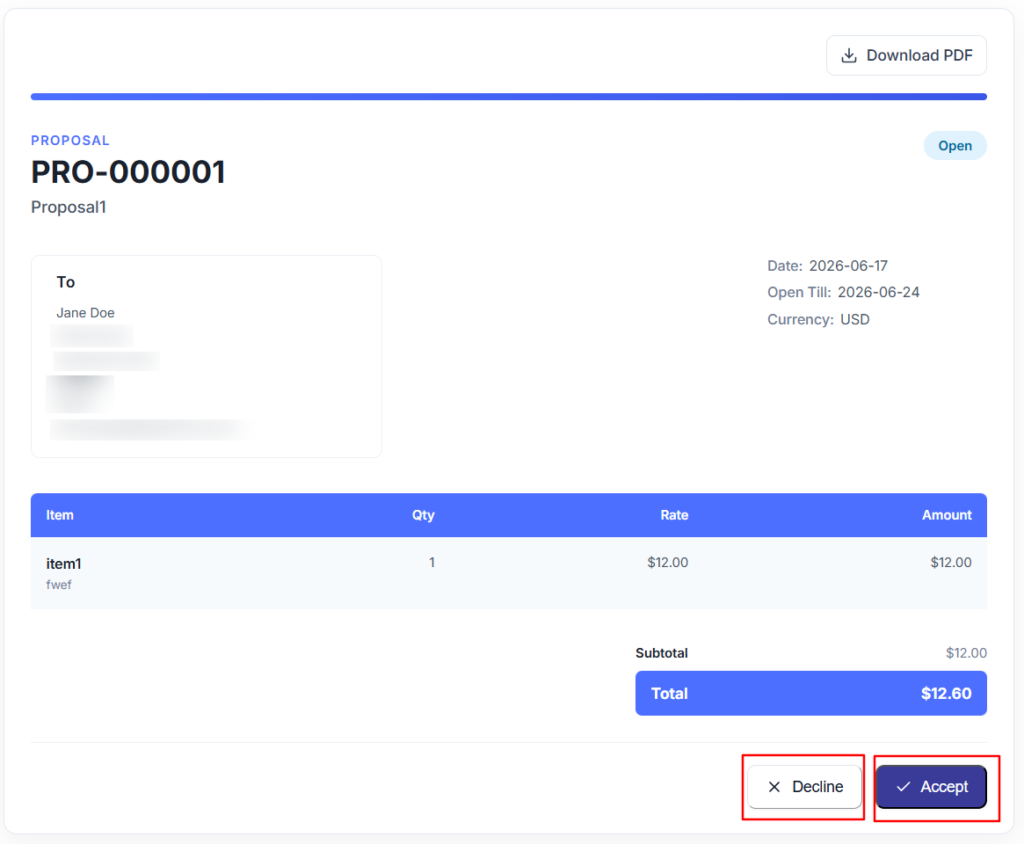
The customer opens the link to accept or decline. You are notified on the contact timeline, and automations can run on send, accept, or decline. After acceptance, use Convert to Invoice (Pro) to bill them.
after open the link
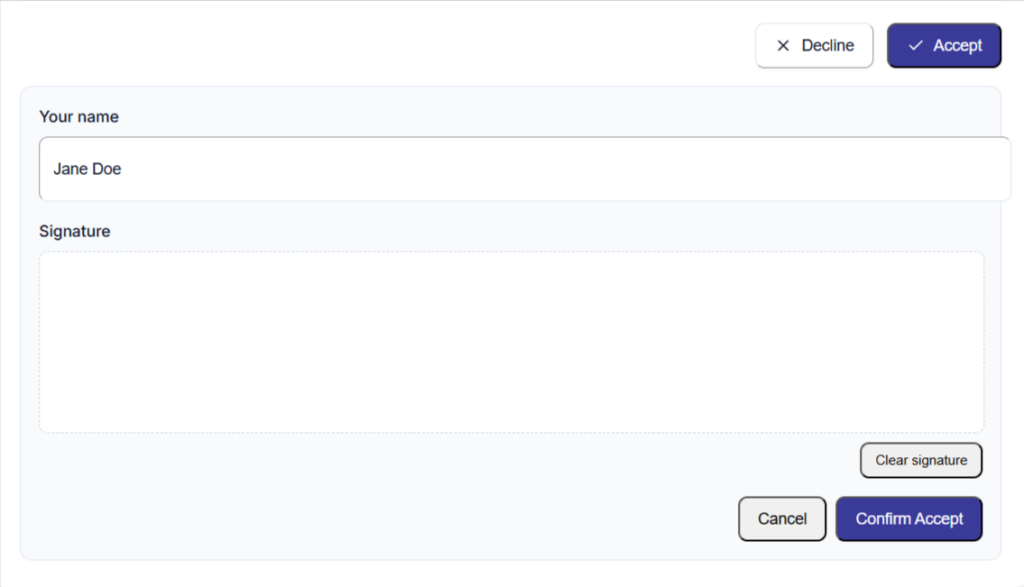
After you click the accept button, you can add your signature and confirm acceptance.