














DoubleScale lets you send automated email notifications for actions such as booking confirmations, reminders, reschedules, and cancellations–keeping both you and your attendees in the loop.
This guide will show you how to configure email notifications for individual booking events.
How to Set Up Email Notifications
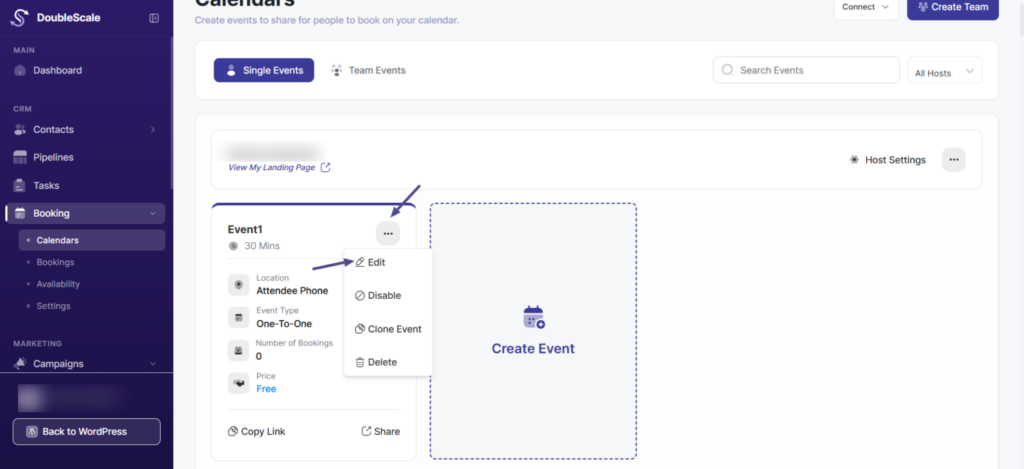
- From your DoubleScale navigation bar, click on Calendars in the top navigation bar.
- Find the booking event you want to update.
- Click the Edit button next to the event.
From the tabs, go to the Email Notifications tab.
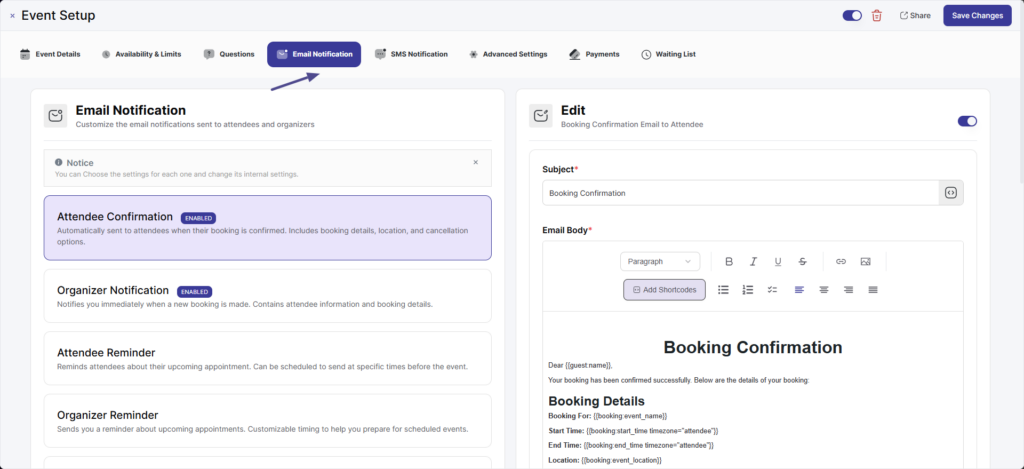
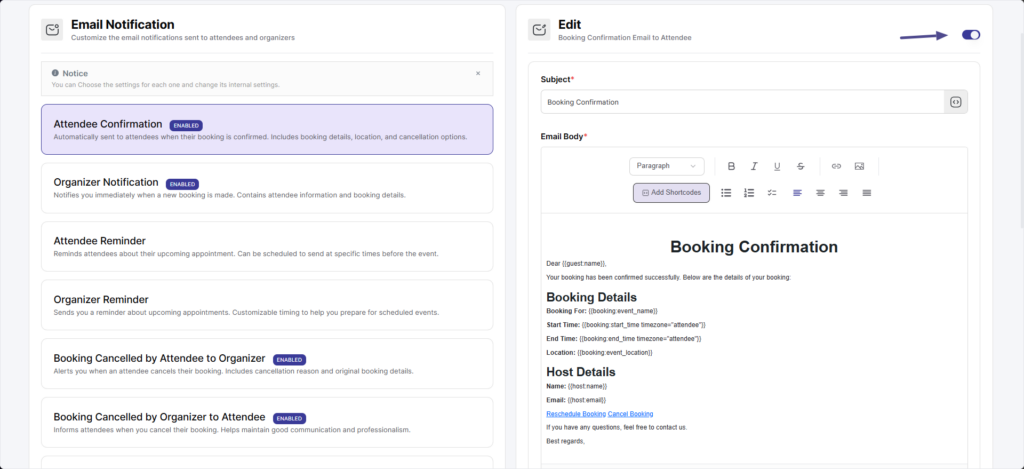
Here, you’ll find default templates for both Organizer and Attendee notifications. Toggle any notification on or off based on your preferences.
Customize Notification Settings
To personalize your email notifications in DoubleScale:
- Click on the email template you want to edit.
- The content will appear in the editing panel on the right.
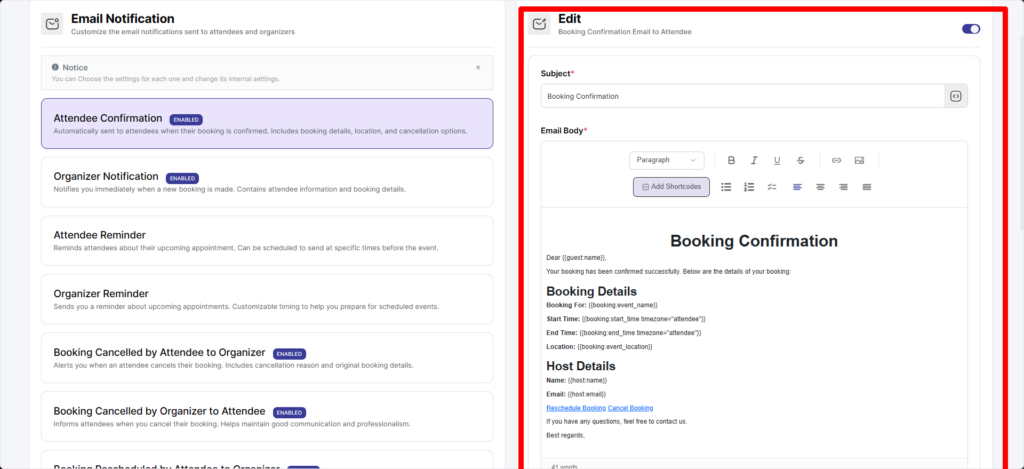
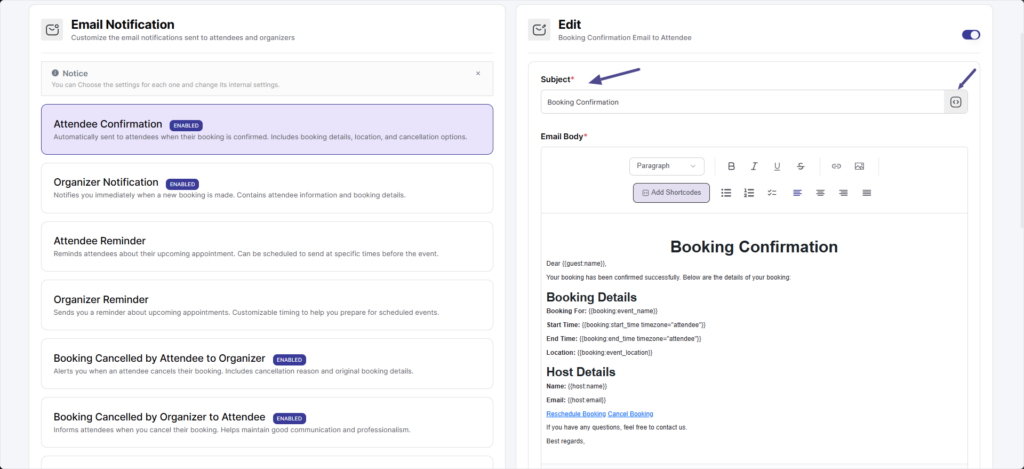
A. Subject
- Enter a custom subject line for your email.
- Use shortcodes to automatically include booking details like event name, time, or guest info.
- Click the Angle Brackets (
) icon to browse available shortcodes.
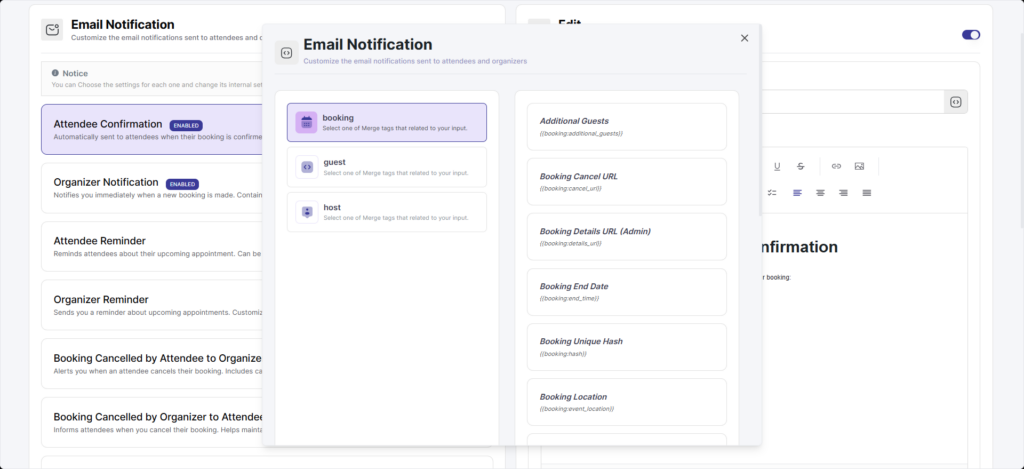
Available shortcode categories:
- Booking Data – Event name, time, location, description, etc.
- Guest Data – Attendee’s name, email, timezone, notes.
- Host Data – Host’s name, email, timezone.
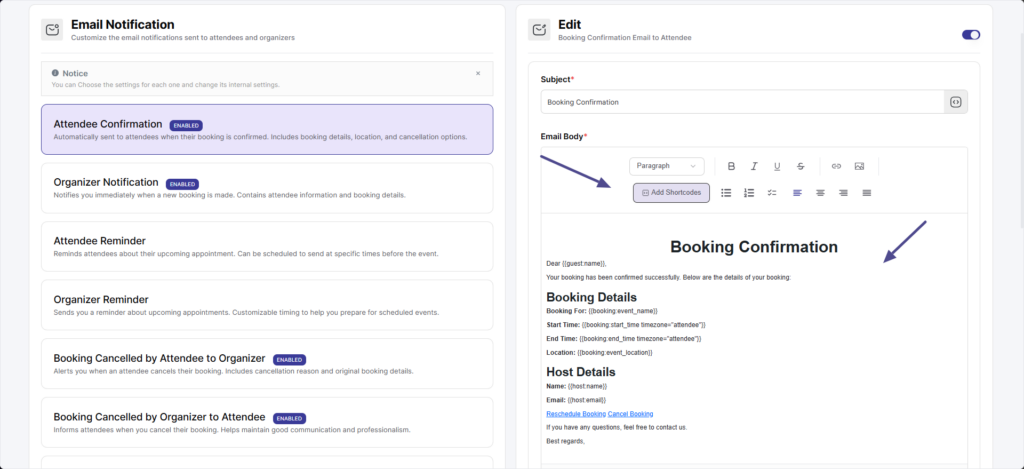
B. Email Body
- Write your message in the email body field.
- Use shortcodes to dynamically personalize the content based on the booking information.
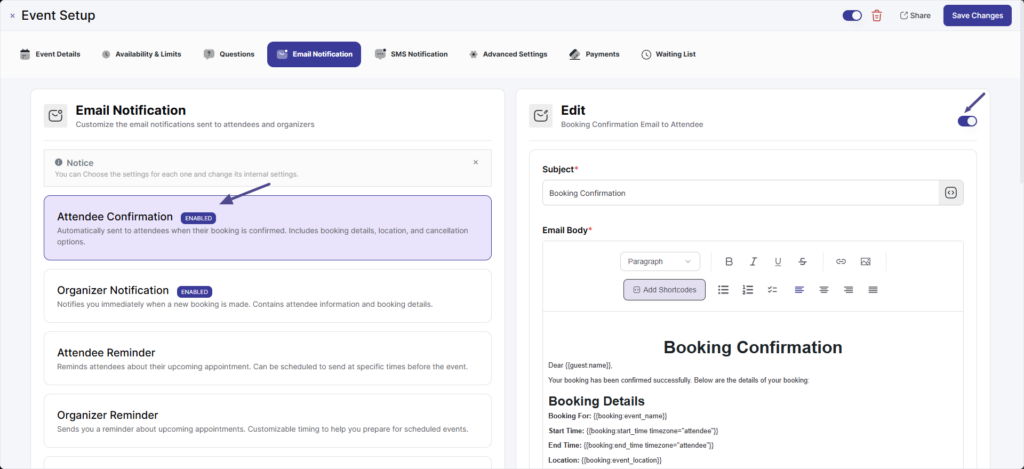
C. Status
Toggle the Status switch to enable or disable the email notification