



















Connect your Gmail or Google Workspace account to DoubleScale to send campaigns, automations and WordPress emails through Gmail. The connection uses Google sign-in (OAuth), so DoubleScale never sees or stores your Google password.
Setup has two parts: first you create a small app in Google Cloud to get a Client ID and Client secret, then you paste them into DoubleScale and sign in with your Google account. It takes about 10 minutes.
Before you start
Google will ask for a redirect URI. For DoubleScale this is always your site address followed by /wp-admin/admin.php, for example:
https://yoursite.com/wp-admin/admin.php
Replace yoursite.com with your own domain. It must match exactly, including https:// and www if your site uses it. To find it, open your WordPress dashboard, copy the address from your browser up to and including /wp-admin/, and add admin.php at the end.
Part 1: Create your Google Cloud app
Create a project and turn on the Gmail API
- Go to the Google Cloud Console and sign in with the Google account you want to send emails from.
- Click the project picker at the top of the page, then click New project. Name it, for example “DoubleScale SMTP”, and click Create. Make sure the new project is selected before you continue.
- Open APIs & Services > Library, search for Gmail API, open it and click Enable.
Set up the consent screen
- Open Google Auth Platform from the menu (it is called OAuth consent screen in some accounts) and click Get started.
- Enter an App name, such as “DoubleScale SMTP”, and choose your email as the User support email.
- Under Audience, choose Internal if you use Google Workspace and will only connect mailboxes from your own organization. For a personal @gmail.com address, choose External.
- Enter your email under Contact information, accept the Google API Services User Data Policy and click Create.
- If you chose External, open Audience and click Publish app to move it from Testing to In production.
Important: while an External app is still in Testing, Google signs your Gmail account out of the app after 7 days and DoubleScale stops sending until you connect again. Publishing the app avoids this. You don’t need to submit it for Google verification to use it with your own account.
Create the Client ID and Client secret
- Open Clients (or APIs & Services > Credentials) and click Create client (or Create credentials > OAuth client ID).
- Set Application type to Web application and give it a name, such as “DoubleScale”.
- Under Authorized redirect URIs, click Add URI and paste your redirect URI, for example
https://yoursite.com/wp-admin/admin.php. - Click Create, then copy the Client ID and Client secret and keep them somewhere safe. Google may show the full Client secret only once, so copy it now or download the JSON file.
Part 2: Connect Gmail in DoubleScale
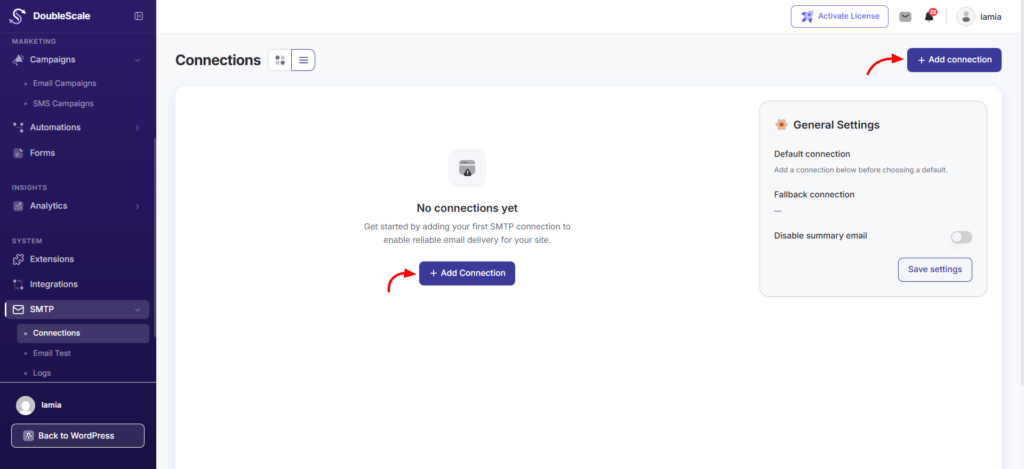
1. In DoubleScale, go to SMTP > Connections and click Add connection.
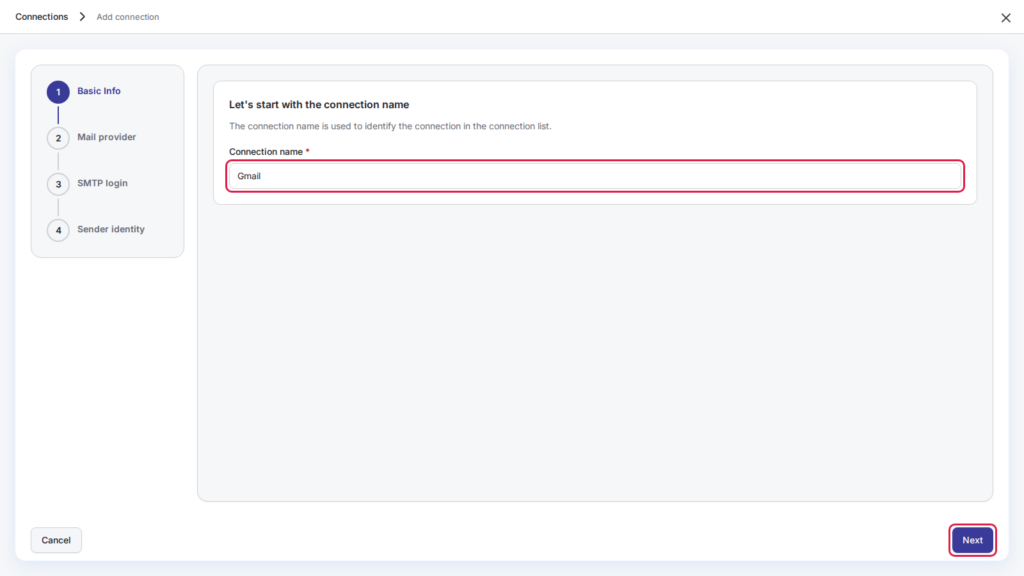
2. Enter a connection name, for example “Gmail”, and click Next.
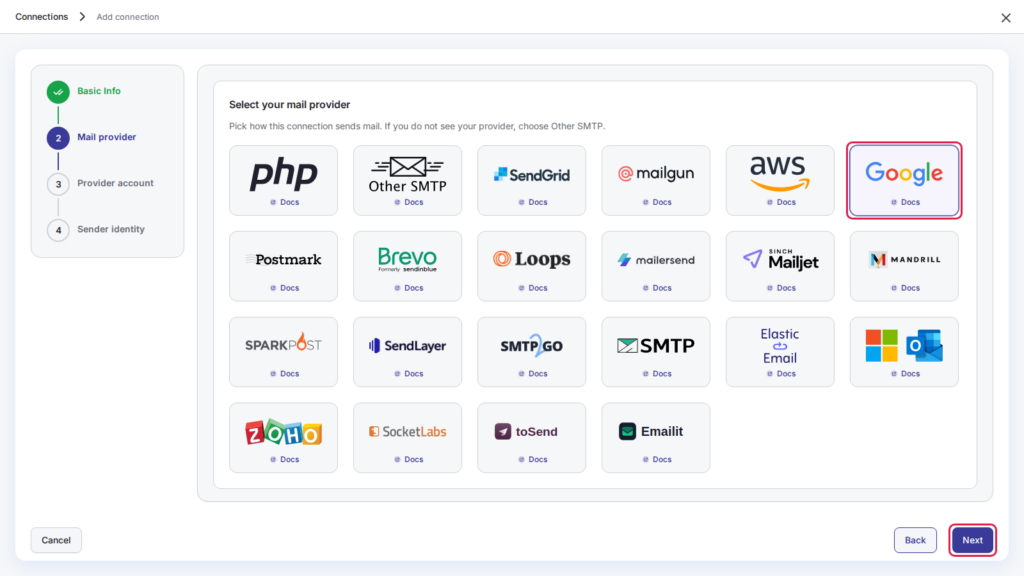
3. Choose Google from the list of mail providers and click Next.
4. Paste the Client ID and Client secret you copied from Google Cloud.
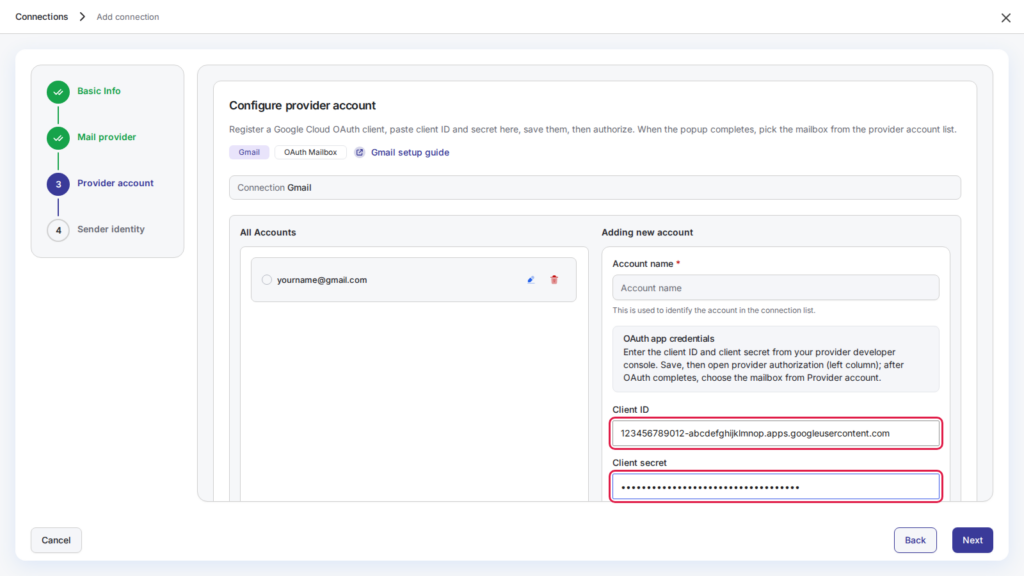
5. Click Save OAuth app & authorize (opens wp-admin).
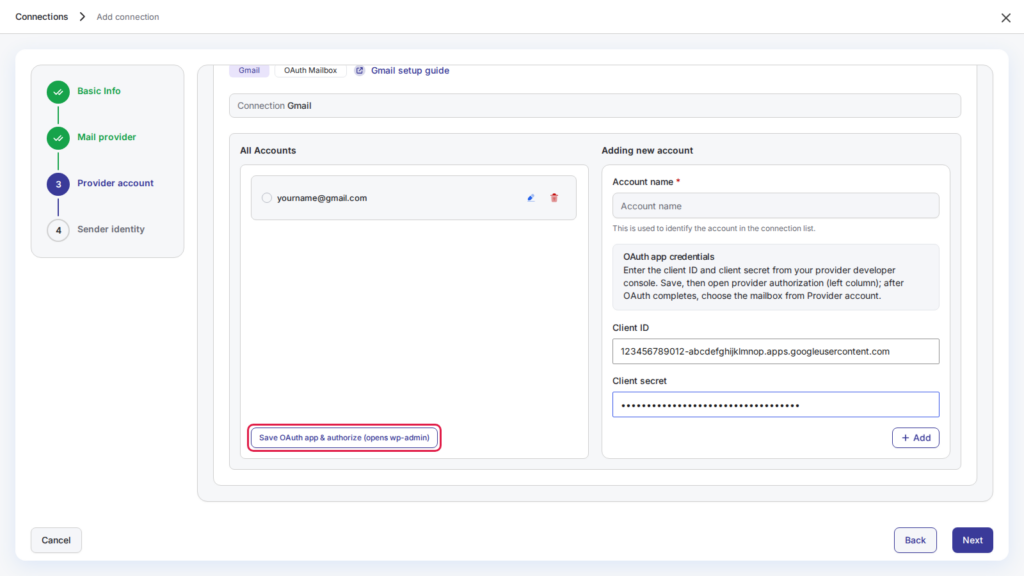
6. Click Save app & open sign-in window. A Google window opens: choose the Gmail account you want to send from and allow the access DoubleScale asks for. If you see “Google hasn’t verified this app”, click Advanced, then Go to DoubleScale SMTP (unsafe), which shows your own app name. This is normal for an app you created yourself.
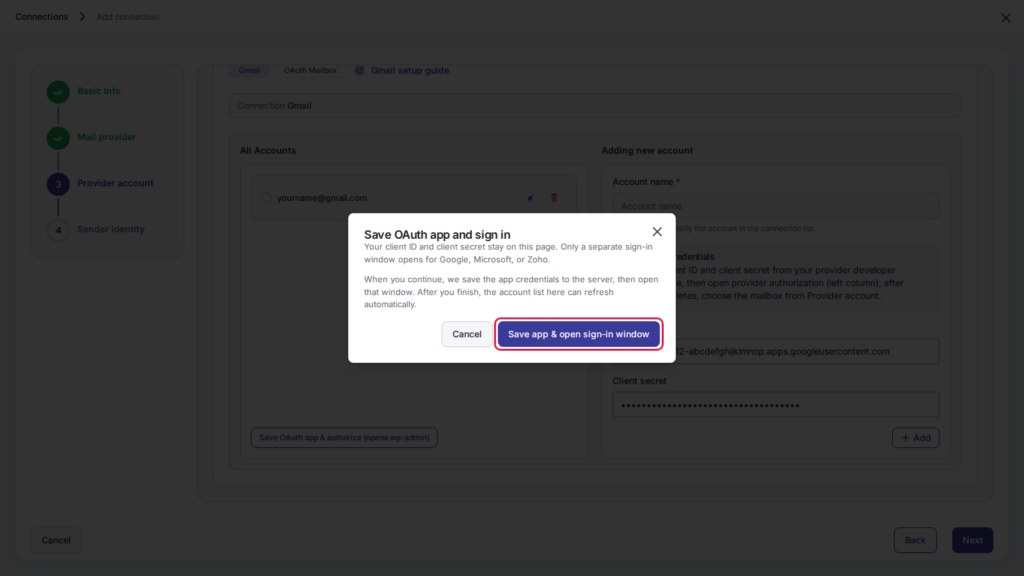
If nothing opens, your browser blocked the window. Allow pop-ups for your site and click the button again.
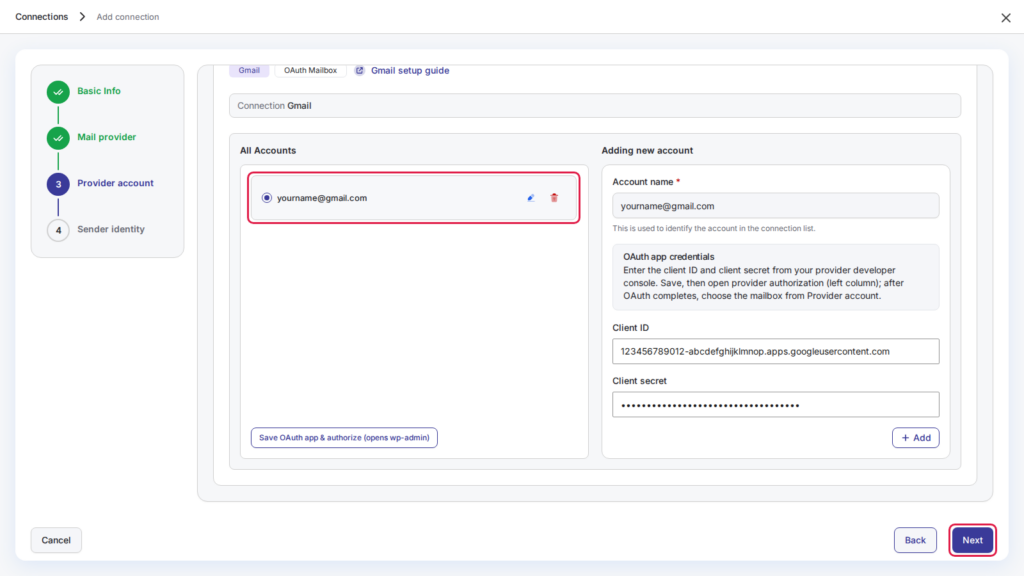
7. When the Google window closes, your Gmail address appears under All Accounts. Select it and click Next.
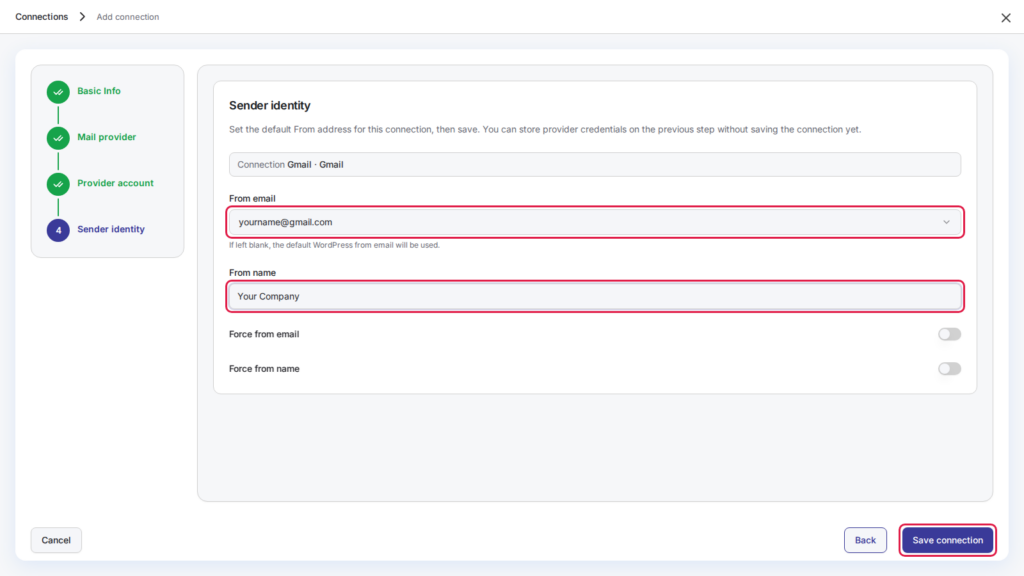
8. Choose your Gmail address as the From email and enter the From name people will see, such as your company name. Turn on Force from email and Force from name if you want every email sent through this connection to use them, even when another plugin sets a different sender. Then click Save connection.
9. Go to SMTP > Email Test and send a test email to make sure everything works.
Troubleshooting
- Error 400: redirect_uri_mismatch. The redirect URI in Google Cloud doesn’t match your site. Open your client in Google Cloud and make sure Authorized redirect URIs contains your exact address ending in
/wp-admin/admin.php, includinghttps://andwwwif your site uses it. - Error 401: invalid_client. The Client ID or Client secret is wrong, or the client type is not Web application. Create a new Web application client and paste the new values.
- Access blocked: app has not completed the Google verification process. Your app is still in Testing. Publish it under Audience, or add your Gmail address under Test users.
- Emails stopped sending after about a week. The app was left in Testing. Publish it, then edit the connection in DoubleScale and sign in with Google again.
Note: Google limits how many emails a Gmail account can send per day, about 500 for a personal Gmail account and 2,000 for Google Workspace. For larger campaigns, use a delivery service such as Amazon SES, SendGrid or Brevo.