



























SMTP2GO is an email delivery service. Connect it to DoubleScale to send your campaigns, automations and WordPress emails through SMTP2GO.
SMTP2GO Mailer Overview
SMTP2GO is a reputable email delivery service provider designed to enhance email communication for businesses and developers. With its robust infrastructure and developer-friendly API, SMTP2GO ensures secure and efficient email delivery to recipients’ inboxes.
Key Features:
- Optimized Email Delivery: SMTP2GO employs advanced algorithms and infrastructure to optimize email delivery, ensuring high deliverability rates and minimizing the risk of emails being marked as spam or bouncing.
- Scalable Solutions: Whether you’re sending a few emails or managing large-scale campaigns, SMTP2GO effortlessly scales to meet your needs, ensuring consistent delivery and performance.
- Developer-Centric API: With its developer-friendly API, SMTP2GO enables seamless integration into your applications and websites, empowering you to automate and customize email sending processes with ease.
- Comprehensive Analytics: Gain valuable insights into your email campaigns with SMTP2GO’s comprehensive analytics suite, providing detailed metrics on opens, clicks, bounces, and more to optimize your email strategies.
Setting Up SMTP2GO
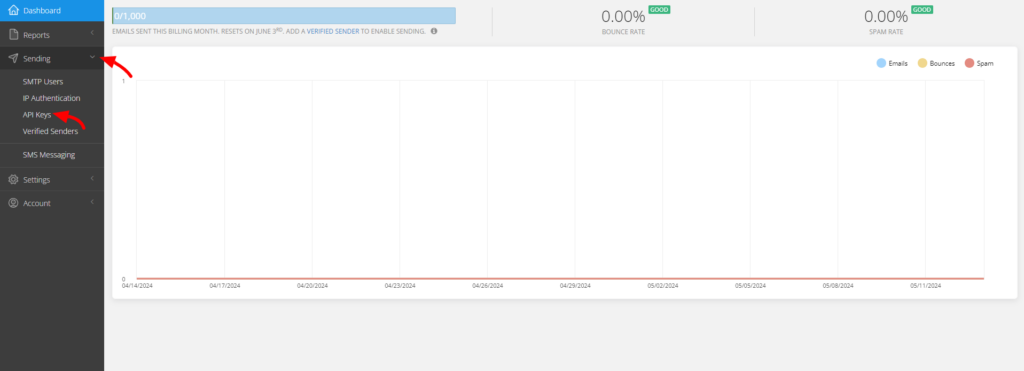
- Log in to your SMTP2GO account and navigate to the dashboard.
- Click on “Sender” from the left sidebar.
- Click “API Keys”.
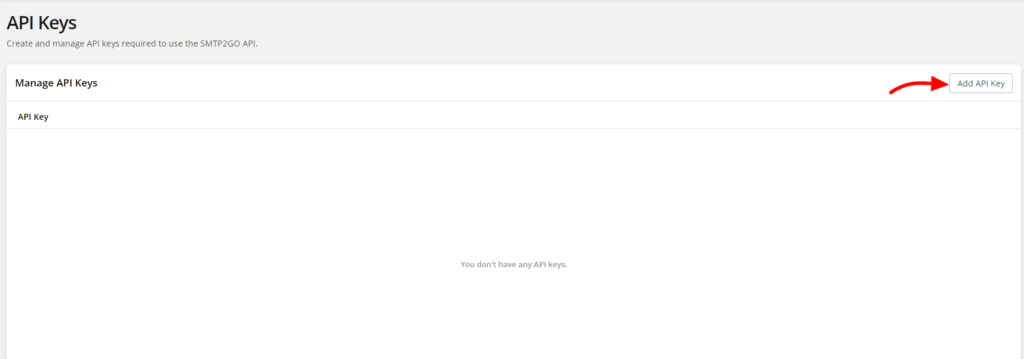
- Click the “Add API Key” button.
- Provide a description, such as “SMTP Key,” and click “Save.”
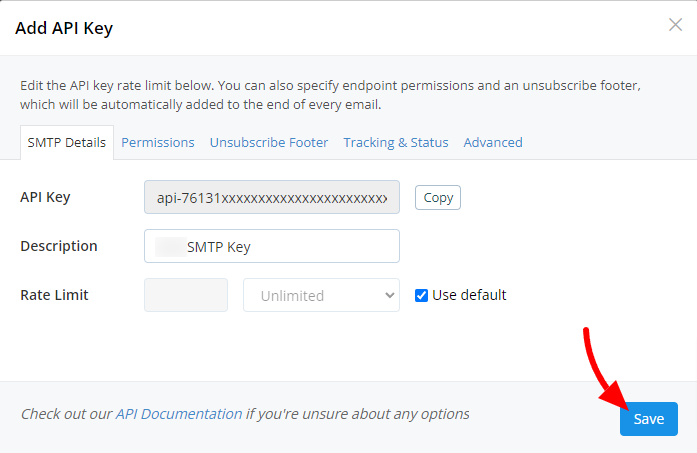
- Copy the generated API key for later use in DoubleScale.

Setting Up Connection
- In DoubleScale, go to SMTP > Connections and click “Add connection”.
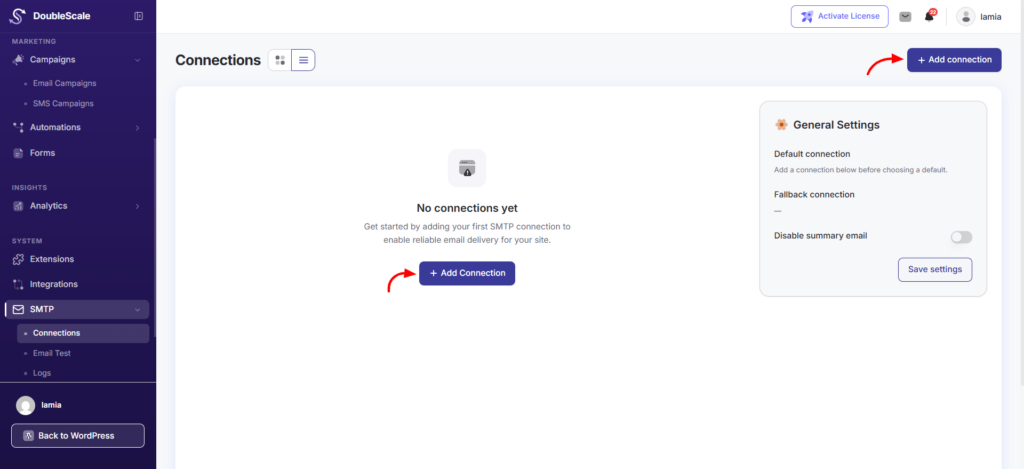
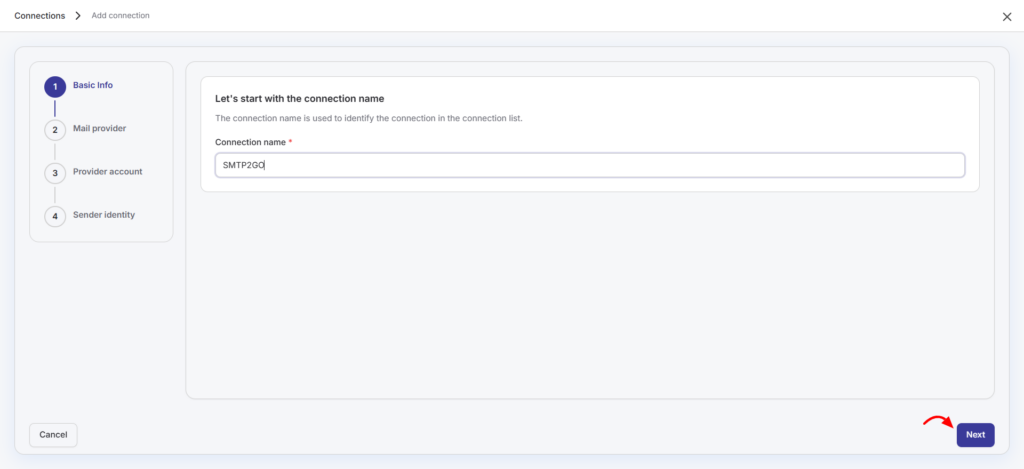
- Name your connection accordingly (e.g., “SMTP2GO”).
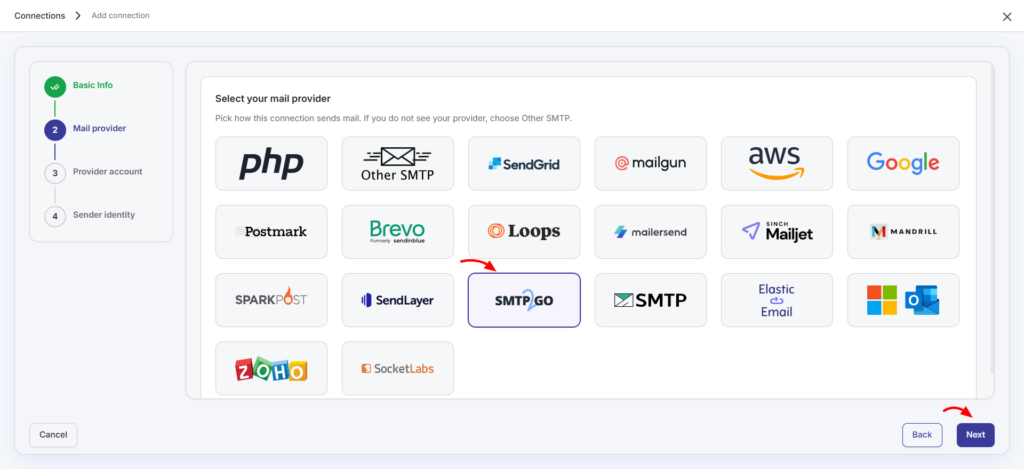
- Choose SMTP2GO from the list of available mailers.
- Then click the “Next” button
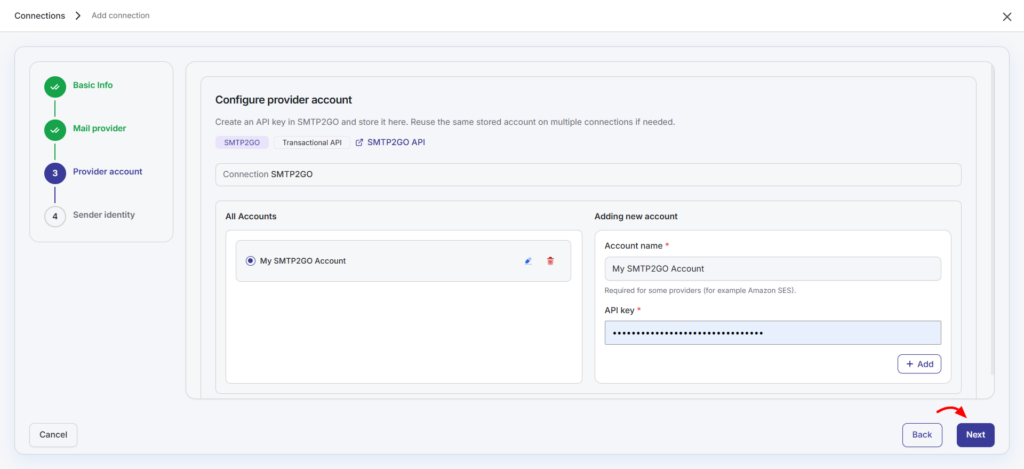
- Provide a descriptive account name (e.g., “My SMTP2GO Account”).
- Paste the API key obtained earlier into the “API key” field.
- Click the “Add” Button.
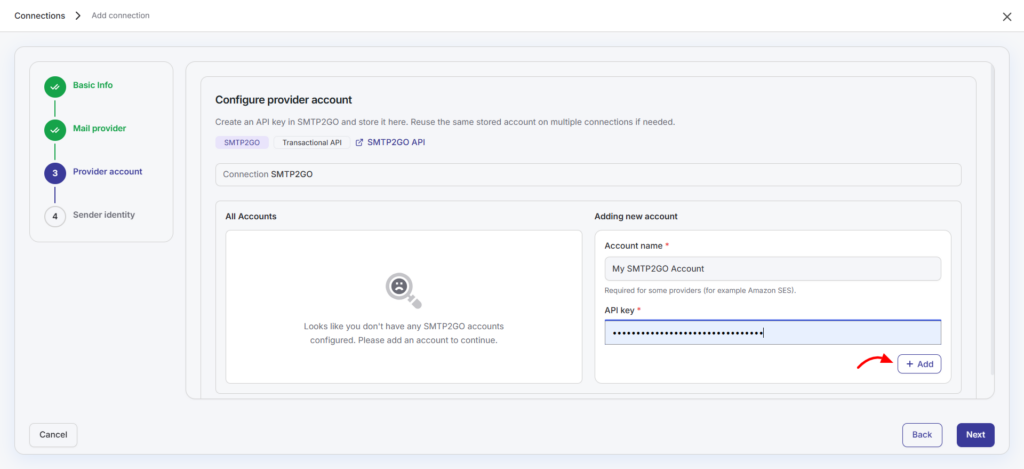
- Click the “Next” button to continue.
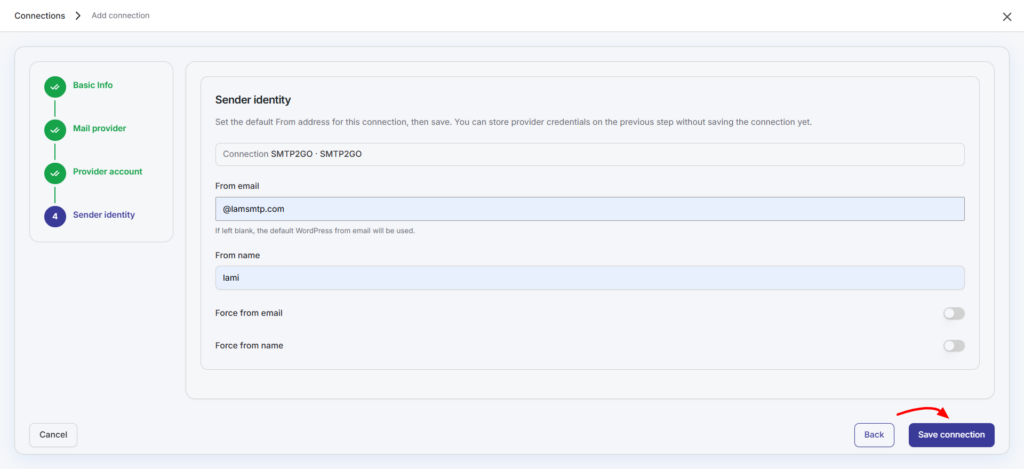
- Enter your email address in the “From email” field.
- Optionally, toggle the “Force from email” option if you wish to enforce this email address for all outgoing emails.
- Specify your sender’s name in the provided “From name” field.
- Optionally, toggle the “Force from name” option to ensure consistent usage of this sender name across all emails.
- Then click the “Save connection” button.