

























toSend is an email delivery service. Connect it to DoubleScale to send your campaigns, automations and WordPress emails through the toSend API.
All you need is a toSend API key and a sending domain verified in toSend. Setup takes about 5 minutes once your domain is verified.
Part 1: Get your toSend API key
- Sign up or log in to your toSend account. If toSend asks you to request early access, do that first and continue once your account is active.
- Add the domain you want to send from, for example
yourdomain.com. toSend shows a few DNS records: add them at the company where you manage your domain, then wait until toSend marks the domain as verified. - Create an API key and copy it. A key can work for one domain or for your whole account; if you plan to send from more than one domain, create a key for the whole account. See the toSend API keys guide for details.
Part 2: Connect toSend in DoubleScale
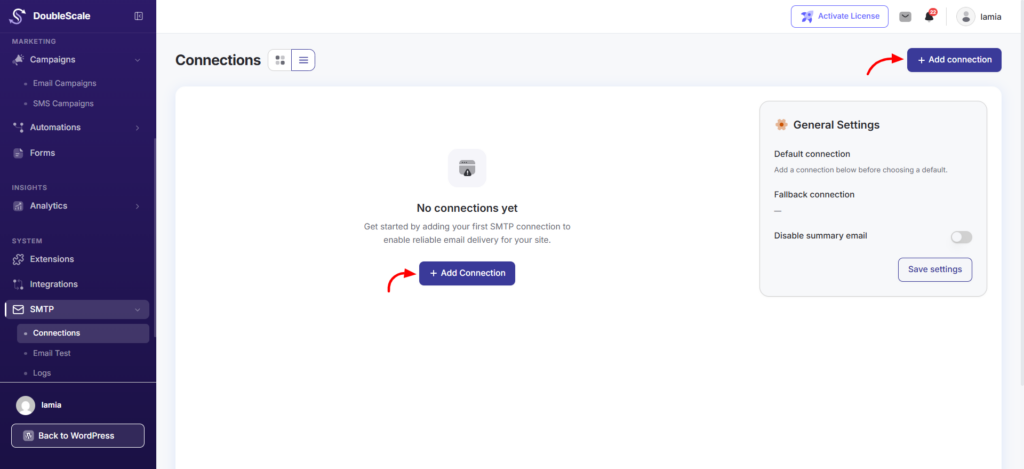
1. In DoubleScale, go to SMTP > Connections and click Add connection.
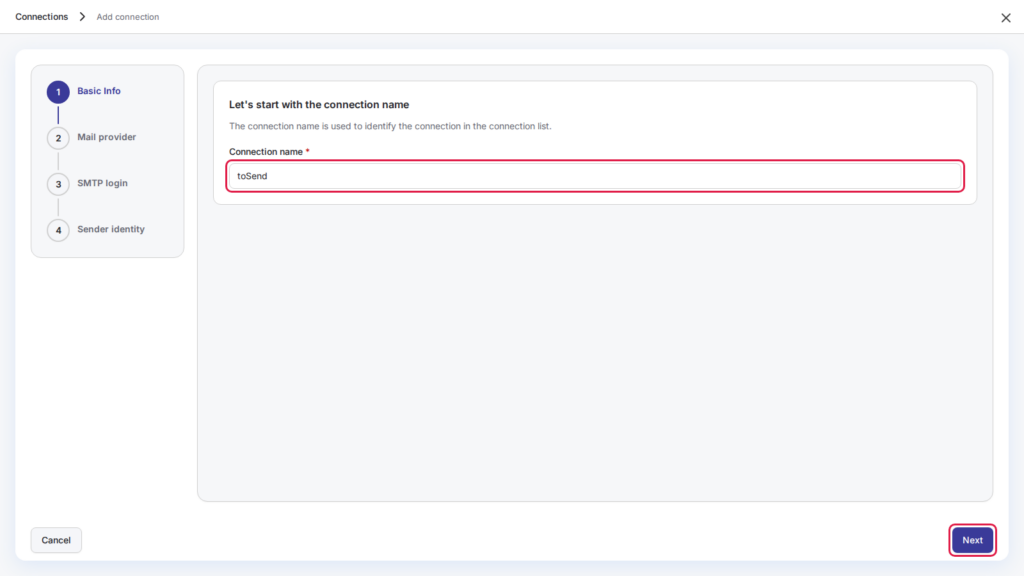
2. Enter a connection name, for example “toSend”, and click Next.
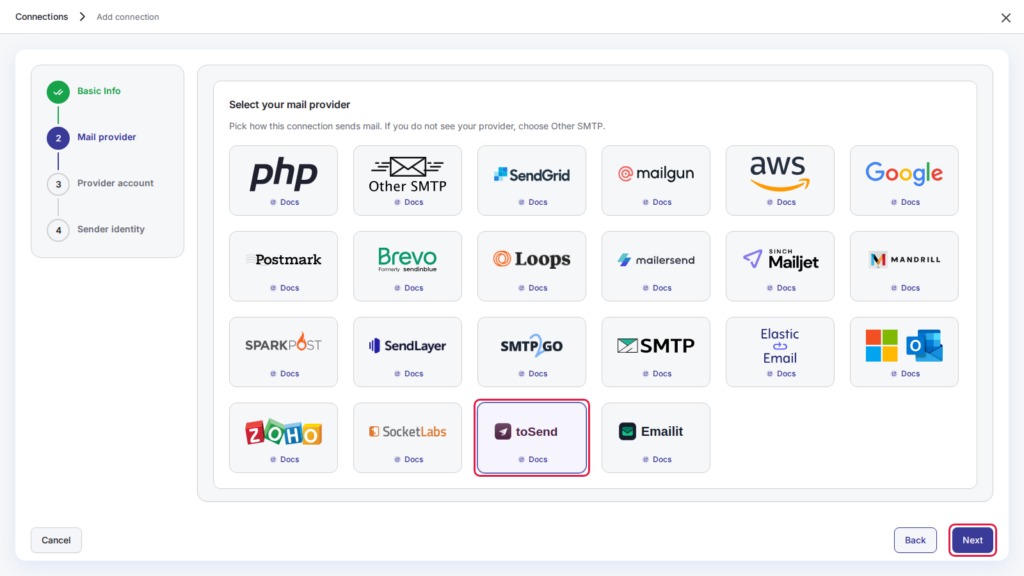
3. Choose toSend from the list of mail providers and click Next.
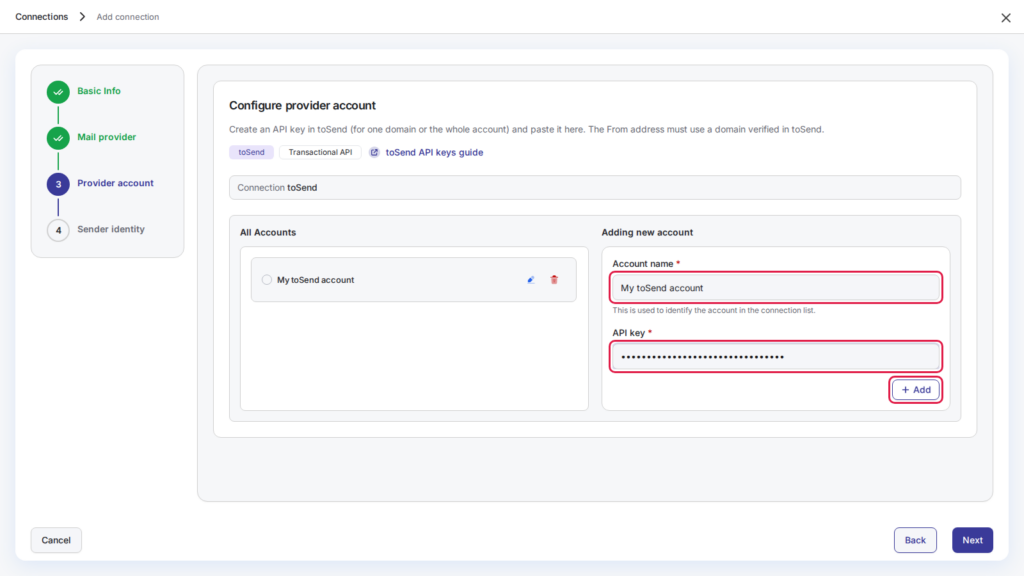
4. Under Adding new account, enter an Account name (only you see it, for example “My toSend account”), paste your API key and click Add. DoubleScale checks the key with toSend before it saves it.
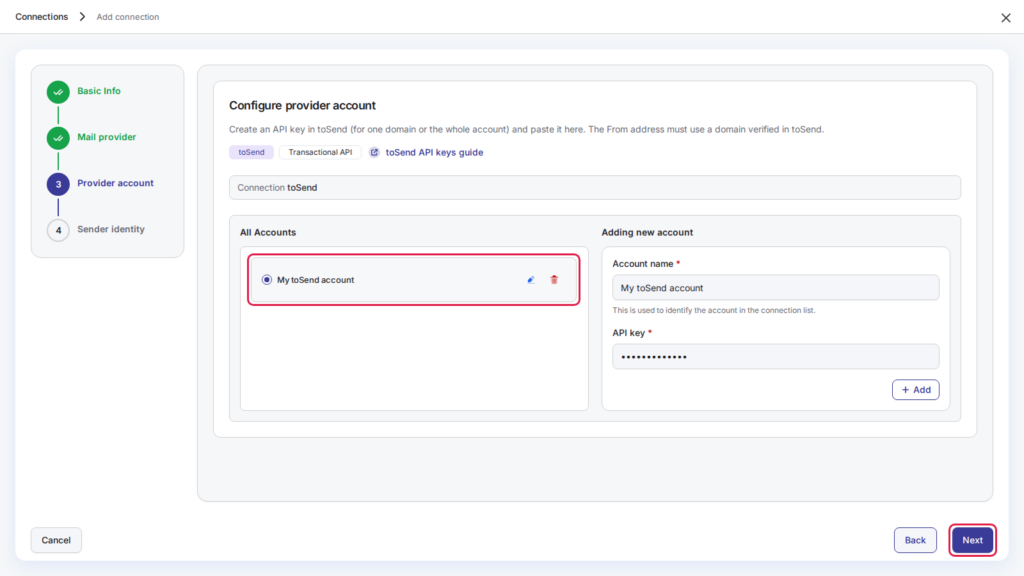
5. Your account now appears under All Accounts. Make sure it is selected and click Next.
6. Enter the From email on your verified domain (for example hello@yourdomain.com) and the From name people will see, such as your company name. Turn on Force from email and Force from name if you want every email sent through this connection to use them, even when another plugin sets a different sender. Then click Save connection.
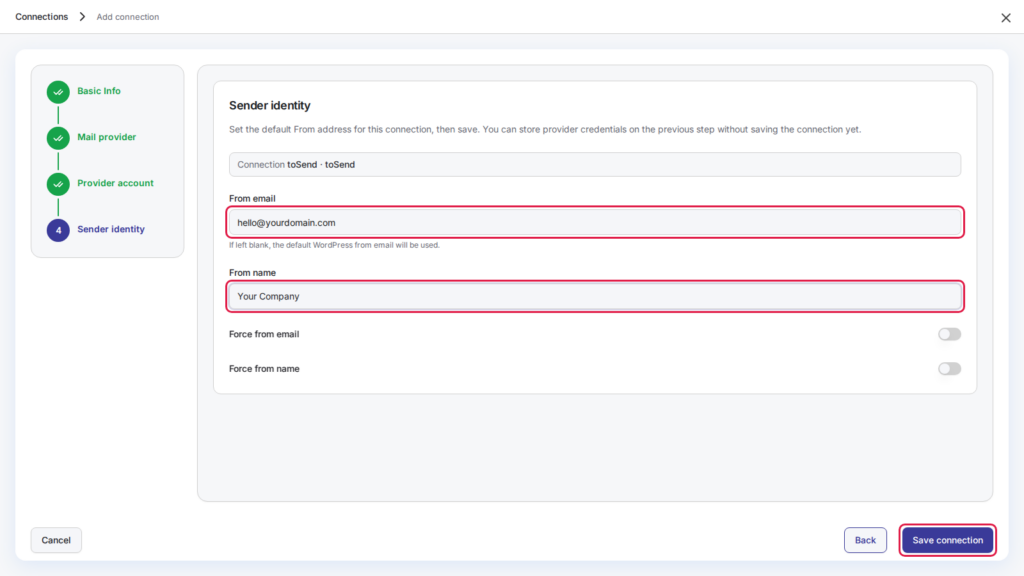
When you save, DoubleScale checks that the domain of your From email is verified in toSend. If it isn’t, the connection is not saved and DoubleScale tells you which domains the key can send from.
7. Go to SMTP > Email Test and send a test email to make sure everything works.
Troubleshooting
- The API key is rejected when you click Add. Copy the key again from toSend and make sure it hasn’t been deleted or revoked.
- “This toSend API key has no verified domains yet.” Finish verifying your domain in toSend (step 2 of Part 1), then save the connection again.
- “toSend can’t send from… that domain isn’t verified on this API key.” Your From email uses a different domain from the ones on this key. Change the From email to one of the verified domains listed in the message, or create a key for your whole account.
Tip: DoubleScale sends each email through the connection whose From email matches, so you can use toSend next to other mail providers.