






















Create an invoice manually or from an accepted proposal. This guide covers the manual path in DoubleScale Pro.
Step 1 — Open Invoices
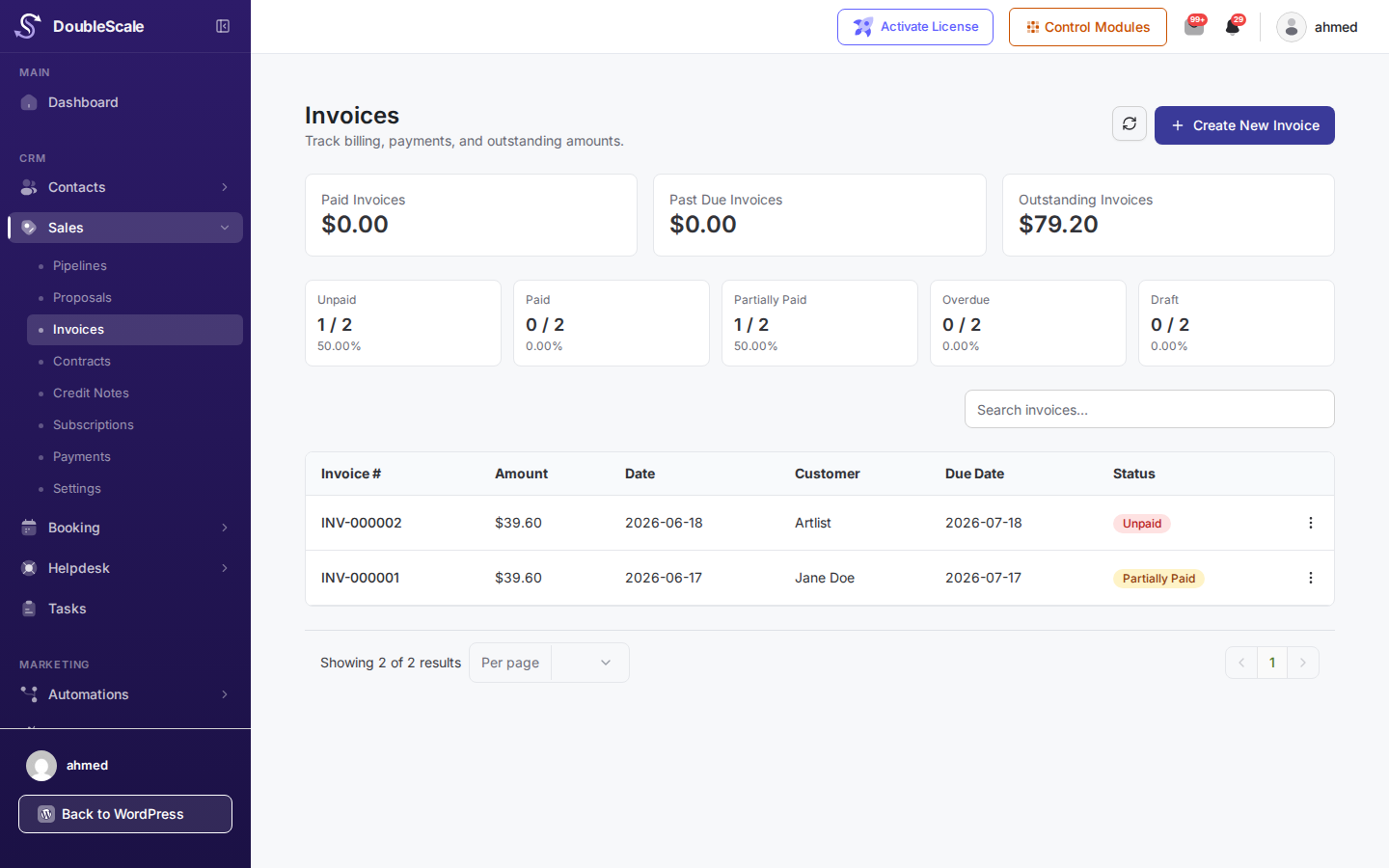
Go to DoubleScale → Sales → Invoices and click New Invoice.
Step 2 — Contact & numbering
- Select the contact to bill.
- Invoice number is auto-generated from Sales Settings (you can override if needed).
- Set the due date — used for overdue status and reminders.
Step 3 — Line items & taxes
Add line items the same way as proposals. Apply tax rates configured under Sales → Settings → Taxes.
Step 4 — Send or save
Send emails a payment link (Stripe if enabled). Save draft lets you finish later. You can also Record Payment manually after sending if the customer pays offline.
Convert from proposal
Shortcut: open an accepted proposal and click Convert to Invoice — line items and contact copy over automatically.